
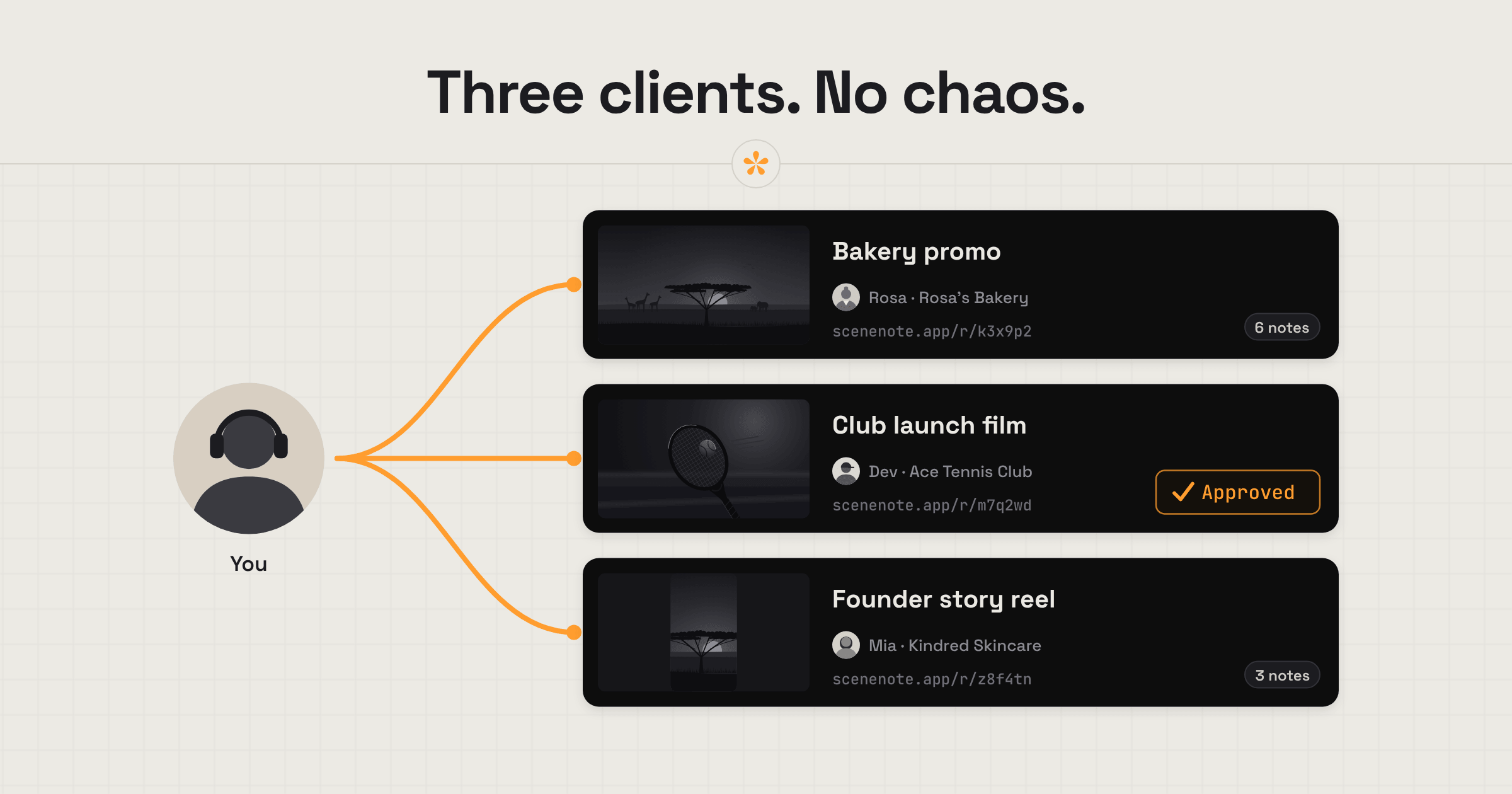
For freelance video editors, keeping each project's feedback in one place makes revision rounds much easier to manage. SceneNote gives every job its own review link, where clients leave notes on exact frames without creating an account. You can reply, resolve feedback, add revised cuts under the same link and export notes as markers for Premiere Pro or DaVinci Resolve.
The short version
- Paste a link to the cut, or upload it, to start a project.
- Add a short pre-watch note if there's something the client should know first.
- Send the review link.
- The client leaves notes on the exact frame, and you reply under them.
- Work through the notes in the review room, and export them as markers to Premiere Pro or DaVinci Resolve if that helps.
- Add the next cut with + version and send the same link.
- The client approves, and their name and the date are recorded.
ON THIS PAGE · 8 SECTIONS
Where does client feedback go wrong for freelance video editors?
For freelance video editors, client feedback usually goes wrong in the gaps between tools. Notes arrive by email, WhatsApp and anywhere else the client happens to type them, they're vague about where in the video they mean, and it's not always clear which cut they're about. One review link per job closes most of those gaps.
The review process is yours to set as the editor, not the client's, so lead with the solution. Don't wait for a client to suggest a better way of sending notes. It's in your interest to put a proper review tool in front of them from the first cut, because it makes everyone's life easier and saves everyone time.
That matters even more when you're freelancing. You're often cutting several projects at once, and editing is time-consuming enough on its own. If every round of feedback means piecing notes together, you'll hit a ceiling quickly, because there are only so many hours in a day. Working efficiently in every part of post-production, feedback included, is how you make the most of them.
It's also about how you come across. Cuts sent by email with lots of back and forth don't give the impression of an experienced editor. A review tool is client-facing, and every time you're client-facing is a chance to show you know what you're doing. It's often small things like that which lead to repeat clients and referrals.
Notes arrive from everywhere
An email, a WhatsApp voice message, something said on a call that nobody wrote down. When you're cutting content for three clients at once, that's three sets of half-notes to piece together. On a SceneNote review link, every note lands in one list, on the moment it's about. If someone answers a notification email instead of opening the link, their reply still appears under the note it answers.
Notes are vague
“The bit near the start feels slow.” Which bit? On a SceneNote review link, clicking into the note box pauses the video and stamps the time, so every note says exactly where it belongs without the client having to think about it. When something is easier to show than describe, they can draw on the frame or record a voice note.
Clients won't make an account
Plenty won't, and they shouldn't have to, especially the small-business client who rarely touches new tech. Reviewers just type their name the first time they leave a note. No account, invite or app, on any plan, and it works on a phone.
More than one person needs to sign off
Your contact likes the cut, then their boss sees it for the first time. Put both on the same review link: everyone sees everyone's notes, so points don't get made twice, and each person can approve the version separately. SceneNote records who approved and when, one line per person. How to manage feedback from multiple reviewers goes into this.
The rounds never end
If v6 is still getting new notes, the job has drifted past what was agreed. Each version in SceneNote keeps its own notes, so it's clear what every round asked for, and the CSV export gives you a dated list to point to if you invoice extra rounds. How many revision rounds should a video project have? covers how to agree them up front.
What does a typical freelance job look like, start to finish?
A typical freelance job in SceneNote runs from one review link to an approved version, with every note collected in one place along the way.
- Start a project. Paste a YouTube, Vimeo, Google Drive or Dropbox link, or upload the file. A link project uses no storage. Should you upload a video or share a link?
- Add a pre-watch note if you need one. The client reads it on the player before pressing play: what this cut is, what isn't finished yet and what feedback you need. Type it or record it as a voice note.
- Send the review link. Wherever you already talk to the client: email, WhatsApp or Slack.
- Collect notes and settle choices. The client leaves notes on the exact frame, range notes for a whole stretch, drawings and voice notes. If they're torn between two music tracks or two endings, ask with a poll and let them pick.
- Work through the notes. Every note sits in one list in the review room, on the moment it's about. Click a note to jump to it, reply when you need more detail, and resolve it once it's done.
- Send them to your timeline if it helps. If you'd rather see the notes inside your editing software, the Markers button exports a file for Premiere Pro (.xml) or DaVinci Resolve (.edl), with each note at its own timecode. It's optional: in our experience, most of the time you'll work straight from the review room. How to get client notes into your editing software
- Add the next cut as a new version. Click + version above the player and send the same link. Older versions stay in the project, read-only, with their notes.
- Get the sign-off. When the cut is right, the client presses Approve, and their name and the date are recorded on that version.
- Keep the record. Download the notes as a CSV, with every note's timecode, author, status and replies, plus who approved.
“My team and clients love SceneNote! It makes the whole revision process so much easier. I spend less time managing feedback and more time being creative.”
Sam Kolder, YouTube creator, @koldstudios
How do you come across as more professional to a client?
Freelance video editors come across as more professional when the client gets a proper place to review, knows what to look at, and can see where the job stands at every stage. In our experience, most clients won't mention it, but they notice.
- A review room, not a file in an email. One link holds the cut, the notes and every version, so the client never has to dig out an old attachment. It feels like a professional process because it is one.
- A pre-watch note. Two lines before they press play save a lot of wasted notes. “The grade isn't done yet, so it will look flat” stops a round of colour comments on a cut that isn't about colour.
- Ask for the feedback you need. Tell the client what this round is for: the story, the timing, the music. Then invite them to point at the exact moment and say what they'd change and why. Good, accurate feedback is something you can ask for.
- Versions and a clear sign-off. Each cut sits as v1, v2, v3 on the same link, and the client approves the one that's finished. Nobody wonders which file is final.
How to present a cut to a client professionally has a pre-watch note you can copy, and how to win bigger clients as a video editor covers what larger clients expect beyond the edit.
What does this look like on a real project?

Feedback used to come by email and WhatsApp. I'd try to keep it all in one place, but clients remember something in the moment and message you wherever they are. So notes end up all over the place, you miss one, and without a way to point at the exact moment or part of the frame, a lot of it was vague.
Now every client gets a SceneNote review link with a pre-watch note telling them where we are in the edit. If it's a first draft before the grade and the sound mix, I remind them those are coming in the next versions, so not to worry about them yet.
Having one source of truth matters more than anything. When a client asks why something changed, I can go straight back to the note where we decided it.
When I'm juggling a few jobs at once, I use My board as a to-do list and tick things off as I go. And my advice from your very first job: communicate. It makes you efficient, and that comes across as professional, because time is money for everyone.
Which SceneNote feature fits which moment?
Freelance video editors use a handful of SceneNote features over and over. This is which one to reach for, and when.
| The moment | The feature | Why it fits |
|---|---|---|
| The client needs context before watching | Pre-watch note | They read it on the player before pressing play |
| A note about one moment | Timestamped note | Pinned to the exact frame, so you jump straight to it |
| A note about a whole section | Range note | Covers a start and an end, and loops when you open it |
| “This thing here” | Drawing on the frame | A pen or arrow on the paused picture |
| Easier to say than type | Voice note | Up to 60 seconds, transcribed automatically |
| A choice to be made | Poll | Two to five answers, and the client picks one |
| Thumbnails or stills to choose from | Image set | Notes pinned to the exact spot on each image |
| The next cut is ready | + version | Same link, and each version keeps its own notes |
| The cut is finished | Approve | A dated record of who signed off |
| Working through the notes | The notes list | Every note in one place, resolved as you go |
| You want the notes in your edit | Markers export (optional) | Every note on your Premiere Pro or DaVinci Resolve timeline |
| Proof of what each round asked for | CSV export | Every note, reply, status and approval in one sheet |
What does SceneNote cost a freelance editor?
SceneNote's free plan is a real plan, not a trial. It includes unlimited link projects and reviewers, 5 GB for uploads across two uploaded projects at a time, streaming up to 1080p, and every review feature: notes, drawing, voice notes, polls, versions, approval and marker export. Plenty of freelancers start there.
Pro is for when SceneNote becomes the way you run every job. It's one flat price of $9 a month, with no per-seat fees, and it adds the tools that save the most time once you're juggling several clients:
- My board, a private board built from the project's notes. Sort the work into columns like Sound, Colour and Graphics, and ticking a card resolves the note for everyone. Clients never see it.
- Stills inside a video project, so references, thumbnails and key frames sit right next to the cut.
- Compare versions with a wipe or side by side between uploaded cuts, so the client sees exactly what changed.
- 100 GB of storage, unlimited uploaded projects that never expire, 4K streaming and original downloads.
- Feedback deadlines and viewer activity, so you know who has watched and when notes are due.
- Passwords, view-only links and your own branding on the review room.
Which guides help freelance video editors most?
These guides cover each part of a freelance job in more detail.
Sending a cut
- How to get clear feedback on a video from a client
- How to share a video for review and sign-off
- How to manage versions of a video edit
Notes into your edit
Working with clients
- How many revision rounds should a video project have?
- How to present a cut to a client professionally
- How to win bigger clients as a video editor
FAQ
Do my clients need a SceneNote account?
No. Clients type their name the first time they leave a note, and that's all. There's no account, invite or app, on any plan, and the review link works in any browser, on a computer or a phone.
Does SceneNote work with Premiere Pro and DaVinci Resolve?
Yes. The Markers button exports an .xml file for Premiere Pro or an .edl file for DaVinci Resolve. Timestamped notes, range notes, general feedback, polls and voice note transcripts all become markers on your timeline, each at its own timecode.
Should each client's job have its own project?
Yes, from the very first job. Make one SceneNote project per job, and each one gets its own review link. That keeps every client's work private, because a client only ever sees the project you send them. It also keeps each job tidy: its versions, notes and approval belong to that job alone, nothing from another client's cut gets mixed in, and the CSV at the end is a clean record of that one job, which helps when you invoice.
How long do projects last on the free plan?
Link projects in a free account never expire. Uploaded projects lock 30 days after the last upload, and you then have 14 days to download the files before they're deleted, so keep your masters on your own drive.
Can I store my footage in SceneNote?
You can. Pro comes with 100 GB of storage for video, audio and images, to use however you like. SceneNote is built around review rather than media management, though, so if you're a large team with a big library of rushes and assets, a dedicated media asset manager will suit you better. That isn't what SceneNote is focused on today. Your editing software's project files stay on your own drive.
What's the simplest way to get client feedback as a freelance video editor?
Send one review link per job and let the client point at the exact frame. Then work through the notes in the review room, where they're all collected in one place, resolving each one as you go. Export them to your timeline as markers if that helps, and add each new cut as a version on the same link until the client approves it.
One link per job, every note on the frame.
No sign-up needed to paste a link.
Related guides
Bryn North
Filmmaker and creative director · part of the team behind SceneNote
Bryn North is a filmmaker and creative director who has been making films since 2013, mostly documentaries and travel films, with a soft spot for stories about cultural heritage. He has directed, shot and edited launch films for DJI, worked with brands like Audi and Samsung and with a number of tourism boards, and some of his personal travel films have had millions of views. Working with a new client almost every month, he found that most of the job was communication, and that every client gave feedback differently. SceneNote is his answer: one simple way for clients to leave detailed notes and talk them through.
More guides by Bryn →