
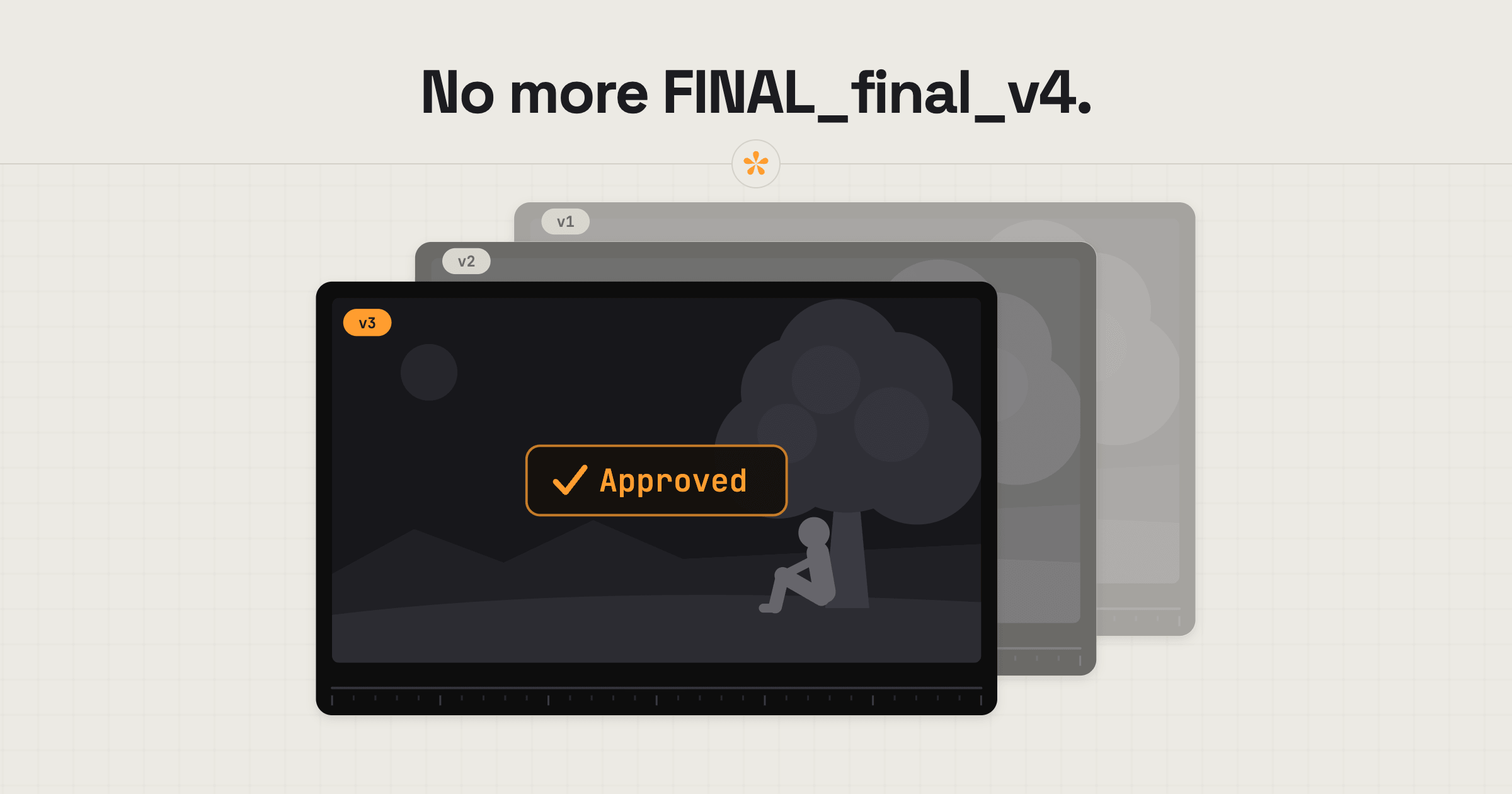
To manage versions of a video edit, keep every cut under one review link instead of sending a new link for each revision. A video review tool like SceneNote lets you add new cuts as v2, v3 and so on, while keeping each round's feedback attached to the correct version. Clients always open the latest cut, and older versions remain available for reference.
The short version
- Create a SceneNote project for v1 and send the client the review link.
- Work through the notes and resolve them.
- In the same project, click + version and add the next cut, as a link or an upload.
- Tell the client what changed in a line or two.
- Send the same review link again.
- Repeat until someone approves the final version.
ON THIS PAGE · 8 SECTIONS
Why does version control matter so much in video?
Version control matters in video because most jobs go through at least two or three cuts (often more), and every cut gets its own notes. Without one place for them, things slip:
- File names stop meaning anything. final.mp4, final_v2.mp4, final_v3_REAL_final.mp4.
- The client watches last week's link and sends notes on a cut you've already changed.
- Old notes resurface. Something you fixed in v2 comes back as a note on v4.
- Nobody can tell what changed between two cuts that look almost the same.
Where do versions come up on real projects?
Versions aren't only client rounds. On bigger jobs, almost every department produces its own.
| Where | What the versions are | Who usually reviews |
|---|---|---|
| Client rounds | Rough cut, fine cut, picture lock | Client, producer |
| Internal rounds | The editor's cut before the client sees it | Director, producer |
| Grade | Look A, look B, the final grade | Director, DOP, client |
| Sound mix | Temp mix, final mix | Director, producer |
| VFX | A shot at each stage | Director, VFX supervisor |
| Music | Two or three track options | Client, director |
| Social cutdowns | 30s, 15s and vertical cuts from one master | Client, social team |
How do you add a new version, step by step?
Adding a new version to a SceneNote project takes a few seconds once the new cut is exported.
- Open the project you sent for the last round.
- Click + version above the player.
- Paste a link or drop a file. Each version can come from anywhere: YouTube, Vimeo, Drive, Dropbox or an upload.
- Send the same review link. The client lands on the new version. Older versions stay in the project, read-only, with their notes.
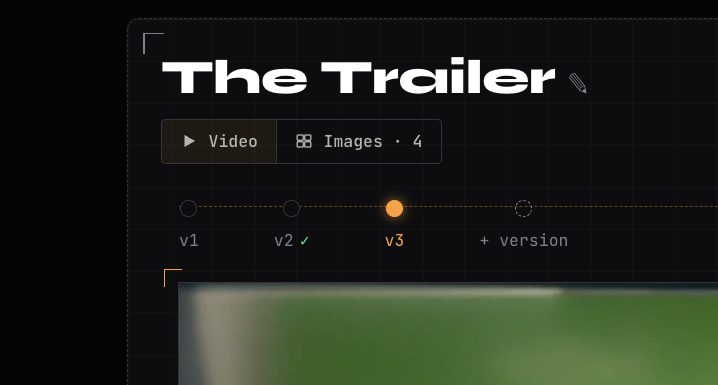
And when the final cut is right, the client clicks Approve, and their name and the date are recorded on that version.
How do you tell the client what changed?
Tell the client what changed in one or two lines when you send the new version, either in your message or in the pre-watch note on the project. It saves them hunting for differences, and it points their eyes at what matters this round.
v3 is up on the same link: [review link]
Changes: intro shortened by about 10 seconds, new music track, logo moved to the end. The grade is still to come in v4.
Could you look at the new music in particular?
For very visual changes, like a re-grade or graphics, you can also show exactly what changed with a wipe or side by side between two uploaded versions (Pro). How to compare two versions of a video side by side covers it.
How many versions is normal?
It really depends on the project, but two or three client rounds is common for a short brand or social video, with internal rounds before that. Longer pieces, like film and documentary, will run into the dozens. What matters more than the number is agreeing it up front. How many revision rounds should a video project have? goes into this.
What does this look like on a real project?

I'm a pretty methodical editor, so I love version control. Mine usually goes like this: v1 is a rough cut to get the story right, then we move into the finer details, like swapping shots and timing, and the last version is all about the colour grade.
That's just how I work, but being able to tell the client exactly what each version is for narrows their focus to one thing at a time, which makes everything more efficient. And because each round's notes stay with their own version, nothing gets confusing when we move on. It keeps the whole process organised and neat.
How to handle common problems
The client watches an old link
If the client sends notes on a cut you've already changed, they've probably opened an older link. Keep every version in one SceneNote project and send the same review link each time: it always opens on the latest version. And ask the client to approve each version once it's done, so there's a dated record of when each stage was signed off.
Notes end up on the wrong version
If a note clearly belongs to the new cut but sits on an old one, it was probably left before the new version went up. Older versions are read-only once there's a newer one, so this mostly sorts itself out. If it happens, reply on the note to say it's been picked up in the latest cut.
The rounds never end
If v7 is still getting new notes, the job has drifted past what was agreed. Point back to the number of rounds in the quote, and treat further changes as extra work. A line about revision rounds in the contract makes this conversation much easier.
Internal notes are visible to the client
If your team reviews a cut before the client sees it, keep that internal round in its own project. Then add the client-ready cut to the client's project, so your internal notes never appear on their screen.
FAQ
Can the client still see older versions?
Yes. Older versions stay in the project with their notes, so anyone can look back at what was said. They're read-only, so new notes always go on the latest cut. If someone tries to leave a note on an older version, SceneNote tells them it's read-only and points them to the latest one.
Can versions come from different places?
Yes. v1 can be a YouTube link, v2 a Dropbox link and v3 an upload. Each version is added the same way, with + version.
Does the client need a new link for each version?
No. The client keeps the same review link for every round, and it always opens on the latest version.
Does approving a version stop new notes?
No. Approving records who signed off and when, but notes can still be added. If you want to stop all feedback, the owner can close feedback, which locks the project and keeps the notes visible.
What's the simplest way to manage versions of a video edit?
Keep every cut in one review project, add each new one with + version, send the same link each round, and say what changed. The notes stay with the version they were about, and the client always sees the latest.
One link for every version.
No sign-up needed to paste a link.
Related guides
Kiril Dobrev
Filmmaker · part of the team behind SceneNote
Kiril Dobrev is a filmmaker with 15 years of experience and a passion for documentary and travel. He’s spent a lot of that time in the editing room, obsessing over how to make his workflow better, and the feedback loop has always been a big part of that. Post-production still hasn’t had a good enough answer to it. SceneNote was born from that, with one simple idea: make feedback better.
More guides by Kiril →