
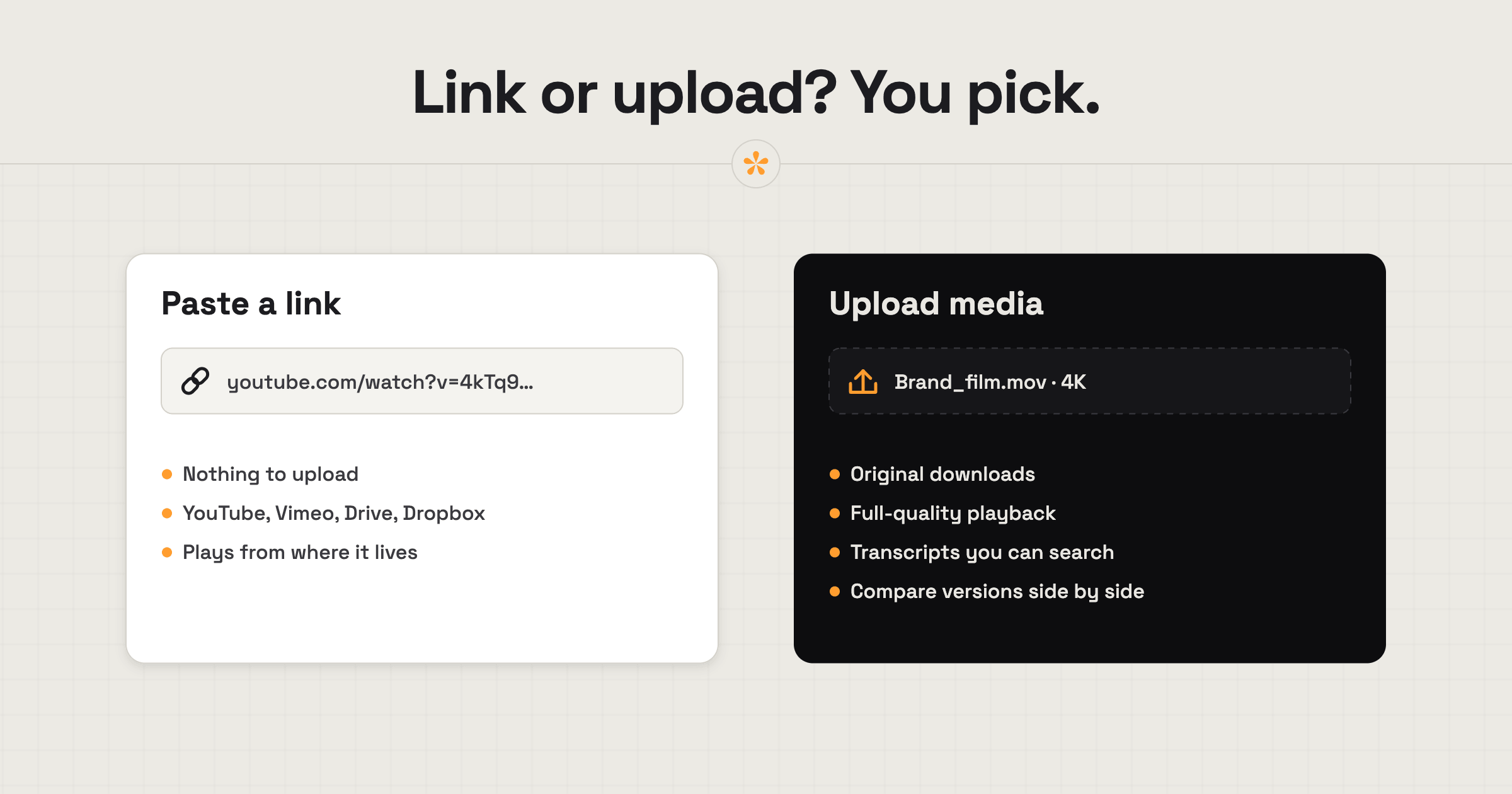
To get client feedback on a video, use a review tool like SceneNote with either an existing video link or an uploaded file. If your video already lives on YouTube, Vimeo, Google Drive or Dropbox, pasting its link is quick, free and uses no SceneNote storage. Upload instead for confidential work or features like searchable transcripts, higher-quality playback and side-by-side comparisons. For sensitive videos, add password protection (Pro).
ON THIS PAGE · 7 SECTIONS
What are the three ways to share a video for review?
There are three ways to get a video to a client for feedback: send a plain link, make a review project from that link, or upload the file to a review tool. A plain link is fine for watching. For feedback, the choice is really between the other two.
| Plain link (YouTube, Drive, Dropbox) | Review project from a link | Uploaded file | |
|---|---|---|---|
| Cost | Free | Free, unlimited | Uses storage (5 GB free) |
| Notes on the exact frame | No | Yes | Yes |
| Drawing, voice notes, polls, approval | No | Yes | Yes |
| Privacy | Depends on the host's sharing setting | Depends on the host's sharing setting | Stays in SceneNote; password on Pro |
| Playback | The host's player | The host's player | SceneNote's player, frame-exact |
| Transcript, compare, full-quality download | No | No | Yes (compare and download are Pro) |
| How long it lasts | As long as the host keeps it | Never expires in an account | Free uploads: 30 days after the last upload |
When is a review project from a link the best choice?
A review project from a link is the best choice when the video already lives online and a second upload would just be extra work. SceneNote is link-first by design, so link projects are free, unlimited and never expire in an account.
It suits:
- YouTubers who already upload unlisted drafts.
- Editors who export into a Dropbox or Drive folder anyway.
- Corporate clients whose files all live in Google Workspace.
- Quick rounds where you just need notes on a rough cut today.
When should you upload instead?
Upload the file to SceneNote when the link route can't give you what the job needs. Some common reasons:
- The work is unreleased and you don't want it on YouTube at all, even unlisted.
- A very large file sits on Drive or Dropbox. Big exports can occasionally stream slowly from there, depending on the size. An upload plays smoothly anywhere.
- You need to step frame by frame, for a cut point or a VFX shot.
- You want a searchable transcript, for interviews, documentaries or podcasts.
- You want to show what changed between two versions, side by side or with a wipe. It's especially useful for colour grades and graphics (Pro).
- You want to avoid heavy platform compression. YouTube re-compresses everything it hosts, which can soften detail and a grade. An upload keeps your original file untouched.
- Add image sets to a video project, like thumbnails or graded frames, on the same link (Pro).
- The client should download the master at full quality, but only when you say so. Say you're waiting on an invoice: the client can review now, and you switch on Download original once it's paid (Pro).
One thing uploads aren't for: SceneNote isn't a home for source footage or an archive. Upload the cut you want feedback on.
How do you do each one?
From a link:
- Copy the video's link (YouTube, Vimeo, Google Drive, Dropbox, or a direct .mp4 or .mp3).
- Paste it on scenenote.app and click Create project.
- Send the client the review link.
From an upload:
- Sign in on scenenote.app, or sign up if you don't have an account yet: it's free and quick, with Google or your email. Then drop the file onto the create card.
- Wait for it to process (usually a few minutes for a typical cut).
- Send the client the review link.
How much storage do you get, and how long do projects last?
Link projects use no storage. Uploads count against your plan's storage.
| Free | Pro | |
|---|---|---|
| Link projects | Unlimited, never expire | Unlimited, never expire |
| Storage for uploads | 5 GB, up to 2 upload projects | 100 GB |
| How long uploads last | 30 days after your last upload, then 14 days to restore | Nothing expires |
| Upload quality | Up to 1080p | Up to 4K |
Projects made without an account expire after 45 days without visits. Pro is $9 a month or $90 a year.
Uploaded footage only serves your project and its feedback. It's never used for AI training or sold.
What does this look like on a real project?

Ever since I started using SceneNote, I mostly upload directly. It comes across as professional, and it gives me more flexibility, especially letting clients download the original, uncompressed file, which they often ask for.
FAQ
Is it safe to review a video from an unlisted YouTube link?
It's totally fine for most work, but unlisted isn't necessarily private: anyone with that YouTube link can watch. For confidential or embargoed work, upload the file and add a password on Pro. How to share a confidential video for review covers the full checklist.
Can I switch a link project to an upload later?
Yes. Add the next cut to the same project with + Version, as an upload instead of a link. Each version can come from a different source.
Do link projects play as well as uploads?
Yes, almost always. Link projects play through the host's player, so playback is as good as YouTube, Vimeo, Drive or Dropbox makes it. Occasionally a very large file on Drive or Dropbox loads more slowly, and stepping frame by frame is only exact on uploads.
Which file types can I upload?
Video: MP4, MOV, MKV, WebM and MXF, including ProRes and DNxHD inside MOV or MXF. Audio: MP3, WAV, AAC, FLAC, OGG and M4A. Images: JPEG, PNG and WebP, plus HEIC from Safari.
So, upload or link?
Use a review project from a link when the video already lives online: it's free, unlimited and quick. Upload when you need privacy, a transcript, compare or original downloads. Either way, the client gets one review link and leaves notes on the exact frame.
Paste a link or drop a file.
Pick whichever works for you!
Related guides
Kiril Dobrev
Filmmaker · part of the team behind SceneNote
Kiril Dobrev is a filmmaker with 15 years of experience and a passion for documentary and travel. He’s spent a lot of that time in the editing room, obsessing over how to make his workflow better, and the feedback loop has always been a big part of that. Post-production still hasn’t had a good enough answer to it. SceneNote was born from that, with one simple idea: make feedback better.
More guides by Kiril →