
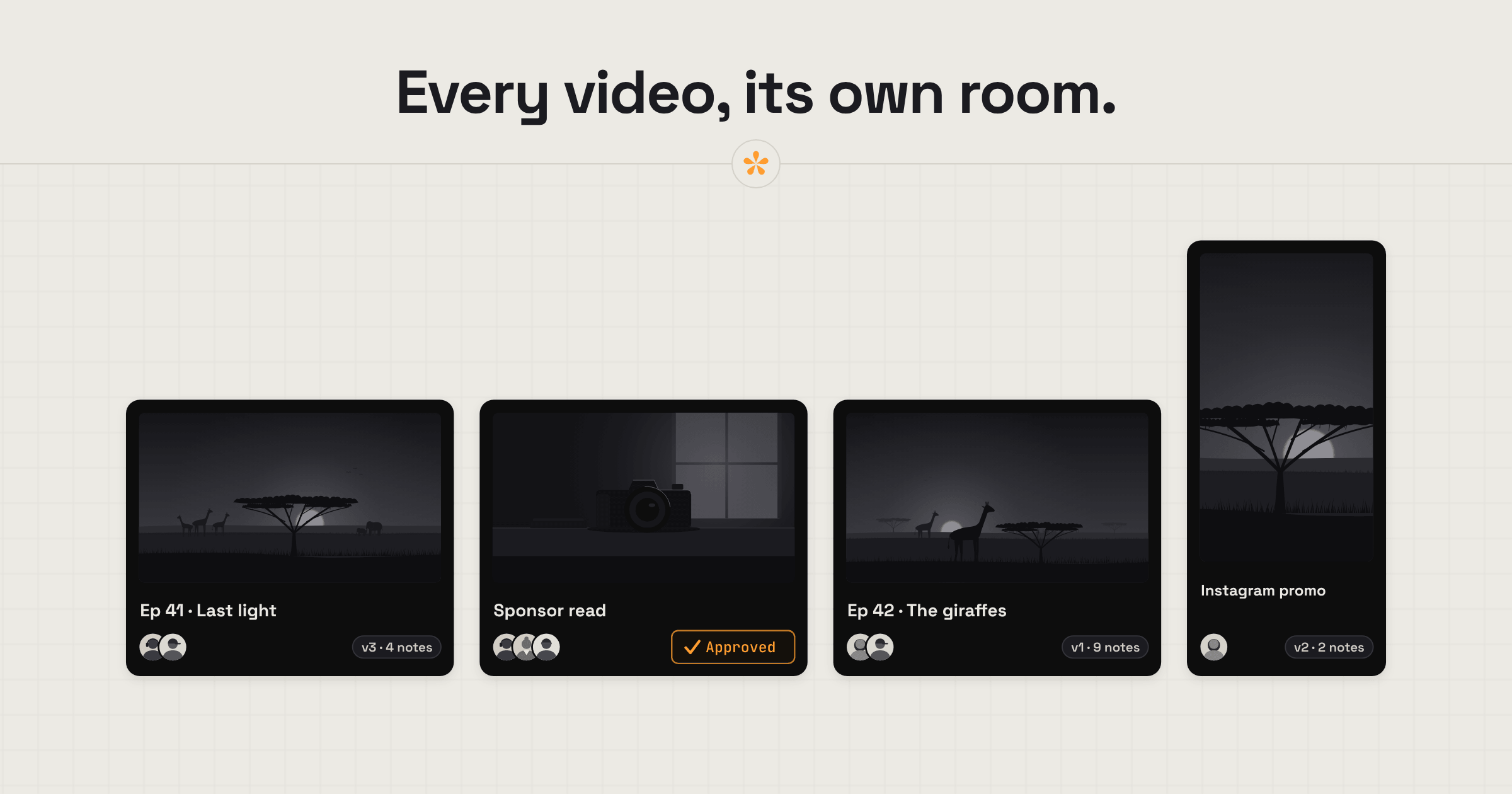
YouTube teams often have several videos moving towards a publishing deadline, so keeping reviews organised is essential. SceneNote gives each video its own review link, where channel owners, editors and sponsors can leave notes and drawings on exact frames. Upload a cut or use an unlisted YouTube link, then keep every revision and its feedback together until the video is approved and ready to publish.
The short version
- Upload the cut, or paste an unlisted YouTube link, to start a project.
- Send the review link to whoever needs to see it.
- Notes and drawings land on the exact frame, and email alerts tell you when they arrive.
- Work through the notes in the review room, replying where you need more.
- Add the next cut with + version on the same link.
- Repeat until the video is approved, then publish.
ON THIS PAGE · 9 SECTIONS
Where does review go wrong for a YouTube team?
Review goes wrong for a YouTube team when everything runs through one inbox. A channel is rarely one video at a time: there are usually several in progress, often with work that reaches beyond YouTube, and sometimes more than one editor. Feedback that isn't kept in a proper review room gets disorganised and messy very quickly, especially in email chains that stack up with every new version. And because YouTube is so visual, a lot of the feedback is about pointing at something on screen. SceneNote is built for exactly this.
Every video needs its own review space
Each video, Short or sponsor cut is its own piece of work, so it gets its own SceneNote project with its own notes. It also tends to have its own people: one editor on the main video, a motion designer on the intro, a thumbnail artist on the stills. Send each person only the links they need, and every review space stays focused on one piece of work and the people working on it.
Notes are scattered across email, DMs, Discord and WhatsApp
The channel owner replies in one place and the sponsor by email, and notes get lost. On a SceneNote review link every note lands in one list, on the moment it's about. Built-in replies help too, because feedback often turns into a back-and-forth. Replying under the note keeps that conversation, and its context, exactly where the note belongs.
A cut needs several rounds
Most videos need more than one pass before they're ready, so it matters which cut a note was about. Each version in SceneNote keeps its own notes, and the review link always opens on the latest one.
Visual notes are typed in words
A lot of feedback (particularly on YouTube) is visual: something distracting in the frame, where a title should go, which bit of B-roll to swap. Drawing on the paused frame shows it exactly, with a pen or an arrow.
Sponsor reads need the brand's sign-off
Brand reads are commonplace, and the brand usually wants to approve its segment before the video goes out. See how to get a sponsor's sign-off, below.
Deadlines and several videos at once
YouTube channels often publish on a schedule, and editors are often working on more than one video. Some channels also work with several editors at once, plus motion designers, thumbnail artists and others. Email alerts and the activity bell keep everyone on top of what's new, across every project.
What does a typical YouTube video look like, start to finish?
A typical YouTube video in SceneNote runs from the first cut to an approved version on one review link.
- Start a project. Upload the cut, or paste an unlisted YouTube link. Unlisted links work, so the video never has to be public. How to get feedback on an unlisted YouTube video
- Add a pre-watch note if you need one. Typed, or as a voice note of up to 60 seconds: “The sound isn't mixed yet, so judge the story and pacing.”
- Send the review link to the channel owner, producer or anyone else who needs to see it.
- Stay on top of notes. Email alerts, batched so a busy project doesn't flood your inbox, or the activity bell, which shows what's new across all your projects.
- Work through the notes. Resolve them as you go, and reply under a note when you need more detail.
- Add the next cut with + version in the same project, on the same link.
- Repeat until it's approved. The channel owner presses Approve, and their name and the date are recorded.
“SceneNote has become an integral part of how we edit for our YouTube channel. With editors across the globe, review has always been a challenge for us. The whole team can add feedback and ideas in one place, and it fits into how we already work.”
Brian Trautman, YouTube creator, SV Delos
How do you get a sponsor's sign-off on their read?
To get a sponsor's sign-off on a YouTube read, send them the cut with their segment clearly marked, so they don't have to watch the whole video.
- Add a pre-watch note with the timecode of the read: “Your segment runs from 4:12 to 5:05.”
- Leave a range note on the segment itself, so it shows on the timeline and loops when they open it.
- Ask them to approve. Their name and the date are recorded on that version.
How do you pick thumbnails with a YouTube team?
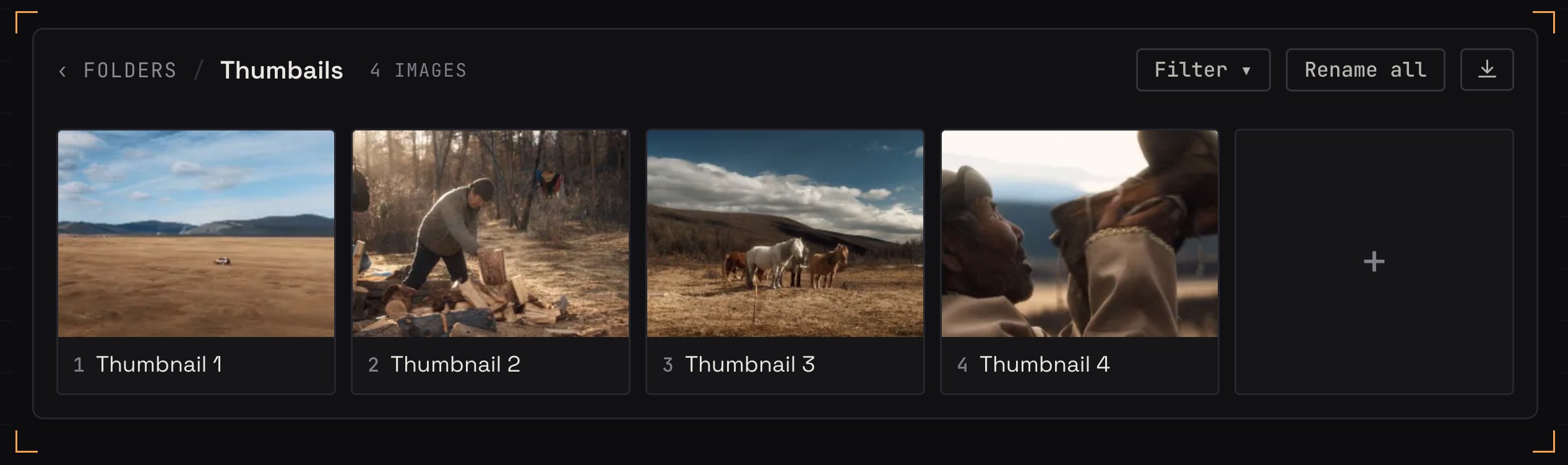
To pick a thumbnail with your team, put the options side by side and let everyone vote.
- Pull the stills from the edit into an image set called something like “Thumbnails”.
- Add a poll with the options, and let the team vote.
- Pin notes or draw on the exact spot for tweaks: “brighter face”, “text here”.
How do editors keep track of several YouTube videos?
On the editor's side, keeping track of several videos starts with giving each video its own project, so every note in it is about that one video. That's what makes the rest easy: knowing what's new, what still needs working through and what's done, and keeping each back-and-forth on the moment and the video it belongs to. Email alerts and the activity bell show new notes across every project, and resolving each note as you go shows what's left at a glance.
On bigger projects, Pro adds My board, a private board where the editor can sort the notes into custom columns (like Sound, Colour and Graphics), plus feedback deadlines and stills inside the video project.
What does this look like on a real project?

I've spent quite a bit of time editing for YouTube channels, and one thing I've learned is that a regular publishing schedule doesn't leave much room for a messy review process. When there's another episode to get out, time spent chasing feedback is time you're not spending on the edit itself.
Every channel has its own way of working, but the review process is usually pretty similar. You send a cut, get feedback, make changes and send the next version. For years, that meant long email chains with notes and timecodes going back and forth. It worked, but once you had a few rounds going, it was surprisingly easy to miss something or lose track of which version a note was about.
That's been one of the biggest improvements for me with SceneNote. Everyone leaves their notes directly on the video, at the moment they're talking about, and the whole conversation stays there. I can work through the feedback without having to piece it all together first. It sounds like a small change, but when you're doing this week after week, the time saved really adds up.
Which SceneNote feature fits which moment for a YouTube team?
YouTube teams use a handful of features over and over.
| The moment | The feature | Why it fits |
|---|---|---|
| Context before watching | Pre-watch note, typed or voice | Reviewers read or hear it before pressing play |
| A note about one moment | Timestamped note | Pinned to the exact frame |
| “Move that here” | Drawing on the frame | A pen or arrow on the paused picture |
| A stretch to tighten | Range note | Covers a start and an end |
| The sponsor's segment | Range note and approval | They go straight to it and sign it off |
| Choosing a thumbnail | Image set and a poll | Options side by side, and everyone votes |
| Keep a shot or cut it? | Poll | The team votes, and the decision is on record |
| The next cut is ready | + version | Same link, and each version keeps its own notes |
| Knowing what's new | Email alerts and the activity bell | New notes across every project |
| Ready to publish | Approve | A dated record of who signed off |
Which guides help YouTube teams most?
- How to get feedback on an unlisted YouTube video
- How to get feedback on a vertical video (Shorts)
- A 10-point video feedback checklist for clients (a final check before publishing)
- How to collaborate with other editors on the same project
FAQ
Does the video need to be public on YouTube?
No. Unlisted YouTube links work, so the video can stay hidden until it's ready. You can also upload the file instead of using a YouTube link.
Can the channel owner review on a phone?
Yes. The review link works in any phone browser, with no app or account. Notes, drawings and voice notes all work on a phone.
Can we review YouTube Shorts?
Yes. Paste a Shorts link or upload the vertical video, and notes land on the exact frame like any other video.
Can editors get the notes into Premiere Pro or DaVinci Resolve?
Yes. Export the notes as markers for Premiere Pro (.xml) or DaVinci Resolve (.edl), and each note lands on the timeline at its own timecode. For a YouTube link, you type in the frame rate when you export.
What's the simplest way for a YouTube team to review videos before publishing?
Put every cut on one review link, let the channel owner and sponsors point at the exact frame, work through the notes in one place, add each new cut as a version and publish once it's approved.
Every cut, every note, one link.
Keep your whole team in sync, from the first edit to the final approval.
Related guides
Kiril Dobrev
Filmmaker · part of the team behind SceneNote
Kiril Dobrev is a filmmaker with 15 years of experience and a passion for documentary and travel. He’s spent a lot of that time in the editing room, obsessing over how to make his workflow better, and the feedback loop has always been a big part of that. Post-production still hasn’t had a good enough answer to it. SceneNote was born from that, with one simple idea: make feedback better.
More guides by Kiril →