
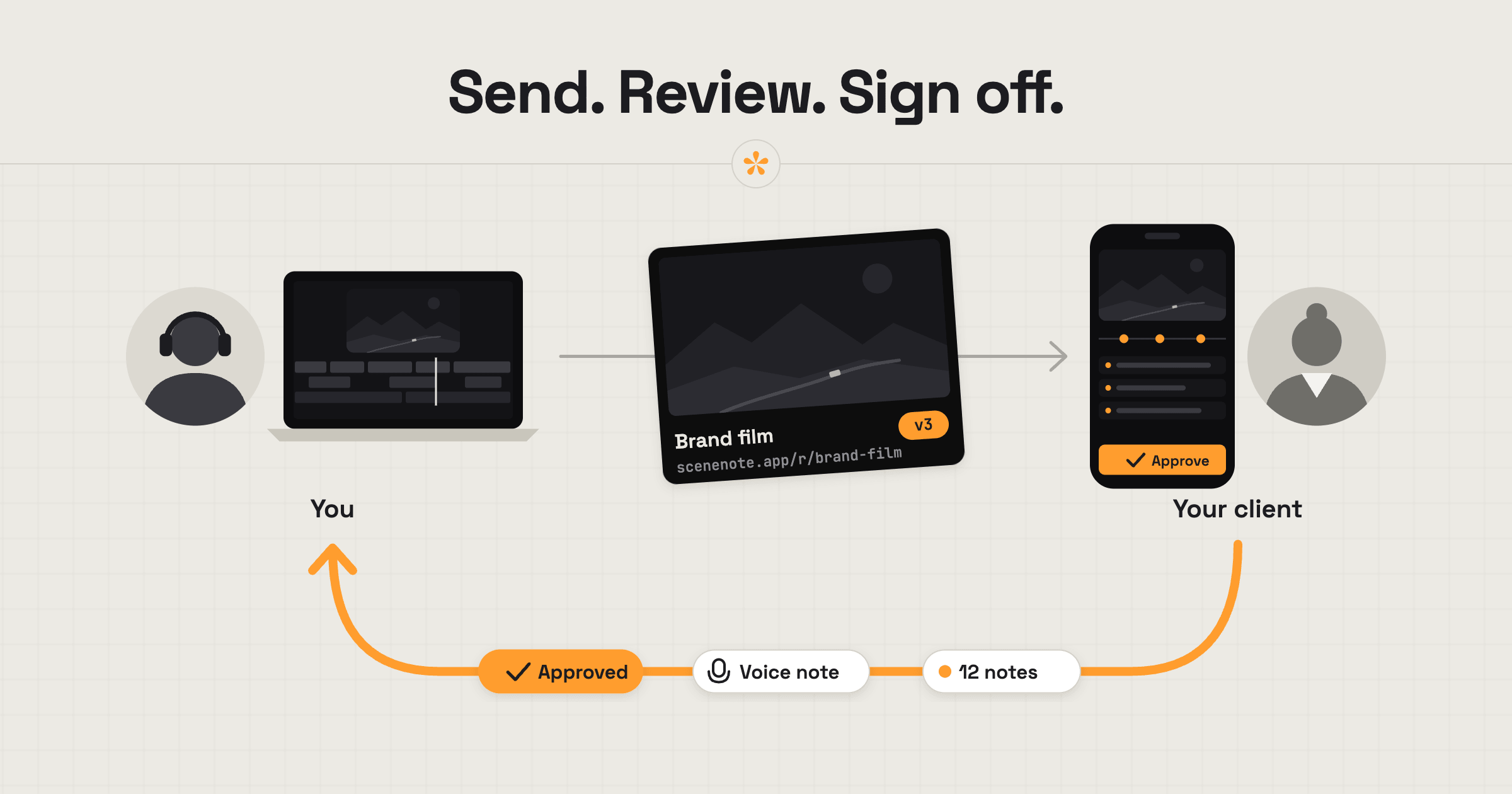
To share a video with a client for review and sign-off, send a link where they can leave notes on exact moments in the cut. A video review tool like SceneNote keeps feedback and revised versions together under the same link. Once the client is happy, they can approve the version, with their name and approval date recorded.
The short version
- Share one review link for the whole job.
- If it helps, brief the client on what to look at and what isn't finished yet.
- Collect their notes and reply where something needs clarifying.
- Post the next cut to the same project as v2, v3 and so on.
- Ask for approval on the final version.
- Turn comments off once it's approved, so the round is clearly closed.
ON THIS PAGE · 10 SECTIONS
A review and sign-off round at a glance
A client review round runs most smoothly when four things are agreed before the first link goes out. These are starting points, not rules.
| Starting point | |
|---|---|
| Rounds | Two rounds of revisions is a common average; agree the number up front |
| Reviewers | One person who makes the final call, plus anyone else who needs a say |
| Deadline | A date for notes on each round, so the job doesn't stall |
| What counts as sign-off | Someone with authority pressing Approve on the final version, not “looks great” in a chat |
Step 1: Share one review link
One review link for the whole job means the client always knows where to go, and every note lands in the same place.
- Paste your video link or upload the file on scenenote.app and create the project.
- Copy the review link and send it to the client.
- If you like, switch on email alerts with the bell, so you hear when notes arrive.
The client opens the link, types their name the first time they leave a note, and that's it. No account, no app.
Step 2: Brief the client before they watch (optional)
A brief is optional, but it helps. A client signs off faster when they know what they're looking at, so a few lines on what this cut is, what isn't finished yet and what you need them to decide go a long way. It also saves you notes on the temp music you were always going to replace.
This is the first cut of the film.
Not final yet: the grade, the sound mix and the end card.
What I need from you: is the story right, and is anything missing? Please leave notes by Wednesday.
Send it along with the link, or put the same lines in the pre-watch note in SceneNote. The pre-watch note appears on the player before anyone presses play, so it reaches people who were forwarded the link too.
Step 3: Collect and answer notes
Client notes in SceneNote are pinned to the exact moment, so you can work through them in timeline order rather than hunting through messages. Reply under any note that needs clarifying (“shorter, or cut entirely?”) and resolve each one as you fix it. That way you can see at a glance what's still left to do, and the client can see what's done.
If two people disagree, reply with an @mention and ask who decides, or settle it with a quick poll. How to manage feedback from multiple reviewers covers this properly.
Step 4: Send the next cut to the same place
Post the next cut to the same project with + version, and the client keeps using the same link. Each version keeps its own notes, and older versions go read-only, so new notes always land on the latest cut. Nobody ends up commenting on last week's export.
A one-line note on what changed helps a lot: “v3: intro shortened, new track, grade still to come.” How to manage versions of a video edit has more on this.
Step 5: Ask for approval
When the final version is ready, ask the client to press Approve, in so many words. A clear request gets a clear answer.
v4 is up on the same link with your last notes done. If you're happy with it, please press Approve under the video, and I'll prepare the final export for delivery.
Approval in SceneNote is a sign-off signal: it records who approved and when (“Approved by Marta, 3 Sep, 2:02 pm”), shows a tick on the project, and appears in the CSV and Copy all exports. It doesn't lock the video, so the next step matters.
Step 6: Close feedback once it's approved
Once a version is approved, turn comments off in Project settings. Anyone who opens the link can still watch, but nobody can add notes to a round that's finished. That stops the late “one more thing” from someone who only just got round to watching.
What does sign-off look like on a real project?

Here's one that's happened to me more than once. A feedback round wraps up, and then someone else on the client's team gets sent the link. Nobody told them the round was finished, so they do what anyone would and add their opinion. It's not their fault: things don't always get passed along inside a company.
You can't control who a link gets forwarded to. What you can do is make it obvious when feedback is closed. That one signal saves a lot of unnecessary back-and-forth, and it keeps you in control of the feedback loop.
How to handle common problems
The client says “looks great!” in a chat, but never approves
A “looks great!” in WhatsApp isn't sign-off. Reply with a thank you and the approval request above, so the yes ends up on the version itself, with a name and a date.
A new stakeholder appears after approval
When someone new turns up after sign-off, the approval record shows exactly what was agreed and by whom. Treat their notes as a new round, and talk it through with your client before starting, especially if your agreed rounds are used up. How many revision rounds should a video edit include? covers how to handle changes that keep coming.
Notes keep coming after the yes
Approval doesn't stop notes in SceneNote, so late ones can still arrive. Turn comments off after approval, and the link becomes watch-only for everyone.
The boss needs to see it, but shouldn't comment
For someone who should watch but not weigh in, send a view-only link instead of the review link. View-only links are part of Pro.
The client keeps sending changes on WhatsApp
If changes keep arriving in chats, add a line to your quote or contract: “Revisions are given on the review link.” It sets the habit before the job starts, without anyone having to nag.
The client shouldn't download the final file until the invoice is paid
Keep downloads off while the invoice is open. The client can review and approve on the link, and you switch on Download original once you've been paid (a Pro feature on uploads).
FAQ
Does approving a video lock it?
No. Approval in SceneNote records who approved and when, but people can still leave notes. Turn comments off in Project settings to close the round.
Can more than one person approve the same video?
Yes. Anyone with a name can approve a version, and each approval is recorded separately with its own date.
Does the client need an account to approve?
No. Clients type their name the first time they leave a note or approve, and that's it, on every plan.
Can I switch approvals off?
Yes. The project owner can switch reviewer approvals off for a project, for example on an internal round where nobody should be signing anything off yet.
What's the simplest way to get a video signed off?
Share one link, keep every cut on it, and ask for a clear Approve on the final version. Then close the round, so the yes stays a yes.
Get a clear, dated sign-off on your next video.
No sign-up needed to paste a link.
Related guides
Kiril Dobrev
Filmmaker · part of the team behind SceneNote
Kiril Dobrev is a filmmaker with 15 years of experience and a passion for documentary and travel. He’s spent a lot of that time in the editing room, obsessing over how to make his workflow better, and the feedback loop has always been a big part of that. Post-production still hasn’t had a good enough answer to it. SceneNote was born from that, with one simple idea: make feedback better.
More guides by Kiril →