
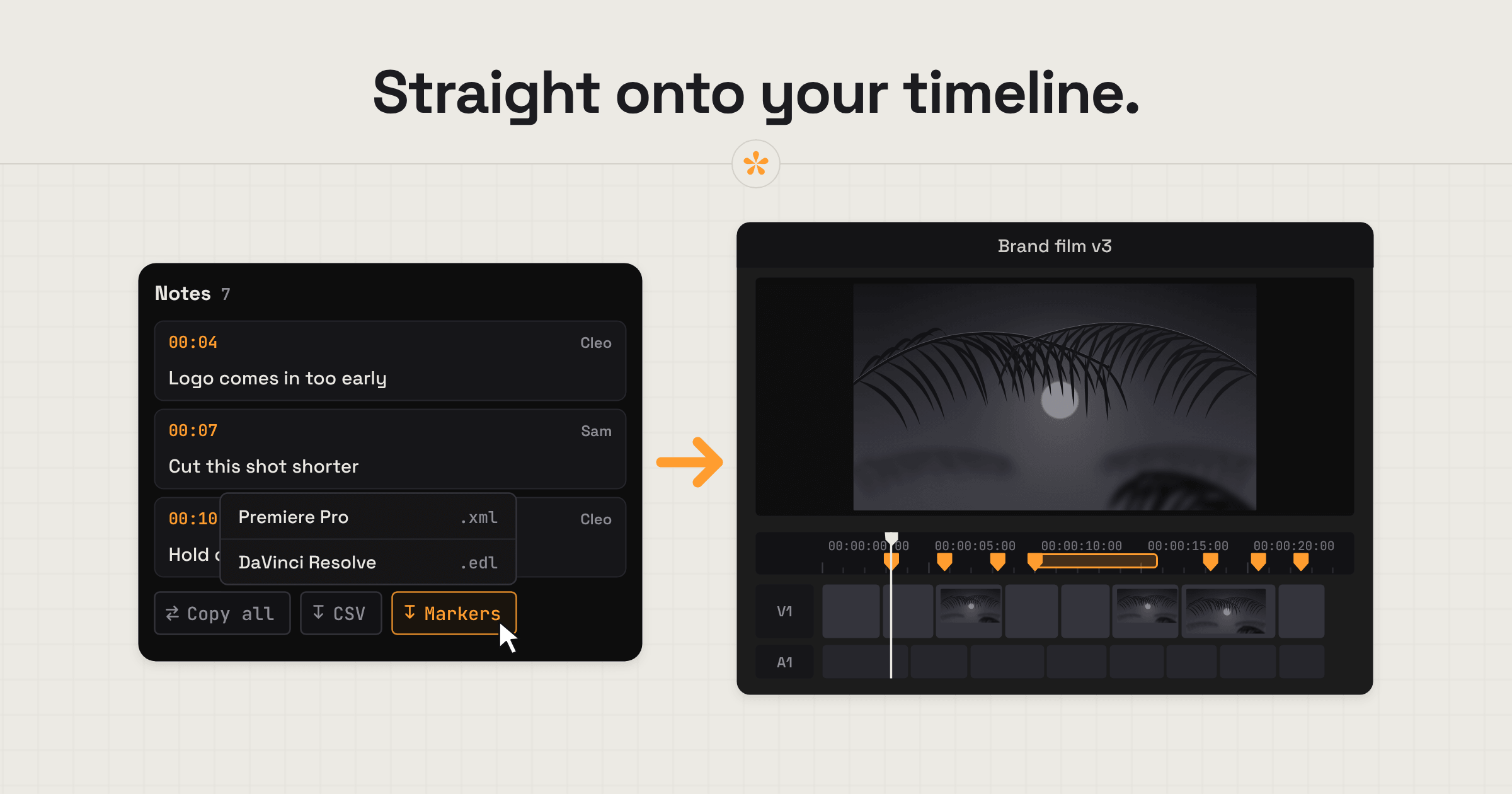
To get client notes into your editing software, collect timestamped feedback using a video review tool like SceneNote, then export the notes as timeline markers. SceneNote provides an XML file for Premiere Pro or an EDL file for DaVinci Resolve, so each comment can be placed at the exact frame it refers to, without copying notes across manually.
The short version
- Open the project and choose the version the notes are on.
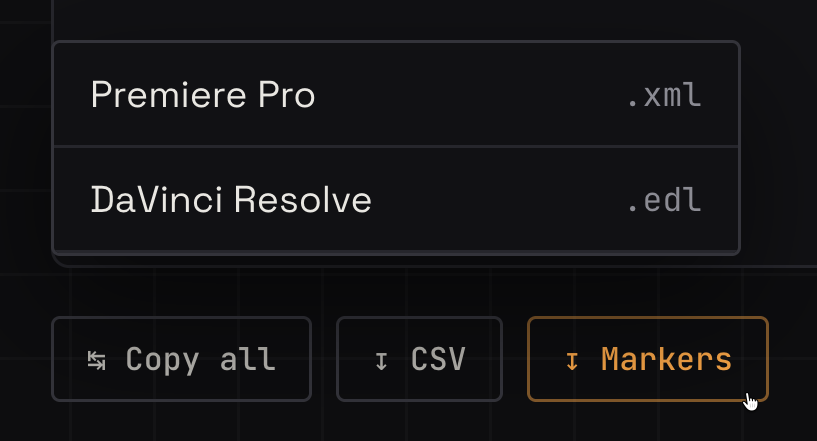
- Click Markers, below the notes.
- Choose Premiere Pro (.xml) or DaVinci Resolve (.edl).
- Import the file into your editing software.
- Work through the markers on your timeline, and resolve each note in SceneNote as it's done.
ON THIS PAGE · 7 SECTIONS
Which export is right for which job?
SceneNote has an export for each place your client notes might need to go. Most of the time you'll work through notes in the review room itself; these are for when you'd rather have them somewhere else.
| The job | The export | What you get |
|---|---|---|
| Notes on a Premiere Pro timeline | Markers, Premiere Pro (.xml) | A sequence carrying every note as a marker, ready to copy into your edit |
| Notes on a DaVinci Resolve timeline | Markers, DaVinci Resolve (.edl) | Every note as a timeline marker, yellow while open and green once resolved |
| A checklist or a record of the round | CSV | A spreadsheet of every note with its timecode, author, status and replies |
| Pasting notes into an email or a group chat | Copy all | A plain list of every note, starting with who approved |
When is it worth bringing notes onto the timeline?
Bringing notes onto the timeline is worth it when there are a lot of them, or when you want to work through them without switching between the browser and your edit. You don't have to: plenty of editors work straight from the review room, where every note is one click from its moment. Markers are there for the jobs where they save time.
- Long cuts with many notes. A documentary cut with a couple of hundred notes is far easier to work through in timeline order, marker by marker.
- Grading. A colourist can take grade notes into Resolve, where yellow markers are still to do and green ones are done.
- Several reviewers on one cut. The producer's and the client's notes land on the same timeline, each with the reviewer's name.
- Handing over. An assistant can bring the markers in before the lead editor's session, so the notes are waiting on the timeline.
- Keeping the whole history in your edit. If you track versions and changes in your project, bringing each round's notes in keeps the feedback with the edit. Anyone who goes back later can see what happened at each step, from one place.
How do you export notes from SceneNote, step by step?
To export notes from SceneNote, open the project, choose the version, and pick the export you need below the notes.
- Open the project and choose the version. Each export covers the version on screen, so pick the round you're working on.
- Click Markers and choose your editing software. For a link project (YouTube, Vimeo, Drive or Dropbox), type in the frame rate when asked, decimals included, such as 23.976. Uploaded videos already know theirs.
- For DaVinci Resolve, pick the timeline start. 01:00:00:00 is Resolve's default; choose 00:00:00:00 if your timeline starts at zero.
- Import the file. A short how-to pops up after each export with the steps for that editor. The full steps are in how to import client notes as markers in DaVinci Resolve and how to import review comments as markers in Premiere Pro.
What does each export carry?
Every SceneNote export carries the words of each note, frame accurate at the video's true frame rate. Here's what else comes with each one.
| Export | What travels |
|---|---|
| Premiere Pro markers | Every note as a marker named with the note itself, open notes orange and resolved ones green, with who wrote it and any replies in the marker's comments. A range note spans its full length. General notes sit on the first frame, polls carry their results. |
| DaVinci Resolve markers | Every note as a marker, up to 250 characters, with the reviewer's name. A range note spans its full length. Open notes are yellow, resolved ones green, and notes on the same frame share one marker. General notes sit on the first frame, polls carry their results. |
| CSV | Timecode, author, note, status, replies, a link back to each note, and a row for who approved. |
| Copy all | Every note as plain text, general notes first, starting with who approved. |
A voice note travels as its transcript. Drawings on the frame stay in the review room, so it's worth opening those notes in SceneNote.
What does this look like on a real project?

When I'm working solo, I generally prefer managing feedback directly in SceneNote. But markers are particularly useful when I'm handing a project over to someone else.
I'll usually handle the assembly edit myself, working through the story and the back and forth until we've settled on a direction. Once we get into the finer details, like graphics and sound, I might hand things over to an assistant editor. By that point, we've already worked through the feedback and made the decisions. So I export the notes as markers, and the assistant imports them straight onto their timeline. Everything they need is right there!
How to handle common problems
No markers appear
The two usual causes are the wrong file for the app, or a Resolve timeline that starts at a different hour. Resolve needs the .edl and Premiere the .xml. If your Resolve timeline starts at 00:00:00:00, choose that start time and export again. In Premiere, the markers arrive on a new sequence; copy a clip from it into your edit with “Copy Paste Includes Sequence Markers” turned on.
The notes are from the wrong version
Each export covers the version on screen. Choose the version you're working on above the player, then export again.
A client disputes what a round asked for
Download the CSV for that version. It lists every note, who left it, its status and replies, and who approved, so it works as a record of the round.
FAQ
Do the markers update if the client adds more notes?
No. Each export is a snapshot of the notes at that moment. If new notes come in, export again and import the new file.
Can I export markers from a YouTube or Vimeo link?
Yes. Type in the video's frame rate when you export, and the markers land on the right frames. An uploaded video already knows its frame rate.
Are the markers frame accurate?
Yes. SceneNote places each note at the video's true frame rate, including 23.976 and 29.97.
Does the client need to do anything?
No. Clients leave notes on the review link as usual, with no account. The export is on your side.
What's the simplest way to get client notes into your editing software?
Choose the version, click Markers, pick Premiere Pro or DaVinci Resolve, and import the file. For a checklist or a record, download the CSV.
Every note, on your timeline.
Export feedback as markers for Premiere Pro or DaVinci Resolve.
Related guides
Kiril Dobrev
Filmmaker · part of the team behind SceneNote
Kiril Dobrev is a filmmaker with 15 years of experience and a passion for documentary and travel. He’s spent a lot of that time in the editing room, obsessing over how to make his workflow better, and the feedback loop has always been a big part of that. Post-production still hasn’t had a good enough answer to it. SceneNote was born from that, with one simple idea: make feedback better.
More guides by Kiril →