
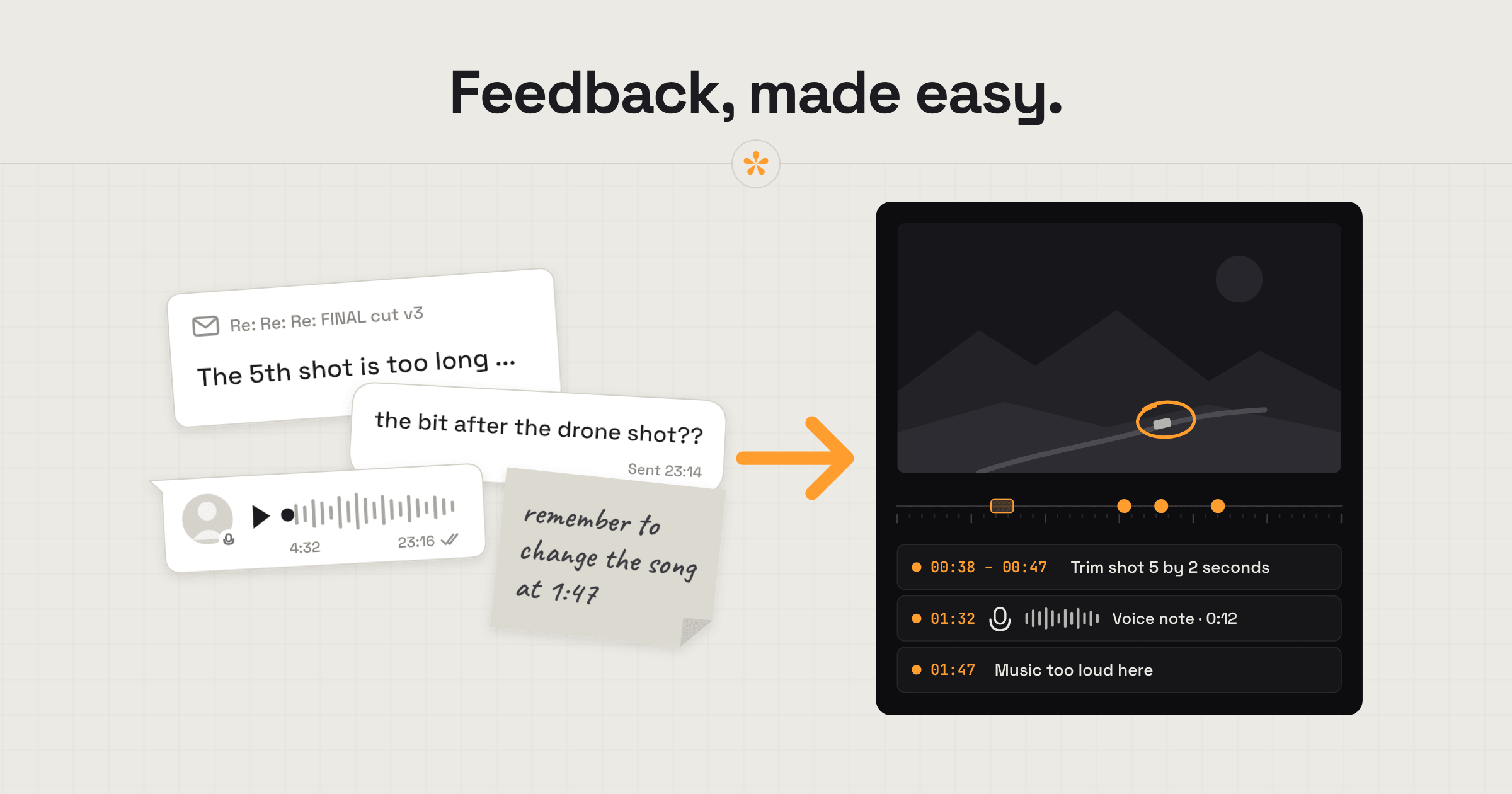
To get clear feedback on a video from a client, use a video review tool that lets them leave specific notes pinned to the exact moments they're referring to. Agree on what you need feedback on and when it's due. This keeps all the notes organised in one place, rather than scattered across emails, messages and calls.
The short version
- Paste your video link on scenenote.app (YouTube, Vimeo, Google Drive or Dropbox), or upload the file.
- Create the project. This makes an instant review room.
- Send the client the review link (with a pre-watch note if need be).
- They watch and leave notes directly on the timestamps.
- Go through the list of notes, ticking them off as you resolve them, or reply directly to a note.
- Optional: export the notes as markers for Premiere Pro or DaVinci Resolve, if you'd rather work through them on your timeline.
- Add the next cut as v2 in the same project, so the link never changes.
- The client presses Approve when they're happy.
ON THIS PAGE · 10 SECTIONS
Why does client feedback get so messy?
Client feedback on a video gets messy because it arrives in pieces: on different platforms, from different people, about different versions. Most clients have never been asked to give notes on an edit, so they use whatever's in front of them.
- A WhatsApp message saying “love it, just a few tweaks”, followed by three voice memos.
- “Around 1:20” when the moment is actually at 1:34.
- A screenshot with a red circle and no timecode.
- Three people on the client side, three opinions, nobody deciding.
- Notes on v1 that turn up after you've already sent v2.
None of this is the client's fault. The real problem is organisation: with no single place for notes, they get lost or missed entirely. Editors in the Reddit threads we read add another problem: ask clients to sign up for a review tool and a good share of them never press play. One reckoned it was about half.

I've worked on some documentaries which went through 10+ rounds of revisions across multiple episodes. Each time, new people were brought into the mix, which made feedback impossible to track. Because there wasn't a single source, I had to keep digging through emails and DMs, trying to work out when something was suggested and whether it had even been discussed with everybody else.
And there was no way to know which version of the export a note belonged to. It was a nightmare, and it cost us so much time. I've had countless experiences like this, where the process of collaborating was incredibly inefficient.
How do you set up a review link for a client, step by step?
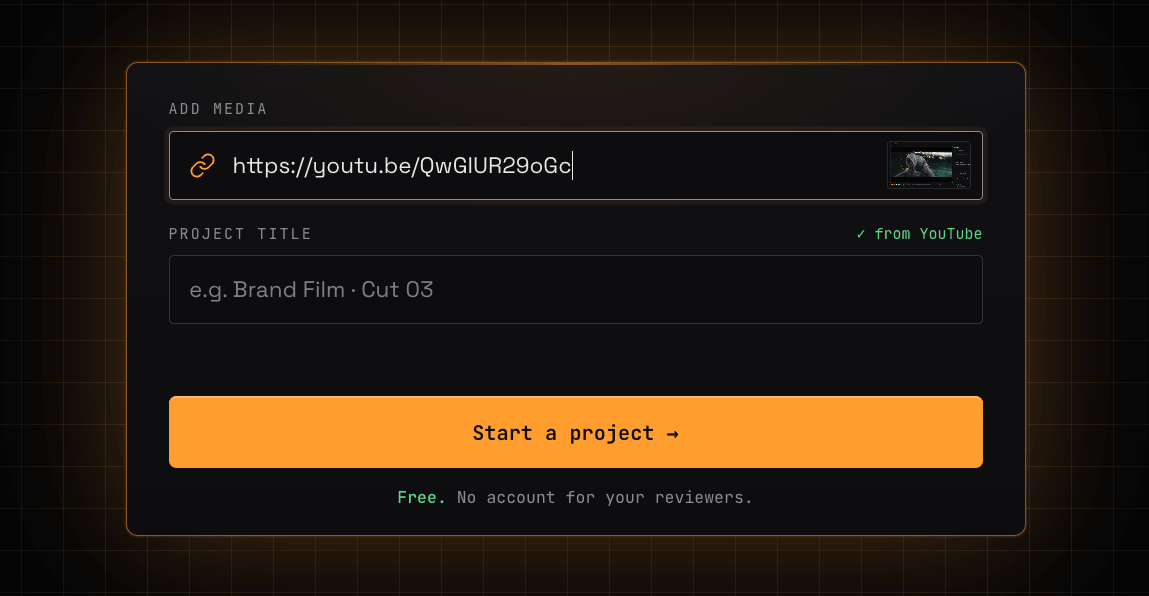
Setting up a client review link in SceneNote takes about a minute, and if you're pasting a link you don't need an account at all.
- Get a shareable link to the video. An unlisted YouTube link plays most smoothly. Vimeo needs embedding allowed, Google Drive needs “Anyone with the link”, and a normal Dropbox file link works as it is. Rather not use a link? Upload the file instead, with a free account.
- Paste it on scenenote.app and click Create project. Nothing gets uploaded and no storage is used; the video plays from where it already lives.
- Copy the review link and send it. SceneNote shows it as soon as the project is made. Optional, but worth it: you can add a pre-watch note, which the client reads on the player before they press play. There's a template further down.
- Switch on email alerts with the bell, so you know when notes arrive. Reply to the alert email and your answer lands under the client's note.
Weighing up a link against an upload? Should you upload a video for review or share a link? goes through the trade-offs.
Which feedback tool fits which job?
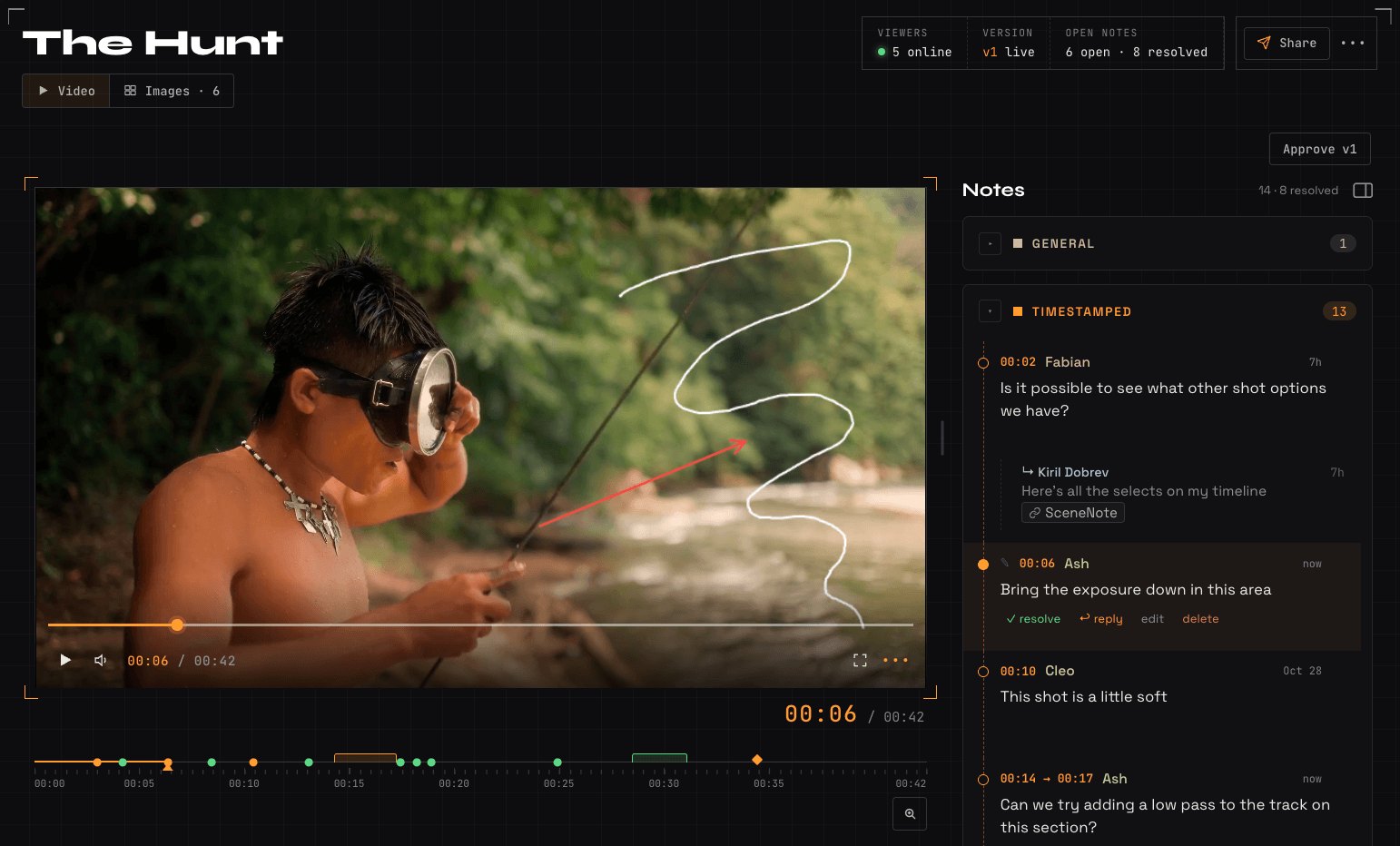
SceneNote gives clients several ways to leave feedback on a video, and each one suits a different kind of note. You don't have to explain them to the client: people tend to find the one that fits on their own. We built SceneNote with ease of use at the forefront of its design.
| When you or the client want to... | Use | Why it fits |
|---|---|---|
| Point at one moment (“the logo comes in too early”) | A timestamped note | Pinned to the exact frame, so you jump straight there |
| Talk about a whole section (“the music is too loud here”) | A range note | Covers a stretch, with a start and an end |
| Show something in the frame | Drawing on the paused frame | A circle or an arrow says “this thing here” faster than a paragraph |
| Say it rather than type it | A voice note | Up to 60 seconds, transcribed automatically so you can read it too |
| Comment on the whole video | A general note | For overall thoughts that don't belong to one moment |
| Choose between options | A poll | Two to five answers settle it faster than a long thread |
| See the next cut | A new version on the same link | v1 notes stay with v1; new notes land on v2 |
| Say yes | Approve | A dated record of who approved and when |
| Get the notes onto your timeline | Markers for Premiere Pro or DaVinci Resolve | Every note sits on the right frame in your edit |
Say you're cutting a 60-second ad for a coffee brand. The brand manager leaves a timestamped note on the logo and draws a circle round a crumb on the product shot. Her boss is in a taxi, so he records a 20-second voice note about the music. Two days later you add v2 on the same link, they check their notes are fixed, and she presses Approve. Nobody had to hunt for a timecode, and nothing got lost in a group chat.
Each tool has its own guide: timestamped comments, letting a client choose with a poll, managing versions and review and sign-off.
What should you send the client with the review link?
Send the review link with a short message that says what the client is looking at, what isn't finished yet, and what you need from them. Without it, people tend to comment on everything, including the parts you haven't done yet, or they simply don't know what you want feedback on. If you need their attention on the music, say so.
Hi Cleo, here's the first cut of the launch video: [review link]
What it is: the full 60-second edit, with the music track you liked.
Not done yet: colour and the final sound mix, so it'll look a bit flat and the levels will jump around.
What I need: notes on the story and the pacing. Pause wherever something feels off, click and type. No account needed, just your name.
If you can send notes by Thursday, I'll have v2 with you on Monday.
Put the same few lines in SceneNote's pre-watch note as well. It shows on the player before anyone presses play, so even someone who was forwarded the link, without your email, gets the context.
How do you handle feedback from several people?
When several people review the same video, send them all one link, agree who makes the final call, and set a deadline for notes. Everyone sees each other's notes in the same place, so contradictions show up early instead of landing in your inbox a week later.
If two notes pull in opposite directions, reply under one and @mention the other person, or put the choice to a quick poll. The full playbook, including what to tell reviewers up front, is in how to manage feedback from multiple reviewers.
How do you get the client's notes back into your edit?
SceneNote exports a client's notes as markers for Premiere Pro or DaVinci Resolve, so every note lands on the right frame of your timeline and you can work through them without flicking between browser and edit. Click Markers, pick your editing app (we support DaVinci Resolve and Premiere Pro), and a short how-to shows you the import steps.
Not using markers? CSV gives you a spreadsheet that works as a checklist, and Copy all pastes a plain list of notes anywhere, WhatsApp included. How to get client notes into your editing software compares the options.
What does a client review look like on a real project?
I handle post-production for an established YouTube channel that publishes content regularly, so a streamlined feedback process is really important to us. There's often context the client needs before watching, like motion graphics that aren't ready yet or specific feedback I'm after, so I use the pre-watch note to flag these things upfront. I also use polls at specific timestamps when I need decisions made, like whether to keep or cut a shot, or where text should sit.
Once I have all the notes back, I work through them one by one, ticking them off as I go. If I need to send a second version, I add it to the same project so we can keep track of how the video has progressed. And once the final one is approved, my client downloads the original file straight from SceneNote.
How to handle common problems
The client still replies on WhatsApp
If a client sends video notes on WhatsApp anyway, don't fight it in the first round. Add their notes to the review link yourself, at the right moments, so everything sits in one place. In the next pre-watch note, mention that notes on the link are quicker for both of you, because you can see the exact frame.
The client writes “around 1:20”
Vague timestamps disappear once a client leaves notes on a review link. The video pauses automatically as soon as they click into the comment box, so every note is pinned to the exact frame they were looking at. The precision is built in, with nothing to explain.
Notes arrive after the client has approved
Approval in SceneNote is a sign-off signal, not a lock, so people can still leave notes on an approved version. Once a version is approved, turn comments off in Project settings to close the round. That also helps when someone is sent the link later without knowing the round is over: instead of leaving notes nobody will act on, they can see that review has finished and comments are switched off.
The client won't sign up for anything
Clients never need an account to review a video in SceneNote, on any plan. They type a name the first time they leave a note, and that's it. A client should meet as little friction as possible, so we've focused on making the review experience easy, and on making it obvious how it all works without you having to brief them first.
The client only uses their phone
A client can review the whole video on a phone, in the browser, with no app to install. The video stays pinned at the top while they type, a double-tap skips 10 seconds, and voice notes and finger drawing both work. How to give video feedback from your phone is worth forwarding to them.
The client has never given notes on a video before
A client who has never given notes on a video doesn't need a tutorial, because SceneNote explains itself the moment they open the link. Before the video plays, a card tells them who sent it and how to respond (“Kiril would like your feedback. Pause anywhere to leave a note, pinned to that exact moment.”), so even with no instructions from you, they know what to do. What still helps is permission to say “this bit feels off” without knowing why: how to explain a change when you're not a video person is written for exactly that client.
When isn't a review link the right tool?
A review link isn't always worth setting up. For a 15-second social clip with one reviewer and one round, a quick message with a timecode can be enough. The link earns its keep when there are several notes, several people or several rounds. One caveat: if that quick review is part of an ongoing run of work with the same client, it's still worth keeping every project under one roof.
SceneNote is also built for feedback and sign-off, not as a home for all your source footage. Pro includes 100 GB of storage you can use however you like, but for archiving large amounts of raw media, proxies and project files, a dedicated cloud storage or media asset management tool is the better fit, alongside SceneNote.
FAQ
Do clients need an account to leave feedback on a video?
No. With SceneNote, clients open the review link, type their name the first time they leave a note, and start commenting. That's true on every plan, for every reviewer.
Is SceneNote free?
Yes. The free plan has no end date and needs no card: unlimited link projects, unlimited reviewers and 5 GB for uploads. Pro, at $9 a month, adds things like passwords, your own branding and side-by-side compare.
Can a client leave feedback on a video from their phone?
Yes. The review link works in a phone's browser with no app, and clients can leave timestamped notes, record voice notes and draw on the frame with a finger.
Is the client's video kept private?
Only people with the review link can open the project, and on Pro you can add a password. Your footage and feedback only exist to serve the project: SceneNote never uses or sells them for AI training.
How is this different from Frame.io?
Frame.io works from files you upload to it. SceneNote can build a review from a link you already have, on YouTube, Vimeo, Google Drive or Dropbox, so there's no upload to wait for. Upload a file instead and you also get frame-exact stepping, transcripts and side-by-side compare. Frame.io covers some of what SceneNote does, but feedback is where SceneNote goes further, with every way of giving notes on the same review link.
What's the simplest way to get client feedback on a video?
One review link, notes pinned to the exact frame, every version in the same place and a clear Approve at the end. Write two lines on what you need, send the link, and let the client do the rest.
Get your client's notes on the exact frame.
Paste a link or upload a file, and there's no sign-up needed to paste a link.
Related guides
Kiril Dobrev
Filmmaker · part of the team behind SceneNote
Kiril Dobrev is a filmmaker with 15 years of experience and a passion for documentary and travel. He’s spent a lot of that time in the editing room, obsessing over how to make his workflow better, and the feedback loop has always been a big part of that. Post-production still hasn’t had a good enough answer to it. SceneNote was born from that, with one simple idea: make feedback better.
More guides by Kiril →