
To present a cut to a client professionally, send one review link with a short brief explaining what they're watching, what's unfinished and what feedback you need. Keep revised cuts under the same link and give the client a clear way to approve. In SceneNote, the brief appears before they press play, so the context stays with the video even when the link gets forwarded.
The short version
- Put the cut on a review link, not in an email attachment.
- Write a pre-watch note: what this cut is, what isn't done yet and what you need.
- Send the link over.
- Keep each new version on the same link.
- Ask the client to approve once they'd be happy for it to go out.
ON THIS PAGE · 7 SECTIONS
What should the client see first?
The client should see your brief first, then the cut, then a clear next step. Get that order right and the notes that come back are the ones you need.
- Your brief. A few lines on what this cut is and what you'd like them to look at. The brief decides what kind of notes come back.
- The cut. On a link that plays straight away, on a phone or a computer, with no account to make.
- A clear next step. Where to leave notes, by when, and how to approve when they're happy.
What should the pre-watch note say?
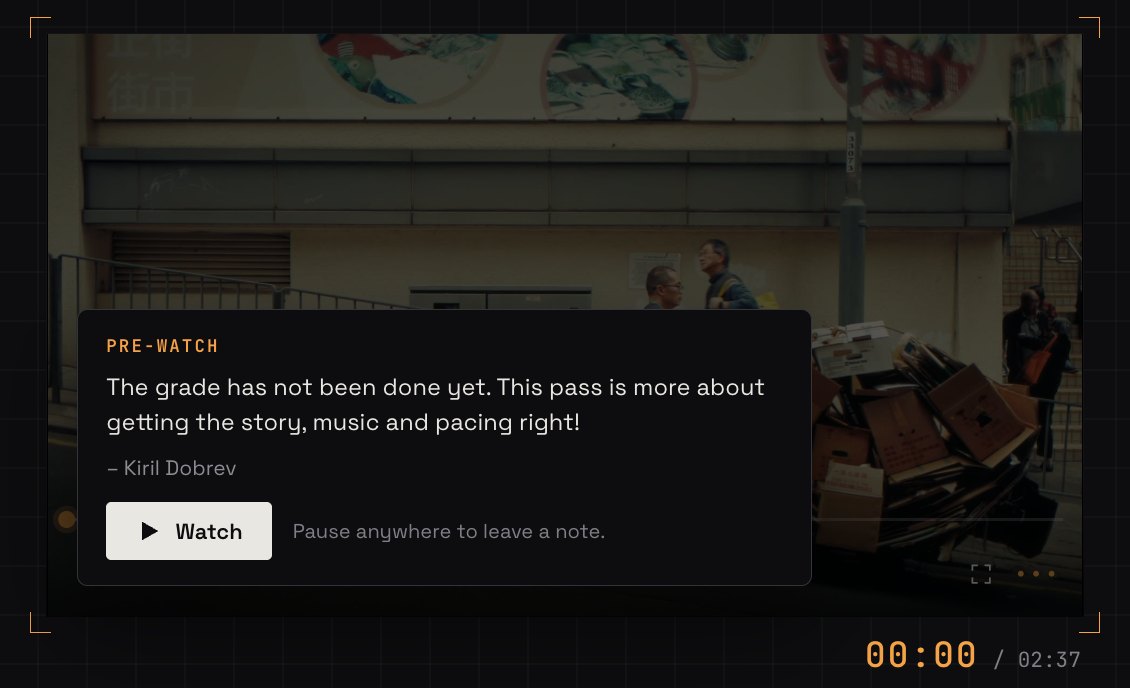
A pre-watch note should say what the cut is, what isn't done yet and what feedback you need. You never know what context a reviewer was given before they opened the link, so the note gives it to them.
Here's a template:
This is: the first cut of the brand film, for story and pacing.
Not done yet: the grade isn't done yet, so it will look flat. The music is temporary and the titles are placeholders.
What I need from you: does the story flow, and is anything missing? Please pause and leave a note wherever something feels off.
Keep it short: three or four lines is plenty. If it's easier to say it, record it as a voice note instead.
How do you set it up, step by step?
To set up a professional cut presentation in SceneNote, create the project, add a pre-watch note and share the link.
- Create the project. Upload the file or paste a link to the cut.
- Add the pre-watch note. Open Share and switch on the pre-watch note, then write it or record it. It shows on the player before a reviewer presses play, once per version, and again if you rewrite it.
- Copy the link and send it with a one-line message: “Hi Jeff, the first cut is ready: [link]. Could you leave your notes by Friday?”
- For the next round, add a version to the same project. The client opens the same link and sees the new cut, with a new pre-watch note for it.
- When they're happy, they press Approve. Their name and the date are recorded under the version.
How do you make the review link look like yours?
On Pro, you can put your logo and accent colour, or your client's, on the review link, and add a password when the cut is confidential. It's a small detail with a big effect: the review room looks like it was made for that client, it presents you as a studio that cares about the details, and it sets the tone from the moment they open the link.
What does this look like on a real project?

First impressions last, and video production is no exception. When you send a video for review, that first experience of watching it, and understanding what you're watching, can make a big difference to how the whole review goes. So it's important to make the viewing easy, and to give some context: what's been done and what hasn't.
Colour grading is a great example. It's a step that normally comes last, and clients don't always know that. The last thing you want is a whole set of notes on colour, or a client underwhelmed by a flat-looking cut, when one short line in a pre-watch note would have avoided it.
Links also get passed around. If I email a link with some context about the cut, and someone then shares just the link internally, the context is lost. A pre-watch note keeps that context with the link, wherever it goes.
Then there's a finer detail. When I set up a review room for a client, I'll often customise it with their colours and logo. It's a nice touch that makes the project feel more unique and special to them, and more professional. It adds to that first impression, too: a review room that feels like it was created just for them.
How to handle common problems
They watch on a phone with the sound off
Say it in the pre-watch note: “Please watch with the sound on, ideally with headphones.” If sound matters for this round, say what to listen for.
They forward it to their boss with no context
That's where the pre-watch note earns its place. It's on the link, not in your email, so anyone who opens it sees your brief before they press play.
They approve too early
Ask the client to approve only when they'd be happy for it to go out as it is, and say so in the pre-watch note on the final rounds. Approval doesn't lock the video: they can still leave notes, or take the approval back by pressing the button again.
FAQ
Do I need to record my screen to present a cut?
Rarely. The pre-watch note does most of what a walkthrough would: it tells the client what they're looking at and what you need from them.
Does the client see the pre-watch note every time?
Only once per version. If you rewrite it, they see it again.
Do clients need an account to watch and leave notes?
No. They type their name the first time they leave a note. There's no account, invite or app.
Should I send the file instead, so they can watch it offline?
A file gets downloaded, played somewhere else and written about in an email, and the notes lose their timecodes. A review link keeps every note on its exact frame.
What's the simplest way to present a cut to a client?
Put the cut on a review link, add a short pre-watch note saying what it is, what isn't done and what you need, send it with a date for notes, and keep every version and the approval on that same link.
A clean link, a short brief, a clear sign-off.
Give clients the right context before they watch, even when the review link gets forwarded.
Related guides
Kiril Dobrev
Filmmaker · part of the team behind SceneNote
Kiril Dobrev is a filmmaker with 15 years of experience and a passion for documentary and travel. He’s spent a lot of that time in the editing room, obsessing over how to make his workflow better, and the feedback loop has always been a big part of that. Post-production still hasn’t had a good enough answer to it. SceneNote was born from that, with one simple idea: make feedback better.
More guides by Kiril →