
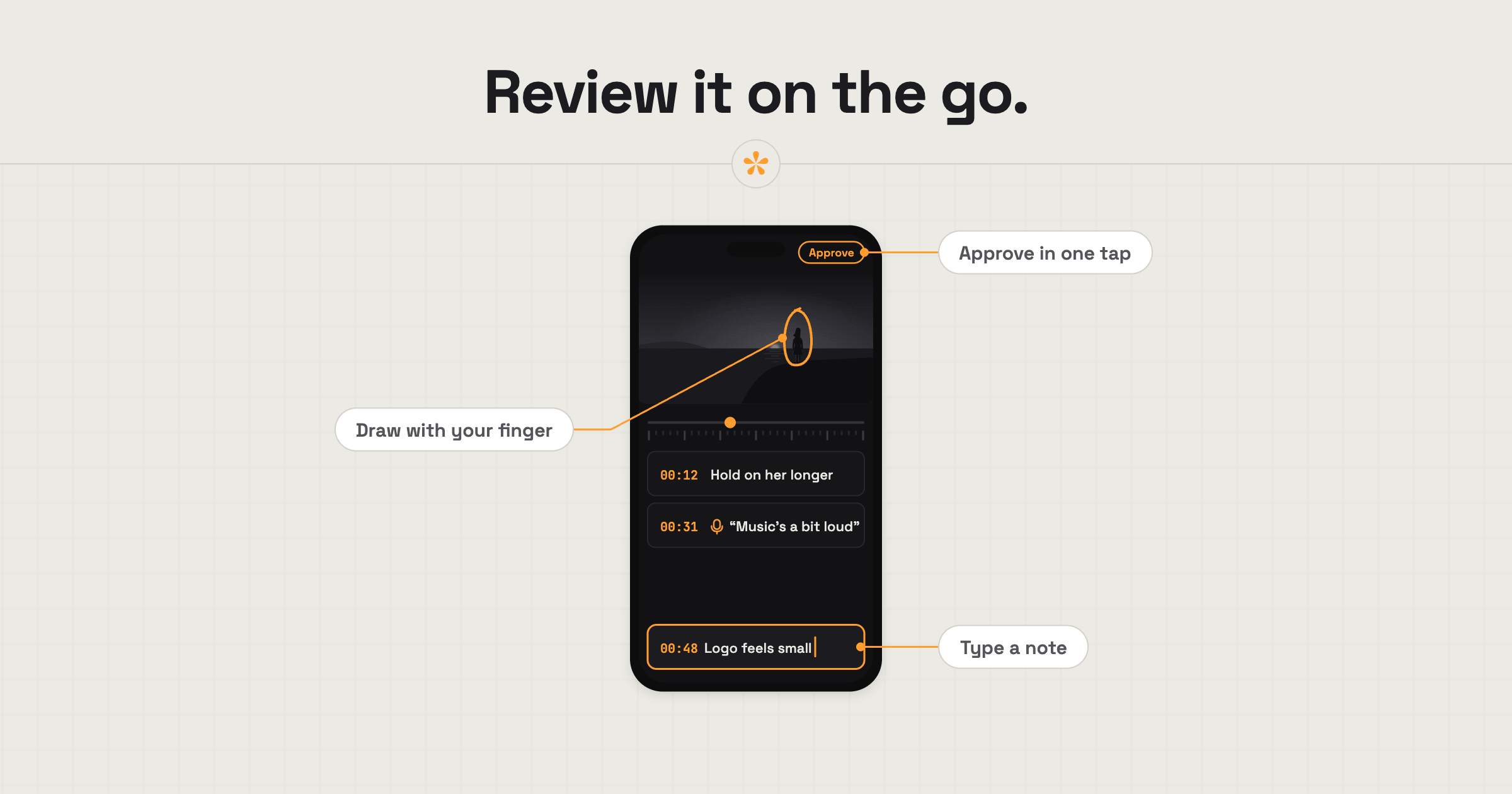
To give video feedback from your phone, open the review link in your mobile browser and pause wherever you want to leave a comment. In SceneNote, you can type a note, record a voice message or draw directly on the frame with your finger. Feedback stays pinned to the exact moment, and reviewers don't need an app or account.
The short version
- Tap the review link the editor sent. It opens in your phone's browser.
- Read the editor's pre-watch note, if there is one, and tap Watch.
- Watch the whole video once, ideally with headphones.
- Tap the picture to pause where something needs to change.
- Type your note, or record a voice note if that's easier.
- Add your name the first time.
- Tap Approve when you're happy with the video.
ON THIS PAGE · 7 SECTIONS
How do you give video feedback on a phone, step by step?
To give video feedback on a phone with SceneNote, tap the review link and it opens in your browser, ready to watch. The video stays at the top of the screen and the notes sit underneath it.
- Open the link. Safari, Chrome or whatever your phone uses is fine. Nothing to download.
- Watch it through once. Tap the picture to show the controls, and tap the full-screen button if you want it bigger.
- Pause where you want to comment. Tap the picture, then tap the note box under the timeline.
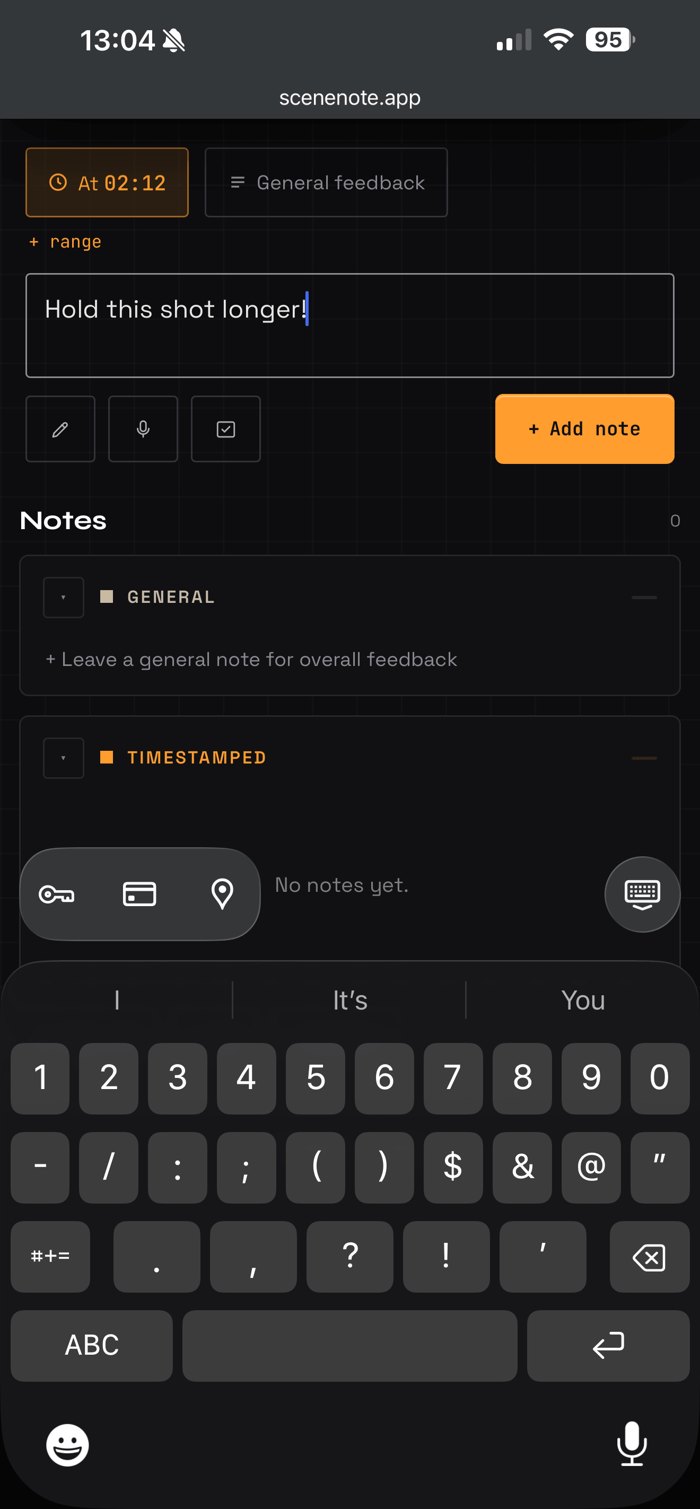
- Type your note and tap Add note. While you type, the video slides up out of the way so you can see what you're writing. Scroll up and it's still there.
- Add your name the first time in the small pop-up, so the editor knows who the note is from.
- Keep going. Tap any note in the list to jump the video back to that moment.
What works best on a small screen?
A few things make reviewing a video on a phone quicker than you'd expect. SceneNote's review room was built to work on a phone as well as on a computer, so none of this needs setting up.
- Voice notes. Tap the microphone and say it instead of typing it. A voice note can run up to 60 seconds and is transcribed automatically, so the editor can read it as well as hear it.
- Double-tap to skip. On uploaded videos, double-tap the left or right side of the picture to jump 10 seconds back or forward, and the middle for full screen. (YouTube and Vimeo videos play in their own player, with its own controls.)
- Drag the timeline. Slide your finger along the timeline under the video to find a moment quickly.
- Ranges from + range. To comment on a whole stretch, tap + range under the time and set a start and an end. On a phone, dragging the timeline moves through the video rather than drawing a range.
- General feedback for the big picture. Overall thoughts (“love it, but it feels long”) go in General feedback, so they don't need a moment.
How do you point at something on screen?
To point at something in the picture from a phone, pause the video, tap the pencil icon and draw on the frame with your finger. A quick circle or arrow says “this thing here” faster than describing where to look.
- Pause on the frame and tap the pencil icon.
- Draw a circle or an arrow. Pick a colour that stands out, and use undo if it goes wrong.
- Type a few words in the note box to say what's wrong with it.
- Tap Add note. The drawing is saved with the note, on that exact frame.
Phone or bigger screen: when does it matter?
A phone is the right screen for videos made for phones, like Instagram Reels, TikToks and YouTube Shorts. For anything made for a wider screen, watch it on a laptop or a bigger display if you can: on a phone you won't see every detail, so you might miss things. Phone speakers have limits too. On more polished work with a lot of detail in the sound, especially the low end, you won't hear it all through a phone.
| Fine on a phone | Better on a laptop, a monitor or a TV |
|---|---|
| Videos made for phones: Reels, TikToks, YouTube Shorts | Videos made for a wide screen, like a brand film or a YouTube video |
| A quick look at one specific thing | A full review of a wide-screen video |
| Story, order and pacing | Fine detail, like a logo edge or a small caption |
| Quick decisions, polls and approval | Colour, and whether shots match each other |
| Spotting a wrong word or name | The sound mix, especially bass (or use good headphones) |
For colour in particular, how to give feedback on colour grading explains why screens disagree and how to describe what you see.
What does this look like on a real project?

One of my clients runs a YouTube channel and travels the world, so they're always on the go. Sometimes I need to show them something really quickly. It isn't always a full review session; it might be one specific thing. It's so nice to know that if they don't have time to find a quiet place and set up their computer, they can just do it on their phone. Everyone always has their phone with them, so it's almost always accessible.
I love that we can keep the project moving, and that progress doesn't stall because the client hasn't had a moment to sit down at a desk. Sometimes those clients end up reviewing the whole thing on their phone, which is also fine: whatever works for them. It's about giving the client flexibility. You never know where they might find themselves, and these days everyone's on the move and busy. Mobile is a big part of our lives, and I like that SceneNote is optimised for that kind of workflow.
How to handle common problems
The keyboard covers the video
When you start typing, SceneNote slides the video up out of the way so you can see your note. Scroll up to see the video again; it drops back into place when you close the keyboard.
The sound is hard to judge
Phone speakers are small, so music and voices can sound very different from the final mix. Use headphones for any note about sound, and say in the note that you were listening on a phone.
You can't find where to approve
On a phone, Approve sits in the line of details just under the title, beside the version number. If you don't see it, the editor may have switched approvals off for this project, so just tell them in a general note.
FAQ
Do I need an app to review a video on my phone?
No. The review link opens in your phone's browser, on iPhone or Android, with nothing to install and no account to create.
Can I leave voice notes from my phone?
Yes. Tap the microphone, speak for up to 60 seconds and tap again to stop. The voice note is transcribed automatically and pinned to the moment you paused on.
Can I draw on the video with my finger?
Yes. Pause, tap the pencil icon and draw on the frame. The drawing is saved with your note.
Will my notes still be there if I switch to my computer?
Yes. Your notes live on the review link, so they're there on any device. To edit or delete one later, use the same browser you left it in.
What's the easiest way to give video feedback from your phone?
Open the review link in your phone's browser, tap to pause, and type or record a voice note. Use your finger to draw on the frame, put headphones on for sound, and save colour judgements for a bigger screen.
Your phone is all you need.
Open the review link, tap the moment and leave a note. No app or account needed.
Related guides
Kiril Dobrev
Filmmaker · part of the team behind SceneNote
Kiril Dobrev is a filmmaker with 15 years of experience and a passion for documentary and travel. He’s spent a lot of that time in the editing room, obsessing over how to make his workflow better, and the feedback loop has always been a big part of that. Post-production still hasn’t had a good enough answer to it. SceneNote was born from that, with one simple idea: make feedback better.
More guides by Kiril →