
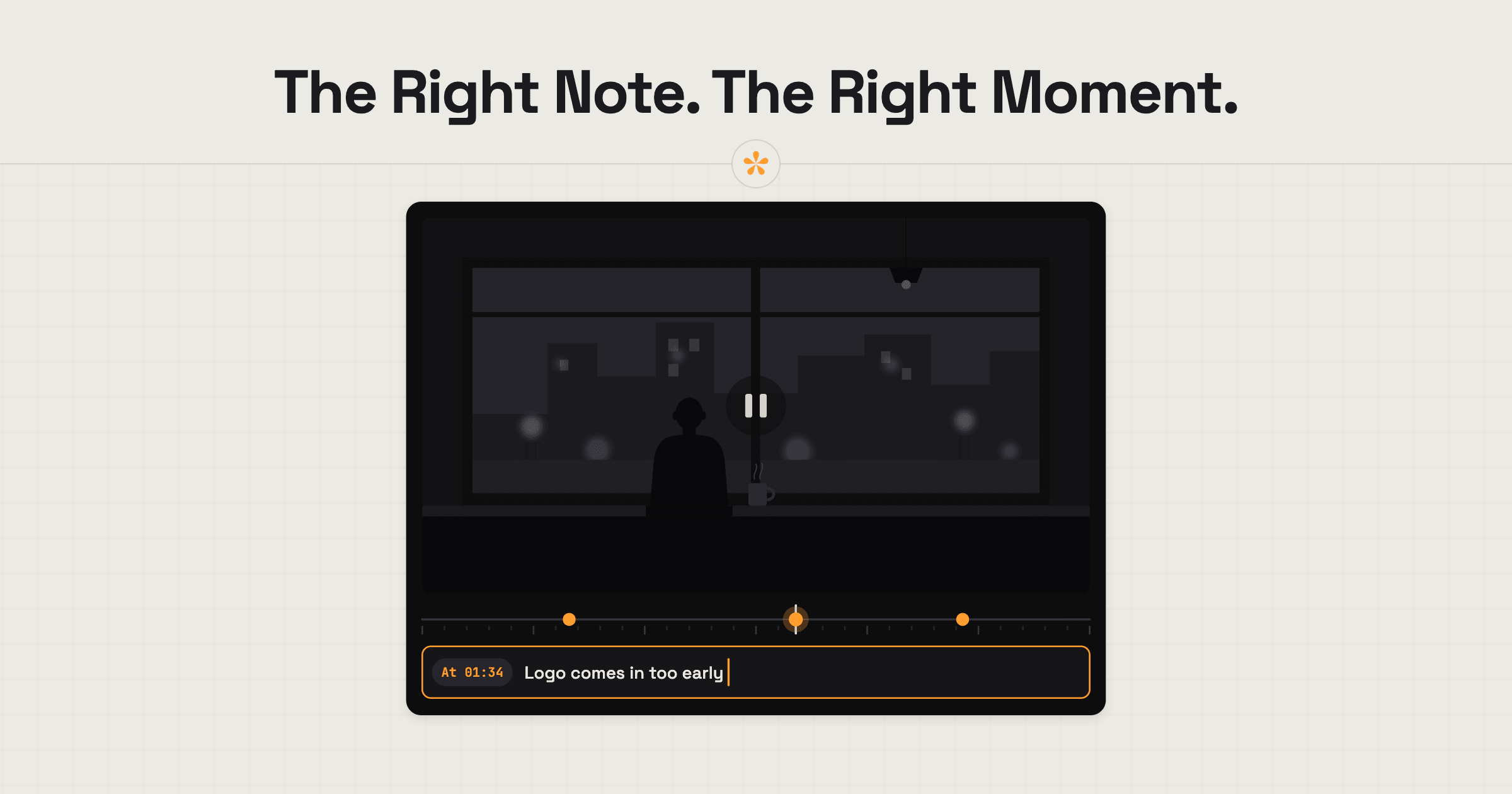
To leave a timestamped comment on a video, open a review link and pause at the moment you want to flag. Type your feedback and save it. In SceneNote, the comment is pinned to that exact time, so the editor can click it and jump straight to the moment. Reviewers only need to enter their name the first time, without creating an account.
The short version
- Open the review link the editor sent.
- Play the video and pause where you want to comment.
- Type your note in the box under the player.
- Press Enter to save it.
- Add your name the first time, so the editor knows who it's from.
- For a whole stretch, press + range and set a start and an end.
- For feedback on the video as a whole, switch to General feedback.
ON THIS PAGE · 8 SECTIONS
Why are timestamped comments better than typing times into an email?
Timestamped comments sit on the exact moment they're about, so nobody has to work out a timecode or hunt for “around 1:20”. You leave the note where you paused and the time is added for you. Typing times into an email means checking the player for every single note, which is slow for you and slower for the editor, who then has to scrub to each one.
- No guessing. Click a note and the video jumps straight to it.
- Notes stay with their version. A note on v1 stays on v1, so nothing gets mixed up when v2 arrives.
- Everyone sees everyone's notes, so the same point doesn't get made three times.
- Replies stay with the note instead of spreading across an email thread, or sometimes multiple threads.
- It saves time on both sides. You spend less time writing out times, and your editor spends less time fishing for what you meant and more time working creatively on the video. Your editor will thank you for it.
- They go straight into the edit. The editor can bring your notes onto their timeline as markers in Premiere Pro or DaVinci Resolve (how editors get notes into their editing software).
How do you leave a timestamped comment, step by step?
To leave a timestamped comment on a SceneNote review link, pause the video and type in the note box under the player. The box shows the time your note will land on, so you always know where it's going.
- Open the review link. It works in any browser, on a computer or a phone. If the editor left a pre-watch note, read it and press Watch.
- Pause on the moment. Press Space or click the picture. Clicking into the note box pauses the video too.
- Check the time. The button above the box shows it (At 0:42), and the box reads “Note at 0:42…”.
- Type and press Enter. Shift+Enter starts a new line.
- Add your name the first time. A small pop-up asks for it, with an optional switch to get an email when someone replies.
- Carry on watching. Your note shows in the list and as a dot on the timeline. Hover over a dot to preview the note; click it to jump there.
How do you comment on a whole section of a video?
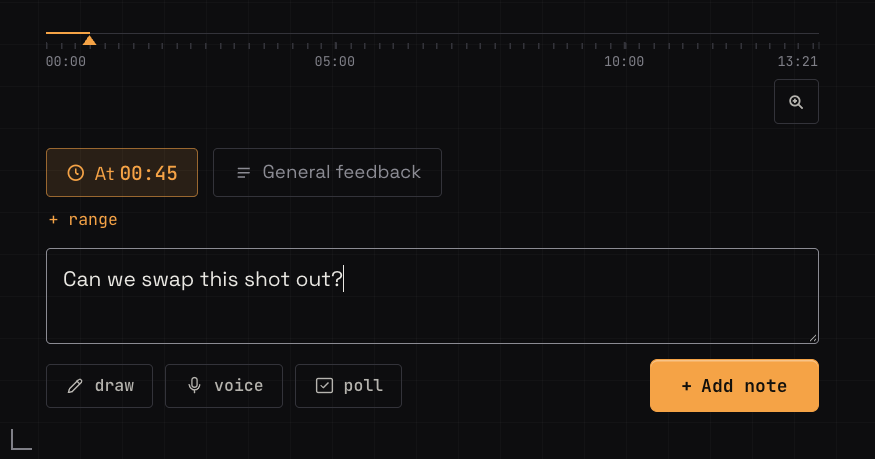
Use a range note when your comment covers a stretch of the video rather than one moment, like “the music is too loud from here to the end of the interview”. On a SceneNote review link, press + range under the time and set a start and an end.
- Click Start or End to set it to where the video is now.
- The small arrows beside each time step one frame at a time. Hold one down to move faster.
- On a computer, you can drag across the timeline to draw a range. A handle appears at each end: drag them left or right to cover exactly the stretch you mean.
- Press Esc to cancel a range you don't want.
When the editor clicks your range note, that stretch plays three times on a loop, so they see or hear exactly what you mean.
Which keyboard shortcuts make it faster?
On a computer, a few keys save a lot of clicking when you're leaving timestamped comments on a SceneNote review link.
| Key | What it does |
|---|---|
| Space | Play and pause |
| ← → | Jump 5 seconds back or forward |
| , and . | Step one frame back or forward |
| Enter | Save the note |
| Shift+Enter | Start a new line in a note |
| Esc | Cancel a range or stop drawing |
| ? | Open the guide, with every shortcut for this project |
Frame stepping is exact on uploaded videos. On YouTube and Vimeo links it's close but not perfect, because those players don't share the exact frame rate.
How do you edit, delete or reply to a note?
On a SceneNote review link you can change your own notes and reply to anyone's. Hover over a note to see its actions; on a phone, tap the ••• beside the name.
- Edit changes the words, and the new version shows straight away.
- Delete removes your note, with a few seconds to undo it.
- Reply answers under the note, so the conversation stays in one place. Type @ and a name to mention someone; they get an email if they've switched on alerts.
You can edit or delete only your own notes, from the same browser you left them in. To point someone at one particular note, hover over it and click the small link icon: it copies a link that opens the video on that note.
What does this look like on a real project?

Clients can be very vague with feedback. They try to describe the moment where something happened, and that's inefficient, because you have to go and hunt for it. It also leaves a lot of room for error and interpretation.
Even when a client does put a timestamp in their email, it's taken them extra time: they've had to look up the time and then write it into the email. For me as the editor, it takes more time too. I have to read the comment, read the time, play the video through to that point, and then match what was said with what's on screen. It's inefficient, even with a timecode.
With timestamped notes, I can see exactly which moment a note belongs to without having to figure it out. These things might seem small, but post-production is such a time-consuming process that shaving time off every task adds up tremendously by the end of a project.
What I also like is how intuitive it is for the client. If they're playing the video and click into the comment box, the video pauses automatically and the note is assigned to the timestamp where it paused. The client doesn't even have to think about it. It's built in, and I love that it makes it so easy for them.
How to handle common problems
You can't leave a note on the version you're watching
When the editor adds a new version, the older ones become read-only, so your note goes on the latest cut. Choose the newest version (v2, v3 and so on) above the player. Anything you said on the earlier version stays there.
You want to say something about the whole video
Switch the note box to General feedback. Your note sits in the General section rather than on the timeline, which is right for overall thoughts like “love the pace overall”.
The list of notes has disappeared
On a computer, the notes can fold into a slim strip on the right to give the video more room, and on your first visit they start that way. Click the strip, or press T, to bring them back.
FAQ
Do I need an account to leave timestamped comments?
No. On a SceneNote review link you add your name the first time you leave a note, and that's all. No account, no app.
Can I leave a comment without a timestamp?
Yes. Switch to General feedback and your note covers the whole video instead of one moment.
Can other people see my comments?
Yes. Everyone with the review link sees every note, with the name of the person who left it, so a team can build on each other's notes.
Can I draw on the video or leave a voice note instead?
Yes. Pause and use Draw to circle or point at something in the picture, or record a voice note of up to 60 seconds, which is transcribed automatically. Both land on the same moment as a typed note.
Will the editor know I've left comments?
Yes. Notes appear for the editor as you leave them, and SceneNote alerts them too, so there's no need to send a message saying you're done.
What's the quickest way to leave timestamped comments on a video?
Pause on the moment, type what you'd change and why, and press Enter. Use a range note for a whole stretch and General feedback for the video as a whole.
Pause it. Pin it. Done.
Leave notes on the exact moment you're referring to. No account or app needed.
Related guides
Kiril Dobrev
Filmmaker · part of the team behind SceneNote
Kiril Dobrev is a filmmaker with 15 years of experience and a passion for documentary and travel. He’s spent a lot of that time in the editing room, obsessing over how to make his workflow better, and the feedback loop has always been a big part of that. Post-production still hasn’t had a good enough answer to it. SceneNote was born from that, with one simple idea: make feedback better.
More guides by Kiril →