
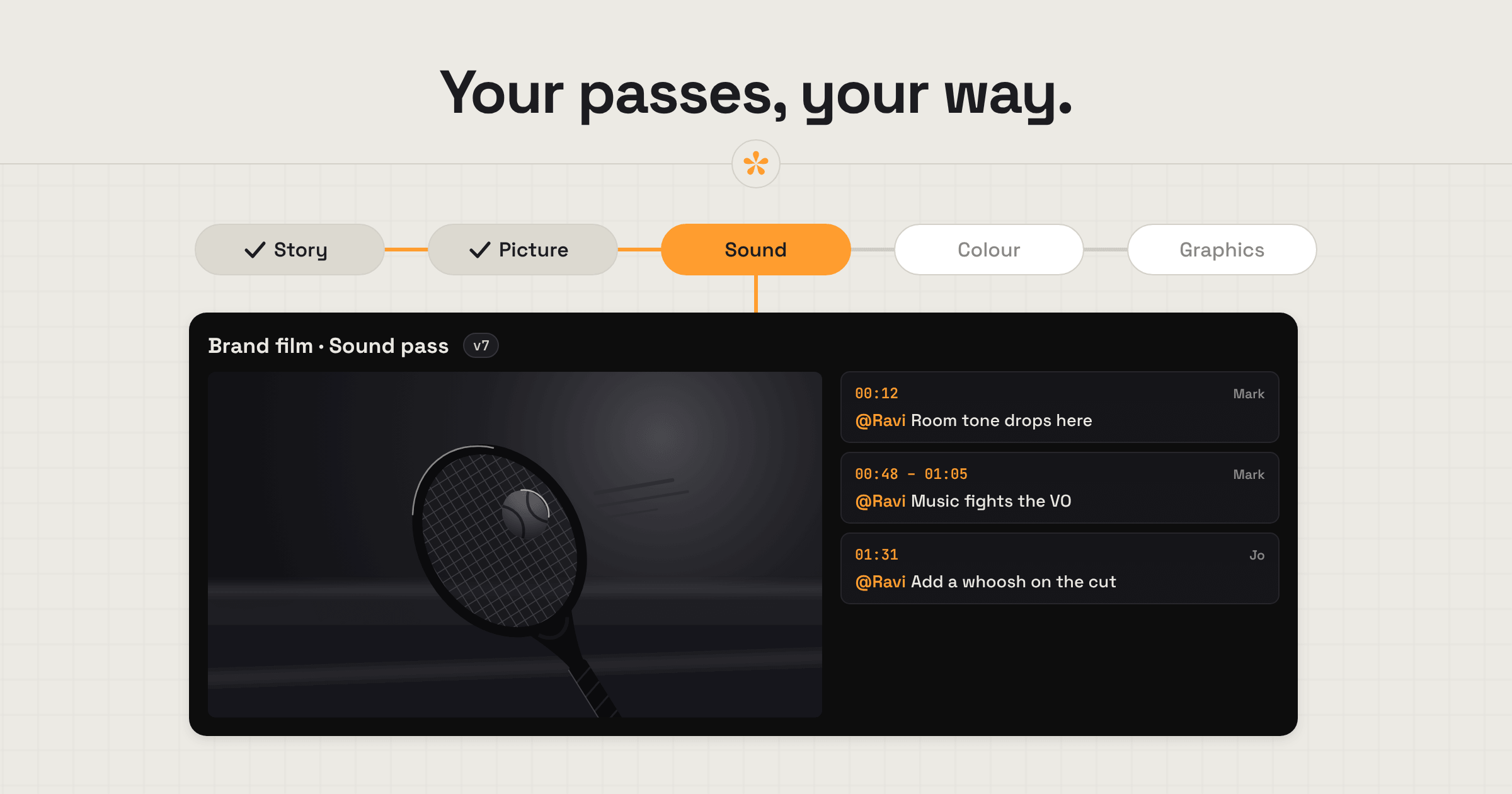
Post-production studios need a review process that fits around their existing workflow, with separate passes for the edit, sound, colour and graphics. SceneNote keeps those passes as versions under one review link, where clients leave notes on exact frames without an account. Each version keeps its own feedback and approvals, and editors can work through the notes in SceneNote or export them as markers for Premiere Pro or DaVinci Resolve.
The short version
- Export the cut.
- Paste a link or upload it.
- Send the client one review link.
- The client leaves notes on the exact frame.
- Work through the notes in the review room, or export them as markers into the edit or grade.
- Add the next pass as a new version on the same link.
- The client approves each pass, and every approval is recorded with a name and date.
ON THIS PAGE · 8 SECTIONS
How does client review follow the passes of a project?
Studios already have a workflow that works, so SceneNote is built to fit around it rather than replace it. Most projects go through the same passes, and each one becomes a version on the same review link.
- The edit, up to picture lock. First the assembly and the story: how the message comes through, the pacing, the music. Then the finer details, like where cuts happen, swapping shots and graphics, until the timeline is fixed.
- Sound, as its own version. The mix and sound design, reviewed with the picture locked.
- The grade, usually last. Another version, reviewed once picture and sound are settled.
- Extra passes where needed. Graphics, titles and logos, each added as a version.
Because each pass keeps its own notes, a sound note never ends up mixed in with a grade note, and the client always opens the latest pass.
Many of these rounds happen internally first. Keep the internal rounds in their own project, and give the client a client-facing version once the team's notes are done, so they never see notes that weren't meant for them.
What does SceneNote do, and not do, for a studio?
SceneNote is a client review tool. It's honest to say what that covers and what it doesn't.
| SceneNote does | SceneNote doesn't | |
|---|---|---|
| Review | Notes on the exact frame, range notes, drawing, voice notes and polls, with no account for the client | |
| Versions | Every pass on one link, each with its own notes | |
| Approvals | A dated record of who signed off each pass | |
| Into your tools | Markers for Premiere Pro and DaVinci Resolve, a CSV and Copy all | |
| Media | Review copies by link or upload | Manage source media or a studio's asset library |
| Tracking | Resolve notes as they're done | Track every shot and task across a whole production (who's working on what, and where each one is at) |
| Accounts | One account for the whole studio, with no seat limits, and unlimited reviewers for free | Separate logins and permissions for each team member |
| Branding | Your studio's logo and accent colour, or your client's, on the review room (on Pro) |
How does SceneNote fit a studio's pipeline?
SceneNote sits between the cut after export and the notes coming back into it.
- Export the cut from Premiere Pro, DaVinci Resolve or wherever the pass was done.
- Paste a link or upload it. A link from YouTube, Vimeo, Google Drive or Dropbox uses no storage.
- The client reviews on the review link, with notes on the exact frame.
- Work through the notes. Resolve them in the review room, or export them as markers so they land on the timeline.
- Approval. The client approves the pass, and the approval is recorded.
- Keep the record. The CSV and Copy all list every note, reply, status and who approved, which is useful when a client asks what a round included.
Which SceneNote features suit which department?
Each department in a studio leans on different SceneNote features.
| Department | Features they use most | Why |
|---|---|---|
| Edit | Timestamped and range notes, replies and @mentions, polls for decisions, versions, markers | Notes land on the timeline, and every cut stays on one link |
| Sound | Range notes, voice notes | “From here to here the music is too loud” covers a stretch, and some notes are easier to say |
| Colour | Image sets of references and graded stills, drawing, polls, side by side and wipe comparisons between versions | Agree the look on stills, then mark the exact spot |
| VFX and graphics | Drawing on the frame, frame stepping on uploads | Exact placement in the frame, frame by frame |
How do you make the review room look like your studio's?
The review room is client-facing, so it's worth making it look like yours, or like your client's. On Pro, add your studio's logo and accent colour to the review room, or the client's own, compare versions with a wipe or side by side, and keep stills inside the video project.
What does this look like on a real project?

Post-production studios often have a very particular workflow, built for how that studio is set up. They vary a little, but on the whole they follow a similar process. The first pass is mainly about the assembly: how the piece was cut and how the story is told, how the message comes through, the pacing and the music. The finer details, like where cuts happen, swapping shots, adding or taking things away and graphics, come a little later. Then sound is its own pass, and colour almost always is too.
Studios run these as separate passes so the feedback can be compartmentalised. One review session focuses on one department, so if it's about sound, all the feedback is about sound. That allows a deeper dive into what the session is for, it breaks up the workflow, and the notes go straight to the person or people in that department to fix. It means quite a few versions, so the notes really need a way of being organised.
And you don't necessarily want the client seeing all the notes meant for the internal team. They might not make sense to the client, and the client doesn't need to see those inner workings. So a client-facing version is important, and it usually comes after a lot of internal rounds have been done.
Which guides help post-production studios most?
- How to set up a video review room
- How to manage versions of a video edit
- How to get client notes into your editing software
- How to share a confidential video for review
FAQ
Do clients need an account?
No. Clients type their name the first time they leave a note. There's no account, invite or app, and no charge for reviewers on any plan.
Can the whole studio work from one account?
Yes. A studio can run all its projects from one SceneNote account, so every project sits in one organised place. There are no seat limits or per-seat charges, so the whole team can work from that one account, and clients, freelancers and anyone else review on the link for free.
Does SceneNote replace a media asset manager?
No. SceneNote is for review copies, notes and approvals. Source media and the studio's asset library belong in a dedicated media asset manager.
What happens to client footage?
Footage and feedback exist only to serve the project. SceneNote never uses or sells them for AI training, and review links are never indexed by search engines.
What's the simplest way for a studio to run client review?
Add each pass to the same project as a version, send the client one review link, work through the notes in one place or as markers on your timeline, and get each pass approved before the next begins.
Your studio's workflow. Your branded review room.
Keep every pass, note and approval organised, with your studio's logo and colours.
Related guides
Kiril Dobrev
Filmmaker · part of the team behind SceneNote
Kiril Dobrev is a filmmaker with 15 years of experience and a passion for documentary and travel. He’s spent a lot of that time in the editing room, obsessing over how to make his workflow better, and the feedback loop has always been a big part of that. Post-production still hasn’t had a good enough answer to it. SceneNote was born from that, with one simple idea: make feedback better.
More guides by Kiril →