
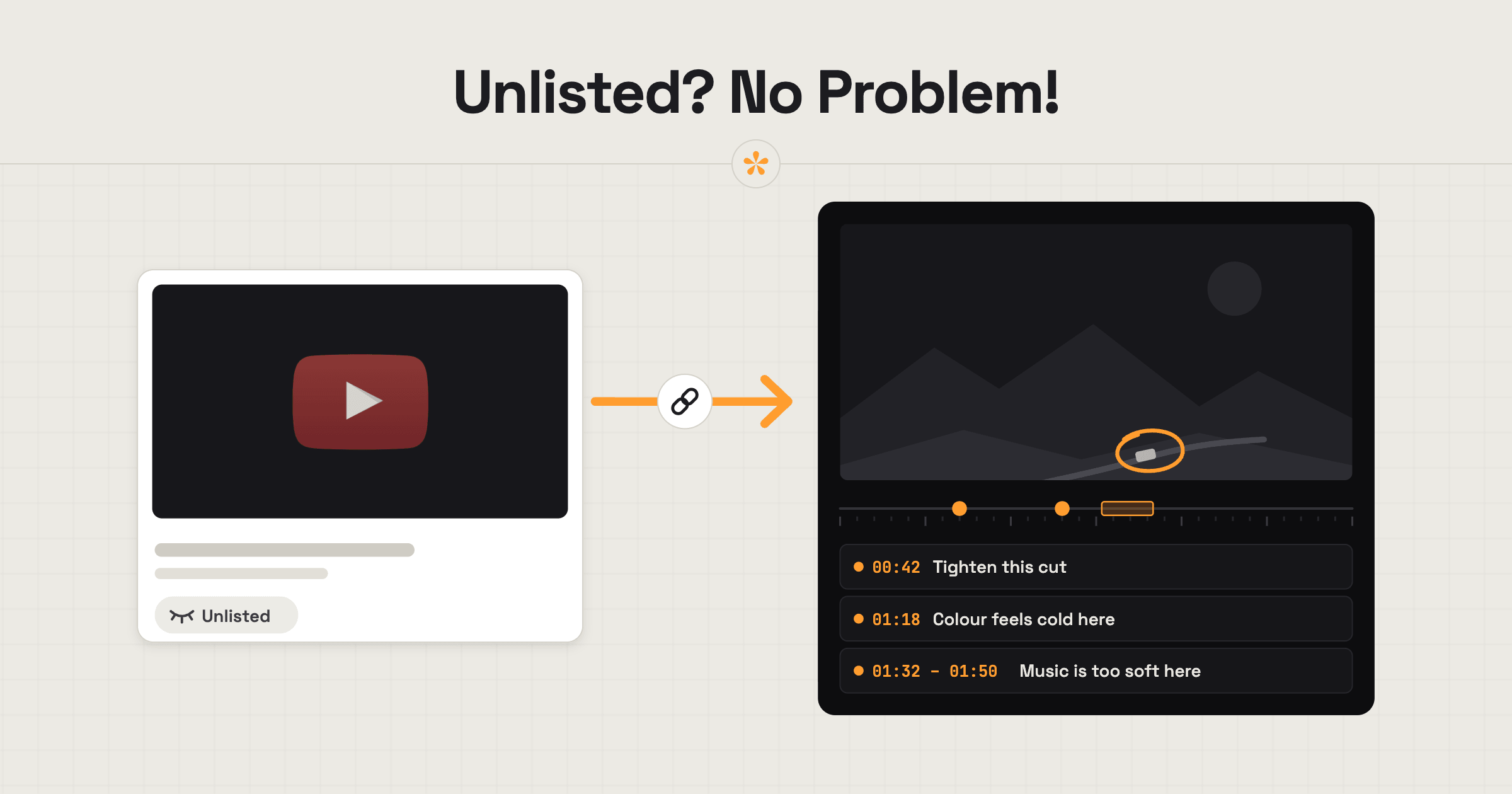
To get timestamped feedback on an unlisted YouTube video, use a video review tool like SceneNote. Paste your unlisted YouTube link into SceneNote and share the review link it creates. Clients can leave notes on exact moments without creating an account, while the video stays on YouTube. Setting up a review project this way is completely free.
The short version
- Upload the video to YouTube as Unlisted, with embedding allowed.
- Copy the video's link.
- Paste it on scenenote.app and create the project.
- Send the client the review link.
- If there's a second cut, upload a new unlisted video and add its link as v2 in the same project.
ON THIS PAGE · 8 SECTIONS
Why isn't an unlisted YouTube link enough on its own?
An unlisted YouTube link is great for watching, but it isn't built for feedback. The client watches, then writes notes somewhere else, usually an email or a chat with rough times like “around the middle”. YouTube comments don't help much either: they aren't designed for review rounds, versions or sign-off.
| Plain unlisted link | Burnt-in timecode plus notes in a doc | SceneNote project from the same link | |
|---|---|---|---|
| Notes on the exact moment | No | Typed timecodes | Yes, pinned to the frame |
| Drawing, voice notes, polls | No | No | Yes |
| Versions and sign-off | No | By file name | v1, v2, v3 and an Approve button |
| Notes into your edit | Retype them | Retype them | Markers for Premiere Pro or DaVinci Resolve |
| Cost and storage | Free | Free | Free, no storage used |
How do you set it up, step by step?
Setting up timestamped feedback on an unlisted YouTube video takes about 30 seconds once the video is on YouTube.
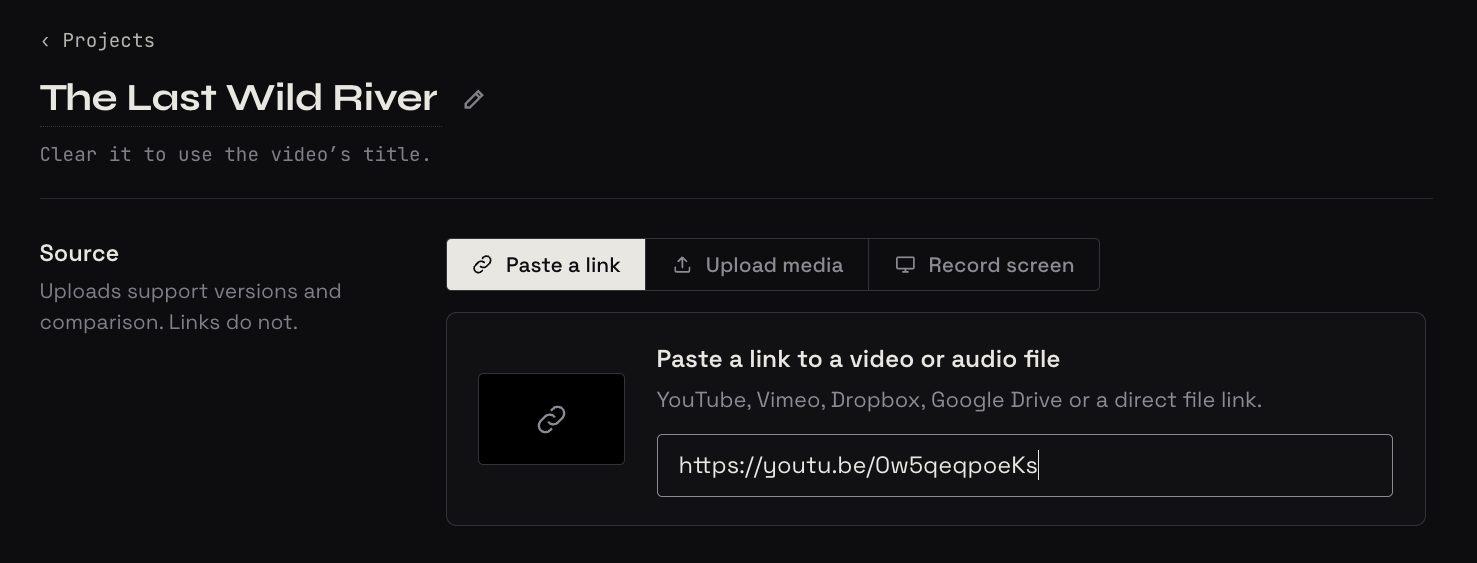
- Upload to YouTube as Unlisted. In YouTube Studio, set Visibility to Unlisted. Leave “Allow embedding” switched on (it's on by default, under the video's details).
- Copy the link. Any YouTube link format works, including youtu.be links and Shorts.
- Paste it on scenenote.app and click Create project. The video streams from YouTube; nothing is copied or uploaded.
- Send the client the review link (with an optional pre-watch note if you like).
What can your client do once it's set up?
Once an unlisted YouTube video is in SceneNote, your client can do everything they'd do on an uploaded file, apart from a couple of upload-only extras.
- Leave notes on the exact moment, so you jump straight to it.
- Mark a whole section with a range note, for a scene that drags.
- Draw on the paused frame to point at something.
- Record a voice note if they'd rather talk.
- Answer a poll when you need a decision.
- Approve the final cut, with their name and the date on record.
And you can export their notes as markers for Premiere Pro or DaVinci Resolve.
How do you send the next cut?
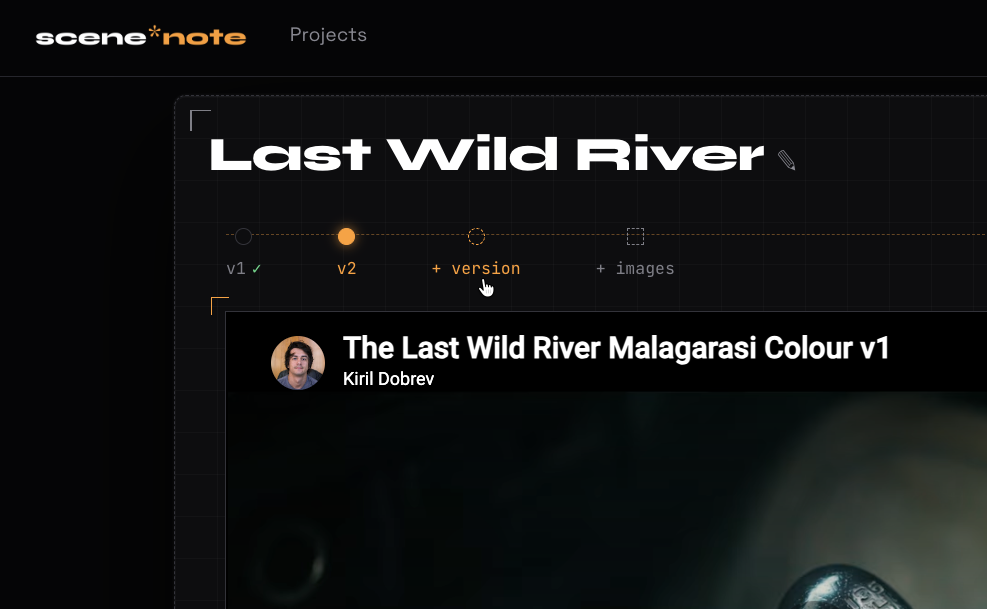
Upload the next cut to YouTube as a new unlisted video, then add its link to the existing SceneNote project using + version. Your client keeps the same review link, notes from v1 stay attached to v1, and new feedback goes on v2. YouTube links don't count towards your SceneNote storage, and link projects on a free account never expire, so you can keep adding versions for as many review rounds as you need.
When should you upload instead?
Upload the file instead of using a YouTube link when the video is confidential, or when you need the upload-only extras. Unlisted isn't private: anyone with the YouTube link can watch it. Uploading also gets you frame-exact stepping (on YouTube it's approximate), a searchable transcript, side-by-side compare and full-quality downloads (some of these are Pro). Should you upload a video for review or share a link? compares the two.
Can you review someone else's YouTube video too?
Yes, and it's one of the most useful things about working with links. Links aren't just for your own cuts. In the early stages of a project, you and your client are often looking at other people's work for inspiration.
This is especially useful in the early stages, when you're still shaping the concept. Paste the reference video's link into SceneNote, and you can both leave notes on exactly what you like and what you don't: the pace of the opening, the colour in one shot, the way the titles come in. A vague “something like this” turns into specific references before anything has been shot or cut. It works with any YouTube video that allows embedding, and with Vimeo links too.
How to handle common problems
The video won't play in SceneNote
If a YouTube video won't play in SceneNote, it's usually one of two settings: the video is Private rather than Unlisted, or embedding is switched off. Set it to Unlisted, make sure “Allow embedding” is on in YouTube Studio, and reload the review link.
The client comments on YouTube instead
If the client leaves notes in YouTube's comments, mention in the pre-watch note that notes on the review link land on the exact frame. You can also switch comments off on the unlisted video in YouTube Studio, which removes the temptation.
The client opens an old link
If the client watches an old cut, it's usually because each version went out as a separate YouTube link. Send one SceneNote review link instead, and add every new cut to it as a version: the client always lands on the latest.
FAQ
Does the client need a YouTube account to leave feedback?
No. The client never needs a YouTube account or a SceneNote account. They open the review link and type a name the first time they leave a note.
Does a YouTube project use any storage?
No. The video plays from YouTube, so a link project uses no SceneNote storage at all.
Can I use a private YouTube video?
No. Private YouTube videos can't be played anywhere else. Use Unlisted for review, or upload the file to SceneNote if it has to stay off YouTube altogether.
Do YouTube Shorts links work?
Yes. SceneNote accepts Shorts links as well as normal YouTube and youtu.be links. How to get feedback on a vertical video covers short-form reviews.
What's the easiest way to review an unlisted YouTube video?
Paste the unlisted link into SceneNote, send the client the review link, and add each new cut as a version. The video stays on YouTube, and the notes land on the exact frame.
Turn an unlisted YouTube link into a review room.
No sign-up needed to paste a link.
Related guides

Kiril Dobrev
Filmmaker · part of the team behind SceneNote
Kiril Dobrev is a filmmaker with 15 years of experience and a passion for documentary and travel. He’s spent a lot of that time in the editing room, obsessing over how to make his workflow better, and the feedback loop has always been a big part of that. Post-production still hasn’t had a good enough answer to it. SceneNote was born from that, with one simple idea: make feedback better.
More guides by Kiril →