
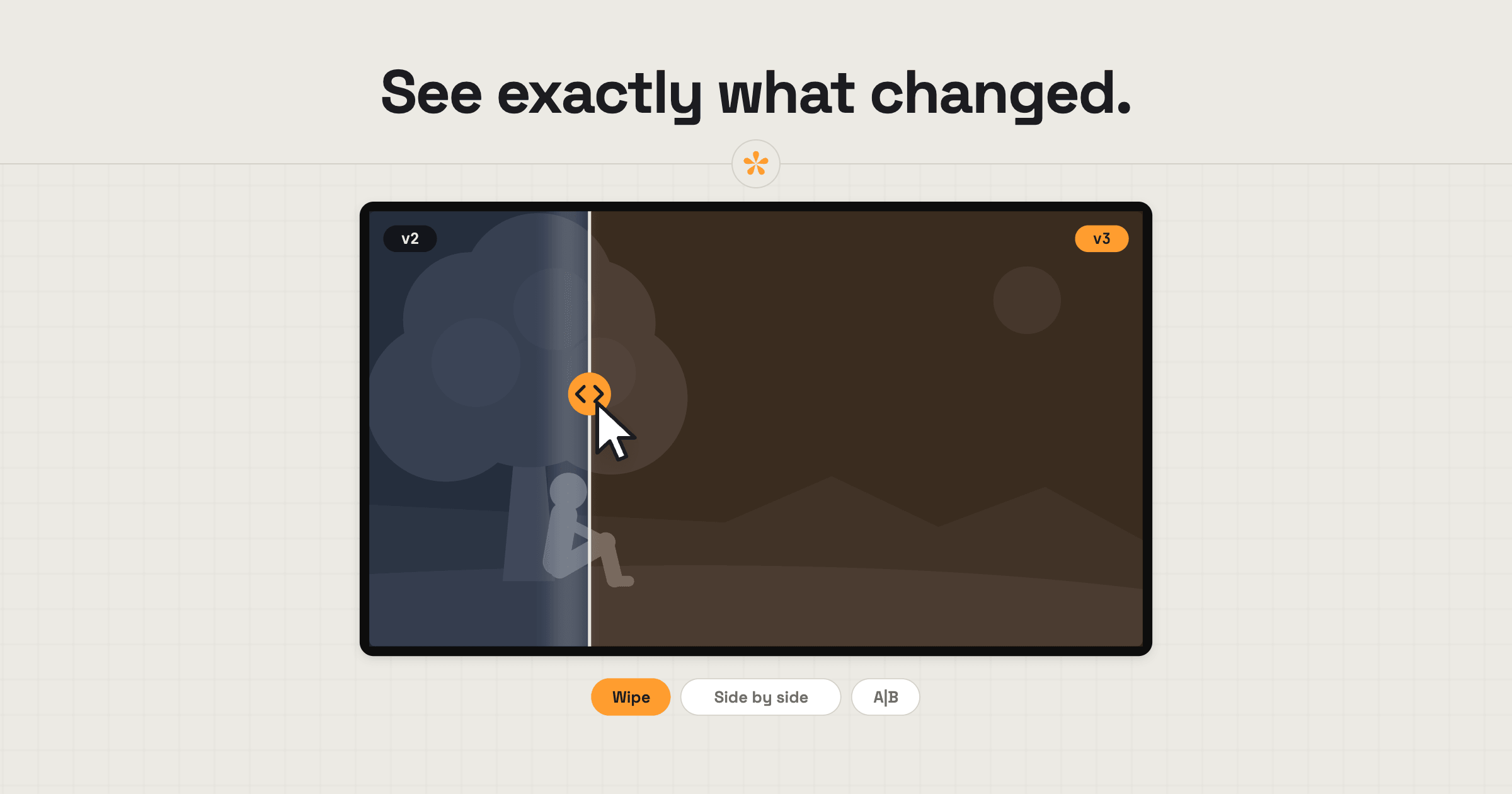
To compare two versions of a video, open both in a compare view that plays them in sync: a wipe, side by side, or A/B switching. It shows exactly what changed in a re-grade. In SceneNote, compare is a Pro feature, and it needs at least two uploaded versions in the same project.
ON THIS PAGE · 7 SECTIONS
When do you need to compare two versions of a video?
You need to compare versions when a change is too subtle to spot by watching one cut and then the other. Some typical moments:
- Small changes that are hard to spot. A touch more contrast, a warmer temperature or a subtle vignette can be almost invisible when you watch one version and then the other. Side by side, or with a wipe between them, they're obvious.
- The client asks “what did you actually change?” and you'd rather show than list.
- A re-grade, where skin tones or the sky shifted slightly.
- A two-frame trim that makes a cut land better.
- A VFX fix, before and after.
- A new mix, where the dialogue sits a little higher.
- A re-export, to check nothing broke.
Wipe, side by side or A/B: which should you use?
Each compare mode suits a different kind of change.
| Mode | Best for | Example |
|---|---|---|
| Wipe | Colour and detail in the same frame | Dragging across a face to check the new skin tone |
| Side by side | Timing and framing | A trimmed shot next to the original |
| A/B | Tiny differences | Flicking between two exports to spot a missing graphic |
All three play both versions in sync, so you're always looking at the same moment.
How do you set up a comparison, step by step?
Setting up a comparison takes a few seconds once both versions are uploaded to the same project.
- Upload both cuts as versions of the same project (v2 and v3, say).
- Open Compare from the three-dot menu in the player.
- Pick the two versions and a mode: wipe, side by side or A/B.
- Press play. Both versions play in sync.
Reviewers can use compare too, and any notes still land on the newest version.
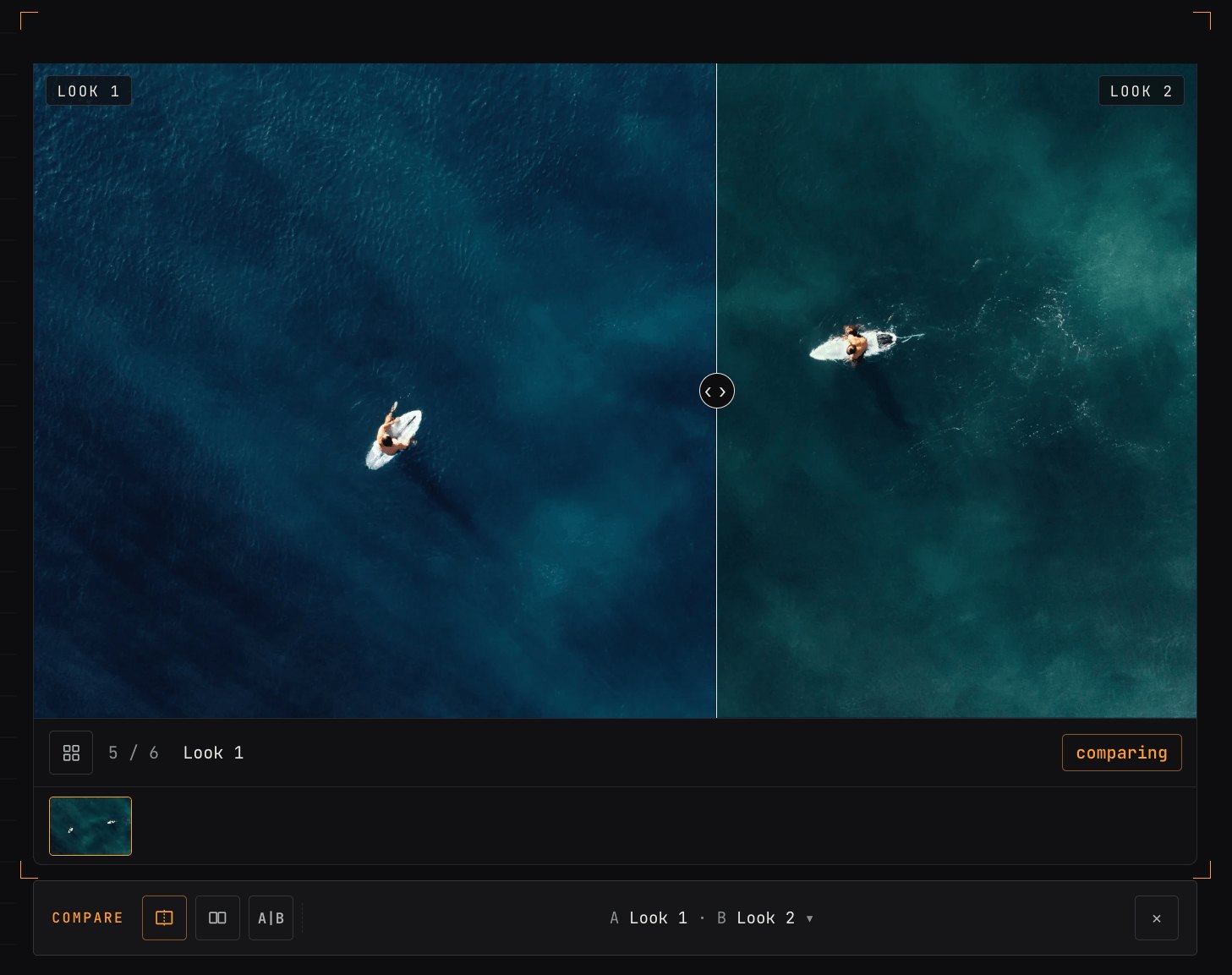
How do you compare colour grades?
To compare colour grades, use the wipe and drag it across the part of the frame that matters most, usually a face or the sky. Pause on a few key shots rather than watching the whole film. If you're still choosing a look, stills in an image set can be quicker: How to send images alongside a video for review covers that.
What are the limits of comparing versions in SceneNote?
Compare in SceneNote has a few limits worth knowing:
- Uploads only. It needs at least two uploaded versions in the project, and doesn't work on YouTube, Vimeo, Drive or Dropbox links.
- Not on phones. It needs a laptop or desktop screen.
- Pro only. On the free plan, switch between the version tabs above the player instead.
What does this look like on a real project?

With colour grading, the changes are often subtle. A shot gets a little more contrast, the temperature shifts slightly, or a soft vignette gets added. Watched on their own, those changes can be really hard to see. But side by side, the difference is much easier to notice.
It's especially useful when the client suggested the change. They can look at a shot side by side and see exactly how v3 compares to v2, then decide whether the new direction works. It streamlines the feedback and makes the change obvious, especially with anything visual.
FAQ
Can I compare more than two versions at once?
No. Compare shows two versions at a time. Pick the pair you want, and switch to another pair whenever you like.
Can the client use compare?
Yes. Reviewers can open compare on the review link, as long as the project is on Pro and both versions are uploads.
Do both versions need to be the same length?
No, but compare is most useful when they're close, because both play from the same moment. For a re-cut with big structural changes, watching the new version on its own usually makes more sense.
What's the best way to show a client what changed?
For subtle changes, put both uploaded versions in one project and open compare: a wipe for colour, side by side for timing, A/B for tiny differences. For everything else, a short line on what changed does the job.
Show exactly what changed.
Compare two uploaded cuts with a wipe, side by side or A/B.
Included in Pro.
Related guides
Kiril Dobrev
Filmmaker · part of the team behind SceneNote
Kiril Dobrev is a filmmaker with 15 years of experience and a passion for documentary and travel. He’s spent a lot of that time in the editing room, obsessing over how to make his workflow better, and the feedback loop has always been a big part of that. Post-production still hasn’t had a good enough answer to it. SceneNote was born from that, with one simple idea: make feedback better.
More guides by Kiril →