
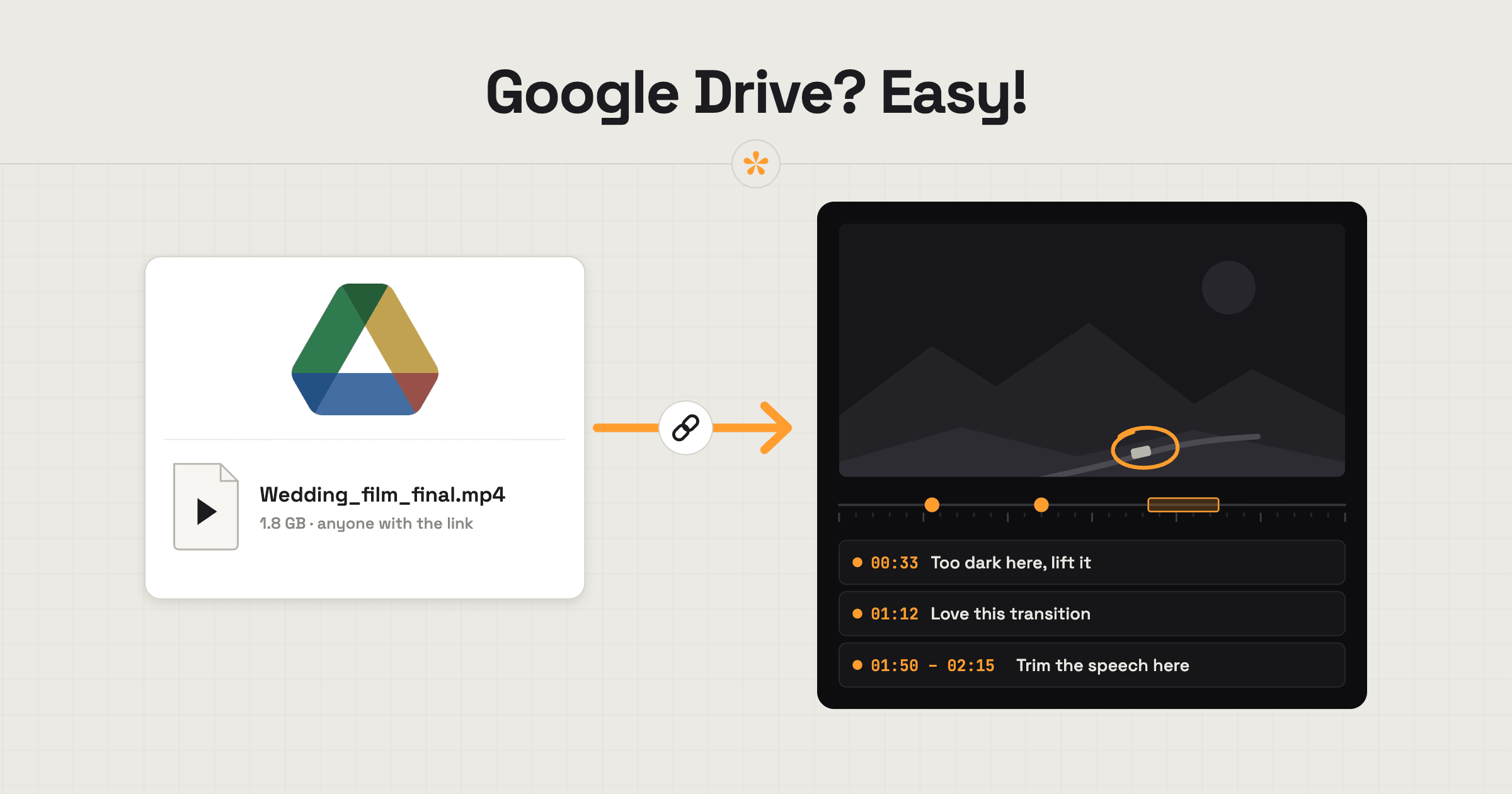
To get feedback on a Google Drive video, set the file's sharing to “Anyone with the link”, then paste its link into a video review tool like SceneNote. Share the review link SceneNote creates so clients can leave timestamped comments without an account. The video stays in Google Drive, and revised exports can be added as new versions under the same review link.
The short version
- In Drive, open Share on the video file (not the folder).
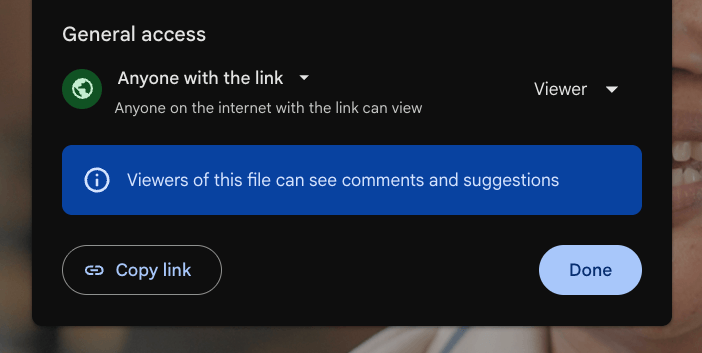
- Set General access to “Anyone with the link” (Viewer).
- Copy the link.
- Paste it on scenenote.app and create the project.
- Send the client the review link.
- For the next export, add its Drive link as v2 in the same project.
ON THIS PAGE · 8 SECTIONS
Why isn't a Google Drive link enough on its own?
Google Drive is built for storing and sharing files, not for review rounds. A client can watch the video from a Drive link, but their notes usually come back in an email or a chat, with vague references to what they're talking about. There are no versions to step between, no sign-off, and nothing you can drop onto your timeline.
Plenty of clients already live in Drive, so it makes sense to keep the file there and add the review part on top, if that's the setup you prefer.
| Plain Drive link | SceneNote project from the same link | |
|---|---|---|
| Notes on the exact moment | Rough times in an email | Pinned to the frame |
| Drawing, voice notes, polls | No | Yes |
| Replies on each note | No | Yes, with email alerts |
| Versions and sign-off | By file name | v1, v2, v3 and an Approve button |
| Notes into your edit | Retype them | Markers for Premiere Pro or DaVinci Resolve |
| Extra upload | None | None, no SceneNote storage used |
Doesn't Google Drive have its own video comments now?
Google announced timestamped comments for videos in Drive in August 2026. When we tested on 30 October 2026, the feature hadn't reached our account yet, so we can't say how it works in practice. We'll keep checking and update this page.
Going by the announcement, it covers timestamped comments only. It doesn't mention drawing on the frame, voice notes, versions, polls, approval or markers for your editor. If simple timestamped comments are all a job needs, and Drive's version reaches your account, it may be enough. For review rounds with versions and sign-off, a SceneNote project from the same Drive link adds those.
How do you set it up, step by step?
Setting up feedback on a Google Drive video takes under a minute once the export is in Drive.
- Share the file, not the folder. Right-click the video file in Drive and choose Share.
- Set General access to “Anyone with the link”. Leave the role as Viewer. “Restricted” won't play anywhere outside Drive.
- Copy the link.
- Paste it on scenenote.app and click Create project. The video plays from Drive; nothing is copied into SceneNote.
- Send the client the review link, with an optional pre-watch note on what you need from them.
What can your client do once it's set up?
Once a Google Drive video is in SceneNote, your client reviews it like any other project.
- Leave notes on the exact moment, or mark a whole section with a range note.
- Draw on the paused frame to point at something.
- Record a voice note of up to 60 seconds, which is transcribed.
- Reply to other people's notes, so a question gets settled where it was asked.
- Answer a poll when you need a decision between options.
- Approve the final cut, with their name and the date on record.
You then work through the list, tick off what's done, and export the notes as markers for Premiere Pro or DaVinci Resolve.
How do you add the next export as a new version?
To add the next export, upload it to Drive as a new file, set its sharing to “Anyone with the link”, and add the link to the same SceneNote project with + version. The client keeps one review link and lands on the latest cut, while older versions stay in the project with their notes.
One small thing: Drive lets you replace a file with a new version under the same link. It's tidier to upload each export as its own file, so v1 in SceneNote still shows v1.
What does this look like on a real project?

Some clients like to stay inside Google's world, with every export living in their own Drive next to the rest of their files. That works for them, and it doesn't need to change.
I still share the file from Drive and paste its link into SceneNote. The export stays where the client wants it, for their own records, and I still get everything SceneNote adds on top: notes on the exact frame, versions and a clear sign-off.
How to handle common problems
The file is set to “Restricted”
If the video won't play in SceneNote, check the file's General access in Drive. “Restricted” means only named people can open it, so nothing outside Drive can play it. Switch it to “Anyone with the link” and reload the review link.
Your company's Drive blocks outside sharing
If “Anyone with the link” isn't available, your Google Workspace admin has probably switched off sharing outside the organisation. Ask whether that can change for this file, or skip Drive: an unlisted YouTube link or an upload to SceneNote works instead. For anything confidential, uploading is the better choice anyway.
You shared the folder instead of the file
If SceneNote can't find a video in the link, it's usually a folder link. Open the folder, choose Share on the video file itself, and paste that link instead.
A very large file plays slowly
If a big export stutters, that's Drive streaming a heavy file. For long or very large exports, an unlisted YouTube link or an upload to SceneNote plays more smoothly, especially on a phone.
FAQ
Does the client need a Google account?
Not to leave feedback. With sharing set to “Anyone with the link”, the client opens the review link and types a name the first time they leave a note, with no Google or SceneNote account. They'd only need a Google account if they want the exports kept in their own Drive. If the files live in yours, they don't need one at all.
Does a Drive project use SceneNote storage?
No. The video plays from Drive, so a link project uses no SceneNote storage.
Can I use a file from a shared drive?
Yes, as long as the shared drive allows sharing with anyone who has the link. Shared drives sometimes have stricter settings than personal ones, so check General access on the file.
What happens if I delete the file from Drive?
If the file is deleted or its sharing is set back to “Restricted”, that version stops playing in SceneNote. The notes stay in the project, so you can still read and export them.
What's the easiest way to get feedback on a Google Drive video?
Set the file to “Anyone with the link”, paste it into SceneNote and send the client the review link. The video stays in Drive, the notes land on the exact frame, and each new export becomes the next version.
Turn a Google Drive link into a review room.
No sign-up needed to paste a link.
Related guides
Kiril Dobrev
Filmmaker · part of the team behind SceneNote
Kiril Dobrev is a filmmaker with 15 years of experience and a passion for documentary and travel. He’s spent a lot of that time in the editing room, obsessing over how to make his workflow better, and the feedback loop has always been a big part of that. Post-production still hasn’t had a good enough answer to it. SceneNote was born from that, with one simple idea: make feedback better.
More guides by Kiril →