
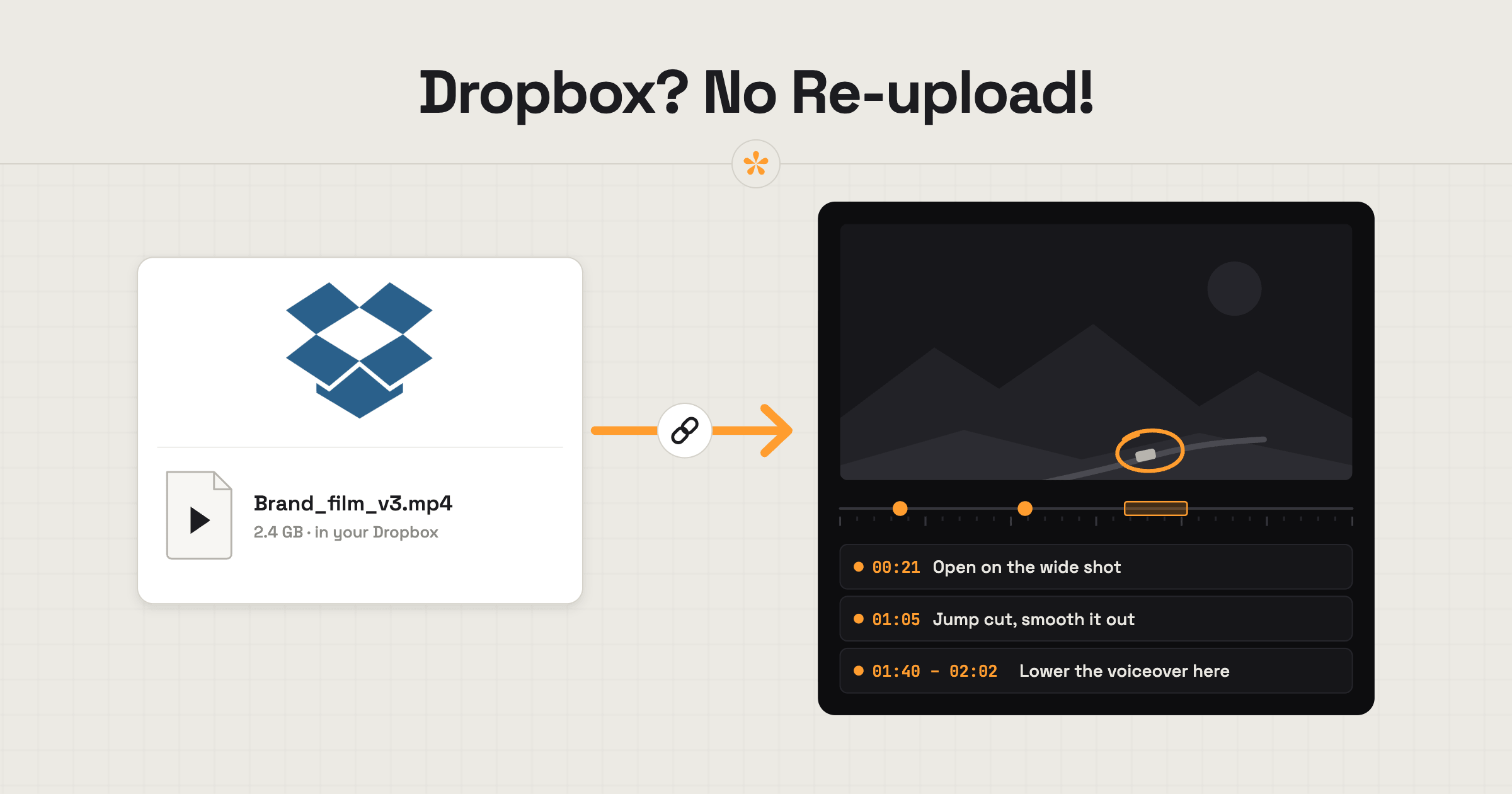
To get feedback on a Dropbox video without re-uploading it, paste the file's share link into a video review tool like SceneNote. Send the review link to your client, who can leave timestamped notes without creating an account. The original video stays in Dropbox, and you can add revised exports as new versions under the same review link.
The short version
- In Dropbox, share the video file (not the folder) so anyone with the link can view it.
- Copy the file's link.
- Paste it on scenenote.app and create the project.
- Send the client the review link.
- For the next export, add its Dropbox link as v2 in the same project.
ON THIS PAGE · 7 SECTIONS
Why isn't a Dropbox link enough on its own?
A Dropbox link is a good way to deliver a file, but a poor way to collect notes on it. The client can watch the export, then they write their notes somewhere else: an email, a chat, a doc with “the section at the end”. Dropbox's file comments aren't built around review rounds, versions or sign-off, so you end up rebuilding the list yourself.
If you already export into a Dropbox folder, there's no reason to upload the same file a second time. SceneNote plays it straight from Dropbox.
| Plain Dropbox link | SceneNote project from the same link | |
|---|---|---|
| Notes on the exact moment | Rough times in an email | Pinned to the frame |
| Drawing, voice notes, polls | No | Yes |
| Replies on each note | No | Yes, with email alerts |
| Versions and sign-off | By file name | v1, v2, v3 and an Approve button |
| Notes into your edit | Retype them | Markers for Premiere Pro or DaVinci Resolve |
| Extra upload | None | None, no SceneNote storage used |
How do you set it up, step by step?
Setting up feedback on a Dropbox video takes under a minute once the export is in Dropbox.
- Share the file, not the folder. In Dropbox, click Share on the video file itself.
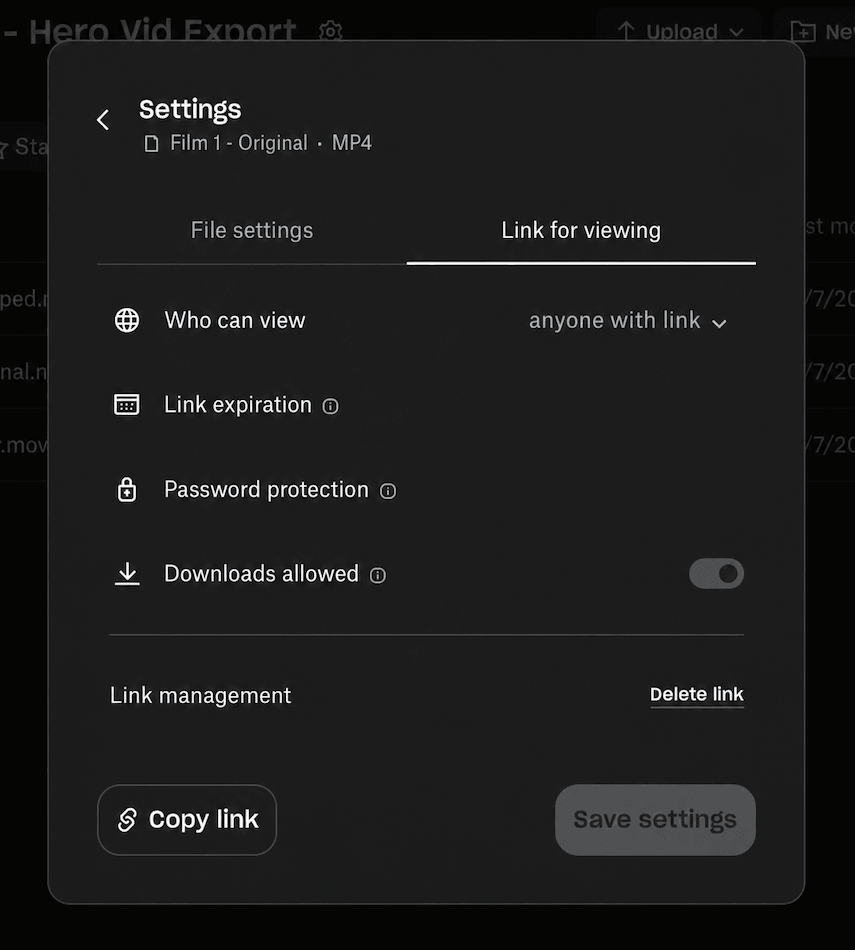
- Check who can view it. The link has to work for anyone who has it. If your account only allows people in your team, change the link setting first (see the problems section below).
- Copy the link.
- Paste it on scenenote.app and click Create project. The video plays from Dropbox; nothing is copied into SceneNote.
- Send the client the review link, with an optional pre-watch note on what you need from them.
What can your client do once it's set up?
Once a Dropbox video is in SceneNote, your client reviews it the same way they would any other project.
- Leave notes on the exact moment, or mark a whole section with a range note.
- Draw on the paused frame to point at something.
- Record a voice note of up to 60 seconds, which is transcribed.
- Reply to other people's notes, so a question gets settled under the note it's about.
- Answer a poll when you need a decision between options.
- Approve the final cut, with their name and the date on record.
You then go through the list, tick off what's done, and export the notes as markers for Premiere Pro or DaVinci Resolve.
How do you add the next export as a new version?
To add the next export, share the new file in Dropbox, copy its link, and add it to the same SceneNote project with + version. The client keeps the same review link and lands on the latest cut. Older versions stay in the project, read-only, with their notes, so nobody loses track of what was said about v1.
It helps to keep each export as its own file (Project_v2.mp4, Project_v3.mp4) rather than overwriting the old one. That way every version in SceneNote still plays.
What does this look like on a real project?

I'm a Dropbox user, and it's popular with a lot of my clients too, so plenty of my work ends up shared there. Often the client wants the exports in their own Dropbox folder, which is completely fine.
I've kept that workflow exactly as it is. The exports still go into the shared folder, and I just paste each file's link into SceneNote. The file stays in Dropbox, I get all the feedback tools, and everyone's happy.
How to handle common problems
You shared the folder instead of the file
If SceneNote can't find a video in the link, it's usually a folder link. Open the folder in Dropbox, click Share on the video file itself, and paste that link instead.
The link only works for your team
If the video won't play for the client, the link is probably limited to people in your Dropbox team or people you've invited. Change the link setting so anyone with the link can view it. If your company's Dropbox doesn't allow that, an unlisted YouTube link or an upload to SceneNote gets around it.
A long or very large export plays slowly
If a big export stutters, that's Dropbox streaming a heavy file. For long or very large exports, uploading the file straight to SceneNote gives the smoothest playback, especially on a client's phone. An unlisted YouTube link works well too.
FAQ
Does the client need a Dropbox account?
No. The client doesn't need a Dropbox account or a SceneNote account. They open the review link and type a name the first time they leave a note.
Does a Dropbox project use SceneNote storage?
No. The video plays from your Dropbox, so a link project uses no SceneNote storage.
What happens if I delete the file from Dropbox?
If the file is deleted or the link is switched off in Dropbox, that version stops playing in SceneNote. The notes stay in the project, so you can still read and export them.
Can the client download the file?
Anyone with a Dropbox link can usually download from Dropbox itself. If downloads are the worry, upload the file to SceneNote instead, where downloading is something you choose to allow.
What's the easiest way to get feedback on a Dropbox video?
Share the file's Dropbox link, paste it into SceneNote and send the client the review link. The export stays in Dropbox, the notes land on the exact frame, and each new export becomes the next version.
Turn a Dropbox link into a review room.
No sign-up needed to paste a link.
Related guides
Kiril Dobrev
Filmmaker · part of the team behind SceneNote
Kiril Dobrev is a filmmaker with 15 years of experience and a passion for documentary and travel. He’s spent a lot of that time in the editing room, obsessing over how to make his workflow better, and the feedback loop has always been a big part of that. Post-production still hasn’t had a good enough answer to it. SceneNote was born from that, with one simple idea: make feedback better.
More guides by Kiril →