
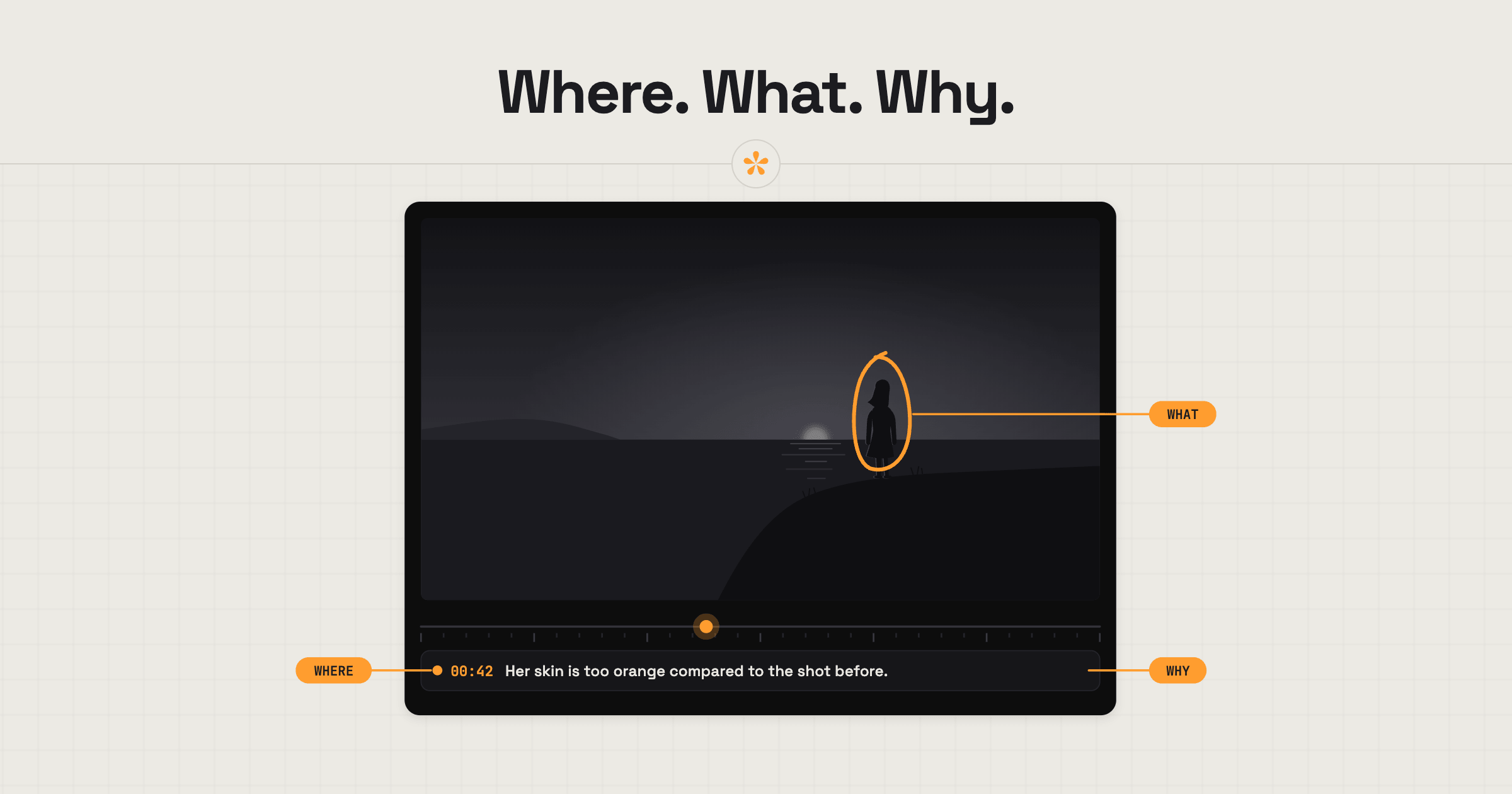
Useful feedback on a video tells the editor exactly where something needs attention, what you'd like changed and why. Watch the cut once without stopping, then go back and leave specific notes at the moments that matter. If you're reviewing in SceneNote, you can type, draw or record a voice note directly on the video, without creating an account.
The short version
- If the editor left a note on what this cut is and what they need from you, read it first.
- Watch the whole video once without stopping.
- Watch it again, pausing wherever something needs to change.
- Leave a note on that exact moment: what you'd change and why.
- Answer any questions or polls the editor left for you.
- Press Approve once you'd be happy for it to go out as it is.
ON THIS PAGE · 9 SECTIONS
What makes video feedback useful?
Useful video feedback is feedback an editor can act on without coming back to ask what you meant. In practice, it comes down to five things.
- The exact moment. “At 1:46” beats “near the end”, and a note pinned to the frame beats both.
- What and why. Say what you'd change and the reason behind it. The why lets the editor judge what's possible with the footage, the time and the budget, and they'll sometimes find a better fix than the one you had in mind.
- Priority. A misspelt name or a missing logo is a must-fix. Preferring a different shot is taste. Both are welcome; they just aren't equal. Starting a note with “Must fix:” is a simple way to tell them apart.
- Clear decisions. When several people are giving notes, agree who has the final say, so the editor isn't left choosing between two notes that contradict each other.
- References. A link to a video, a song or a style you like says more than a paragraph of adjectives.
You don't need any editing vocabulary for this. Plain words are fine, as long as the note is in the right place and says why. Even “this bit feels slow and I'm not sure why” is a note an editor can work with. How to explain a change when you're not a video person goes further into putting a feeling into words.
What's the difference between a vague note and a useful one?
A vague note tells the editor something is wrong. A useful note tells them where, what and why. Here are five common notes, rewritten. (They're illustrations: the times and links are made up.)
| The vague note | The useful note | Why it works |
|---|---|---|
| “The middle drags.” | Range note, 1:10 to 1:45: “This stretch feels slow. Both interview answers say the same thing. Could we keep just the second?” | It marks the stretch, names the feeling and offers a fix the editor can weigh up |
| “Make it pop.” | At 0:03: “The opening feels flat. I want people excited in the first few seconds, a bit like this: [link]” | It describes the feeling you're after and shows a reference |
| “Change the music.” | General note: “The track feels too sad for a product launch. Something more upbeat would fit, maybe like this: [link]” | It says what's wrong with the track and what right sounds like |
| “The colours are off.” | At 0:42, with a circle drawn round her face: “Her skin looks a bit orange compared with the shot before.” | The drawing shows exactly where, and “compared with” gives a reference point |
| “Tidy up the ending.” | At 2:05: “The logo goes by too fast to read. Could it stay on screen a couple of seconds longer?” | One specific problem and one specific ask |
How do you leave notes on a review link?
To leave notes on a SceneNote review link, open the link your editor sent, pause where you want to comment, type your note and press Enter. The note is pinned to that moment. There's nothing to install and no account to make.
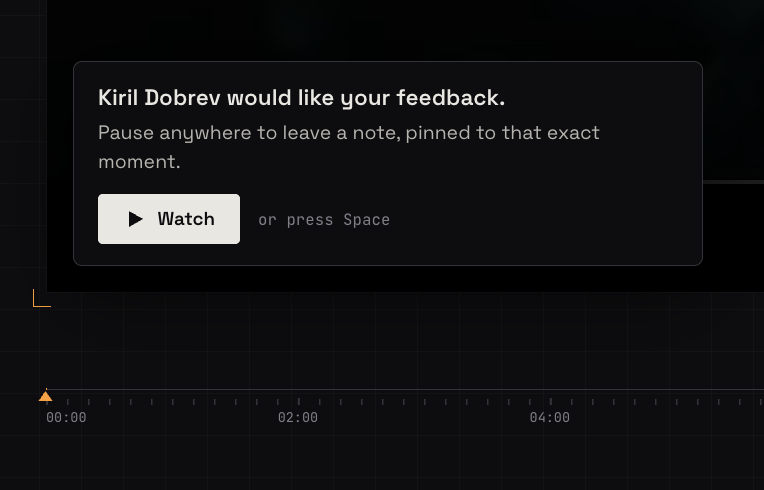
- Open the review link. It works in any browser, on a computer or a phone. If the editor left a pre-watch note, it shows on the player first: read it, then press Watch.
- Watch it through once without stopping, to get a feel for the whole thing.
- Pause where something needs to change. Clicking into the note box pauses the video too, and the box shows the time your note will land on.
- Type the note and press Enter. The first time, SceneNote asks for your name, so the editor knows who said what. You can switch on email alerts in the same box if you'd like to hear when they reply.
- Keep going. Your notes appear in a list beside the video and as dots on the timeline; click any of them to jump back to that moment. It's all live, so the editor sees your notes arrive as you leave them, and SceneNote alerts them too. There's no need to message them to say you're done.
- Press Approve when the video is ready to go out (more on that below).
Everyone's notes sit in the same list, so you can see what others have already said and reply under a note instead of repeating it. On a keyboard, Space plays and pauses, and the arrow keys jump 5 seconds back or forward.
The full walkthrough, with every shortcut, is in how to leave timestamped comments on a video.
When should you draw, talk or mark a whole section?
Most video notes are a typed note at one moment, but some are easier to give another way. Use whichever feels natural: the editor gets them all in one list, in time order.
| When you want to... | Use | Why it fits |
|---|---|---|
| Point at one moment (“the logo comes in too early”) | A timestamped note | Pinned to the exact frame, so the editor jumps straight there |
| Talk about a whole stretch (“the music is too loud in this section”) | A range note: press + range and set a start and an end | Covers the whole section, not just the second you paused on |
| Show “this thing here” in the picture | Draw on the paused frame | A circle or an arrow is quicker than describing where to look |
| Say it rather than type it | A voice note, up to 60 seconds | Transcribed automatically, so the editor can read it as well as hear it |
| Share your overall thoughts | General feedback | For notes about the whole video rather than one moment |
| Show what you mean | A link pasted into your note | It shows as a small chip the editor can open in a new tab |
| Answer the editor's question | A reply, or a vote in their poll | Keeps your answer right next to the question |
| Say yes | Approve | Puts your sign-off on record, with your name and the date |
Say you're the marketing lead on a 90-second brand film. You leave a timestamped note on a misspelt job title, draw a circle round a competitor's logo in the background of one shot, and mark 1:10 to 1:30 as too slow. A colleague on the train records a 20-second voice note about the music. It all lands in one list the editor can work through from top to bottom, and nobody has to write “at around 1:15” in an email.
How do you give feedback on a video as a team?
When several people review the same video, everyone's input is welcome, but it needs to point the editor in one direction. Agree who has the final call, and sort out contradictions before they land with the editor. In the editors' threads we've read, conflicting notes from different people come up again and again, along with a senior person rethinking everything at the last minute.
- Agree who decides. One person has the final say on your side, and the editor knows who that is.
- Use the same link. Everyone's notes land in one place with their name on them, so overlaps and contradictions show up straight away.
- Reply instead of repeating. If you agree with a colleague's note, say so under it. If you disagree, say that under it too and @mention them, so they get an email if they've switched on alerts.
- Settle it before the deadline. A ten-minute call between you is often faster than a long thread the editor has to referee.
- Bring senior people in early. A boss who first sees the video in the final round can undo two rounds of work in one note.
If someone on your side would rather have a plain list, Copy my notes (in the menu at the top of the review page) copies just your notes as text, ready to paste into an email or a chat.
Editors, the other side of this is in how to manage feedback from multiple reviewers.
When is a video ready to approve?
A video is ready to approve when you'd be happy for it to go out exactly as it is. Before you press Approve, check that:
- You've watched the whole thing on the kind of screen your audience will use, which is often a phone.
- You can clearly hear every word.
- Names, titles, spelling and logos are all correct.
- Anything legal or brand-related has been seen by whoever needs to see it.
- Your must-fix notes from the last round are done. Resolved notes turn green, and Show resolved brings them back into the list so you can check.
- Everyone on your side who needs to see it has seen it, or the person with the final say is happy.
Approving on a SceneNote review link takes one click: the Approve button above the player. If you reach the end of a version without leaving a note, SceneNote offers it there too. Your approval is recorded with your name and the date, where the editor and everyone else on the link can see it.
Approval doesn't lock the video. You can still leave a note afterwards, and pressing the button again takes your approval back. For the full list of things to check, see a video feedback checklist for clients.
What does this look like on a real project?

The easiest note I've ever had was about the size of a logo on the end card. Instead of me making four versions and hoping one was right, the client just drew on the frame where they wanted it and roughly how big. Done in one go.
The note that costs the most is a late one about the music. Music sets the pace of the whole film, so changing it in a later round means retiming clips and redoing the sound design that went with them. If it had come up in the first round, it would have saved days.
On bigger teams, the problem is notes in different places. Someone comments without seeing someone else's comment, and you end up with two reviewers asking for opposite things. When all the notes are in one place, the reviewers can debate it between themselves, and I don't have to guess whose note wins. The client has the final say, but as the editor I'll tell them what's possible with the footage we've got.
What I wish every client knew: a small note can mean a big change. A slightly different angle on one shot can mean reworking the music, the VFX or a whole sequence. So get all your notes in on the first round, agreed on your side, not in dribs and drabs. A drawing on the frame takes the guesswork out, and a voice note is perfect for tone, like how the voiceover should sound. You can even drop a link to the exact sound effect you want right on the timestamp.
How to handle common problems
You can't find the moment again
Every note on a SceneNote review link stays pinned to its moment, so there's no need to remember where it was. Click the note in the list, or its dot on the timeline, and the video jumps straight back there.
You changed your mind after approving
Approval doesn't lock a video, so you can still leave a note on a version you've approved. Press Approve again to take your approval back, then add a note saying what's changed. Changing your mind is normal; the kind thing is to tell the editor as early as you can.
Your boss sees it for the first time in the final round
If someone senior sees the video late, ask them to leave their notes on the same review link rather than in a separate email, so nothing gets lost. Then talk to the editor: big changes at the last stage may count as an extra round. How many revision rounds a video edit should include explains how most editors handle it.
You can't tell whether something is a mistake or deliberate
Ask rather than guess. Leave the note as a question (“Is the jump in the picture here on purpose?”) and the editor can answer right under it.
Your notes won't go on the version you're watching
When the editor adds a new version, the older ones become read-only, so new notes always land on the latest cut. Pick the newest version (v2, v3 and so on) above the player and leave your notes there. Your notes on the earlier version stay where they were.
The editor sent a plain video link, not a review link
If all you have is a YouTube, Vimeo, Google Drive or Dropbox link, put the time at the start of every note (“1:34: the logo comes in too early”) so the editor can find each moment. Or just paste the link into scenenote.app yourself, leave your notes there and send the editor the review link. Setup takes about 30 seconds. Pasting a link needs no account.
FAQ
Do I need an account to give feedback on a video?
No. On a SceneNote review link you type your name the first time you leave a note, and that's it. There's no account, invite or app, whichever plan the editor is on.
Do I need to know editing terms to give good notes?
No. Describe what you see and how it feels in your own words, at the right moment, and say why. The editor will translate it into the fix.
Can I give video feedback from my phone?
Yes. The review link works in your phone's browser, with no app to install. Tap to pause, then type or record a voice note. While you type, the video slides up out of the way; scroll up and it's right there. More in how to give video feedback from your phone.
Can I edit or delete a note after I've left it?
Yes. You can edit or delete your own notes and replies, from the same browser you left them in.
Will I know when the editor replies?
Yes, if you switch on email alerts with the bell beside your name. SceneNote emails you when there are new notes or replies, and you can answer by replying to the email: your reply appears under the note.
What's the simplest way to give useful feedback on a video?
Watch the video once, then pause at each moment that needs to change and say what you'd change and why, in your own words. Answer any questions the editor left, and press Approve when you'd be happy for it to go out.
Give feedback your editor can act on.
Point to the exact moment, explain what you'd change and why. No account or app needed.
Related guides
Bryn North
Filmmaker and creative director · part of the team behind SceneNote
Bryn North is a filmmaker and creative director who has been making films since 2013, mostly documentaries and travel films, with a soft spot for stories about cultural heritage. He has directed, shot and edited launch films for DJI, worked with brands like Audi and Samsung and with a number of tourism boards, and some of his personal travel films have had millions of views. Working with a new client almost every month, he found that most of the job was communication, and that every client gave feedback differently. SceneNote is his answer: one simple way for clients to leave detailed notes and talk them through.
More guides by Bryn →