
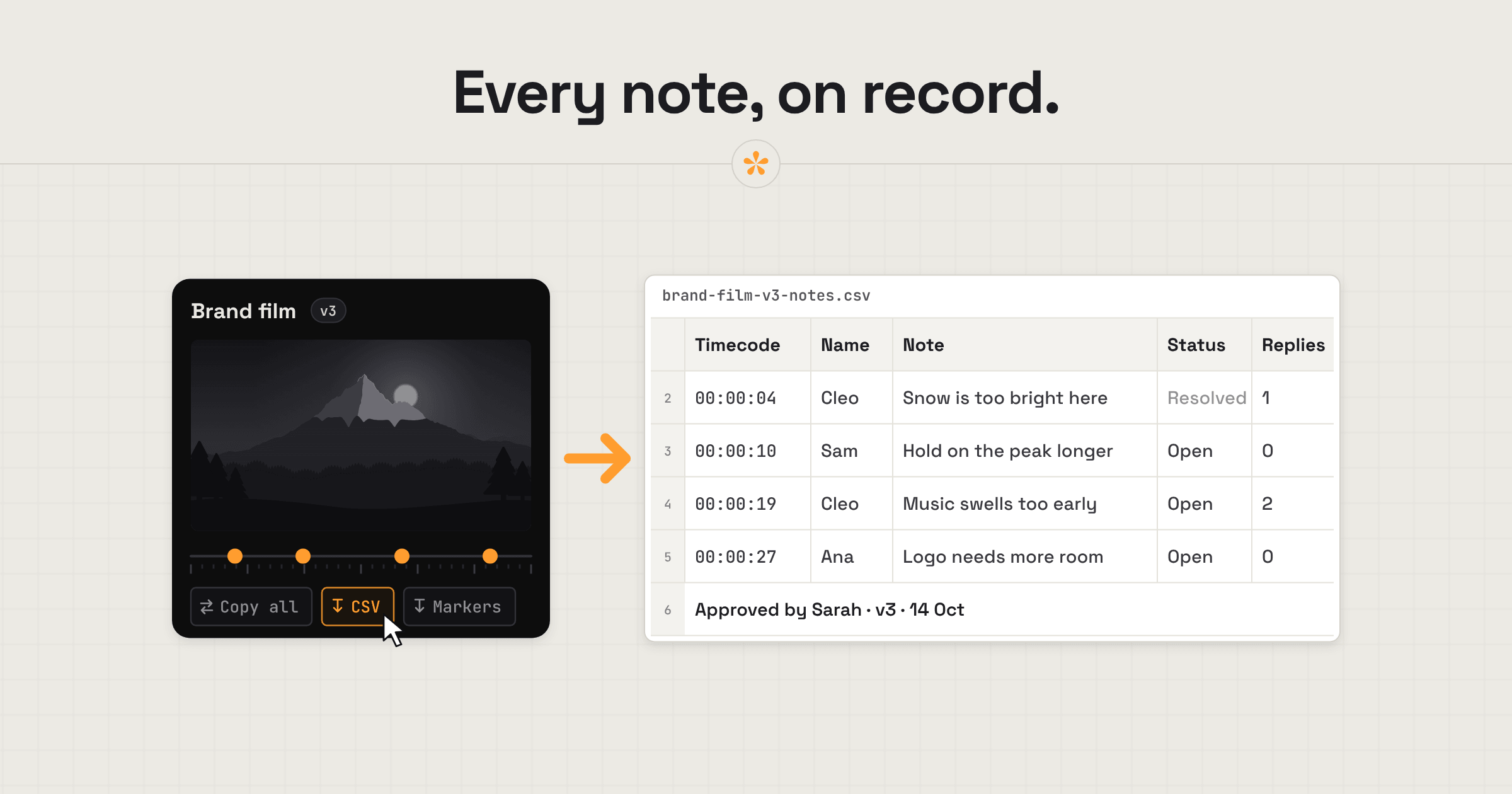
To export video review notes to a spreadsheet, use a video feedback tool like SceneNote to collect comments, then download them as a CSV file. The export includes each note's timecode, author, status, replies, a link back to the comment and approval details. Open it in Excel, Google Sheets or Numbers to sort feedback, track changes or keep a record of the review round.
The short version
- Open the project and choose the version the notes are on.
- Click CSV, below the notes.
- Open the file in Excel, Google Sheets or Numbers.
- Sort by timecode, filter by status, and add any columns you need.
ON THIS PAGE · 8 SECTIONS
Why put video review notes in a spreadsheet?
Putting video review notes in a spreadsheet makes sense when you want to track them, keep them or share them outside the review room.
- Tracking a lot of notes. Say a producer is tracking a couple of hundred notes on a documentary cut. A sheet with a column for who's fixing what keeps the whole team on top of it.
- A record of the round. The CSV shows what each round asked for, who said it and who approved. That's useful if a client later disputes what was agreed, or when extra rounds need invoicing.
- A round-up for someone who never opens the link. A stakeholder who wants a weekly summary can get the sheet instead.
- Handing notes over. An assistant or a VFX artist who works from a list can take the sheet and get on with it.
How do you export the notes, step by step?
To export video review notes to a spreadsheet, use the CSV button below the notes in SceneNote.
- Open the project and choose the version. The CSV covers the version on screen.
- Click CSV. For an uploaded video, the file downloads straight away. For a YouTube, Vimeo, Drive or Dropbox link, SceneNote asks for the frame rate so it can add a Frame column; you can skip it and export without one.
- Open it in your spreadsheet app. Excel and Numbers open a CSV directly. In Google Sheets, choose File, Import and upload the file.

What's in the file?
The CSV has one row per note, with the columns below. If the version has been approved, the last note row says who approved it and when.
| Column | What it's for |
|---|---|
| Timecode | Where the note is, so you can sort the sheet in timeline order. A range note shows where it starts |
| Seconds | The same moment in seconds, handy for sorting or formulas |
| Frame | The frame number, when SceneNote knows the frame rate |
| Name | Who left the note |
| Note | The note itself, in full |
| Status | Open, resolved or general, so you can filter what's left |
| Replies | The conversation under the note, with who said what |
| Link | Opens that note in SceneNote, on its exact moment |
Polls get their own row for the question and one row per answer with its votes. For an image set, the CSV lists each note by image instead of by timecode, and drawings are marked [drawing].
How do you use the CSV as a checklist?
To use the CSV as a checklist, sort it, filter it and add your own columns.
- Sort by timecode, so the notes run in timeline order.
- Filter by status to show only the open notes.
- Add a column for who's fixing what, and another for done, if the team wants to tick things off in the sheet.
- Keep the file with the project as the record of that round.
Spreadsheet, markers or Copy all?
SceneNote gives you three ways to take notes out of the review room, and each suits a different job.
| CSV | Markers | Copy all | |
|---|---|---|---|
| Where the notes go | A spreadsheet | Your Premiere Pro or DaVinci Resolve timeline | Your clipboard, as plain text |
| Best for | Tracking, keeping a record, sharing a list | Working through notes as you edit | Pasting into an email, Slack or a group chat |
| What it carries | Timecode, author, note, status, replies, link, approval | The note and the reviewer's name, on its frame | Every note, starting with who approved |
How to get client notes into your editing software covers markers.
What does this look like on a real project?

I use the CSV as a log. Every note, who left it, whether it's done and what was said about it, all in one file I can pass to whoever needs it. If questions come up later about what was done, or about some detail of a change, it's the source of truth I go back to.
It's especially useful when a project goes past the revision rounds I'd usually allow for. The CSVs from those extra rounds show everything that went beyond the original scope of work, which makes invoicing for it much easier.
And when someone asks to be brought up to speed, I send them one clean CSV instead of asking them to go through every note. You can even give the CSVs from each version to an AI assistant and ask it to summarise the work done on each one.
How to handle common problems
The notes are from the wrong version
The CSV covers the version on screen. Choose the right version above the player, then click CSV again.
Someone only needs the open notes
Filter the Status column to open, or resolve the done notes in SceneNote before you export.
A very long note is hard to read
The CSV keeps every note in full. Turn on text wrapping for the Note column in your spreadsheet app.
FAQ
Can I import the CSV into Premiere Pro or DaVinci Resolve as markers?
No. Neither app reads a CSV as markers. Use the Markers button for that: EDL, XML or CSV: which file gets notes into your editor? explains why.
Does the CSV include replies?
Yes. Each note's replies are in its row, so the conversation travels with it.
Can I export the notes from every version at once?
Each CSV covers one version. Export each version you need; together, they're a record of every round.
Does the CSV say who approved?
Yes. It includes a row with who approved the version and when.
What's the simplest way to get video review notes into a spreadsheet?
Choose the version, click CSV, and open the file in Excel, Google Sheets or Numbers. Sort by timecode, filter by status, and keep it as the record of the round.
Every note, ready to sort and share.
Export feedback, replies and approvals as a CSV for Excel, Google Sheets or Numbers.
Related guides
Kiril Dobrev
Filmmaker · part of the team behind SceneNote
Kiril Dobrev is a filmmaker with 15 years of experience and a passion for documentary and travel. He’s spent a lot of that time in the editing room, obsessing over how to make his workflow better, and the feedback loop has always been a big part of that. Post-production still hasn’t had a good enough answer to it. SceneNote was born from that, with one simple idea: make feedback better.
More guides by Kiril →