
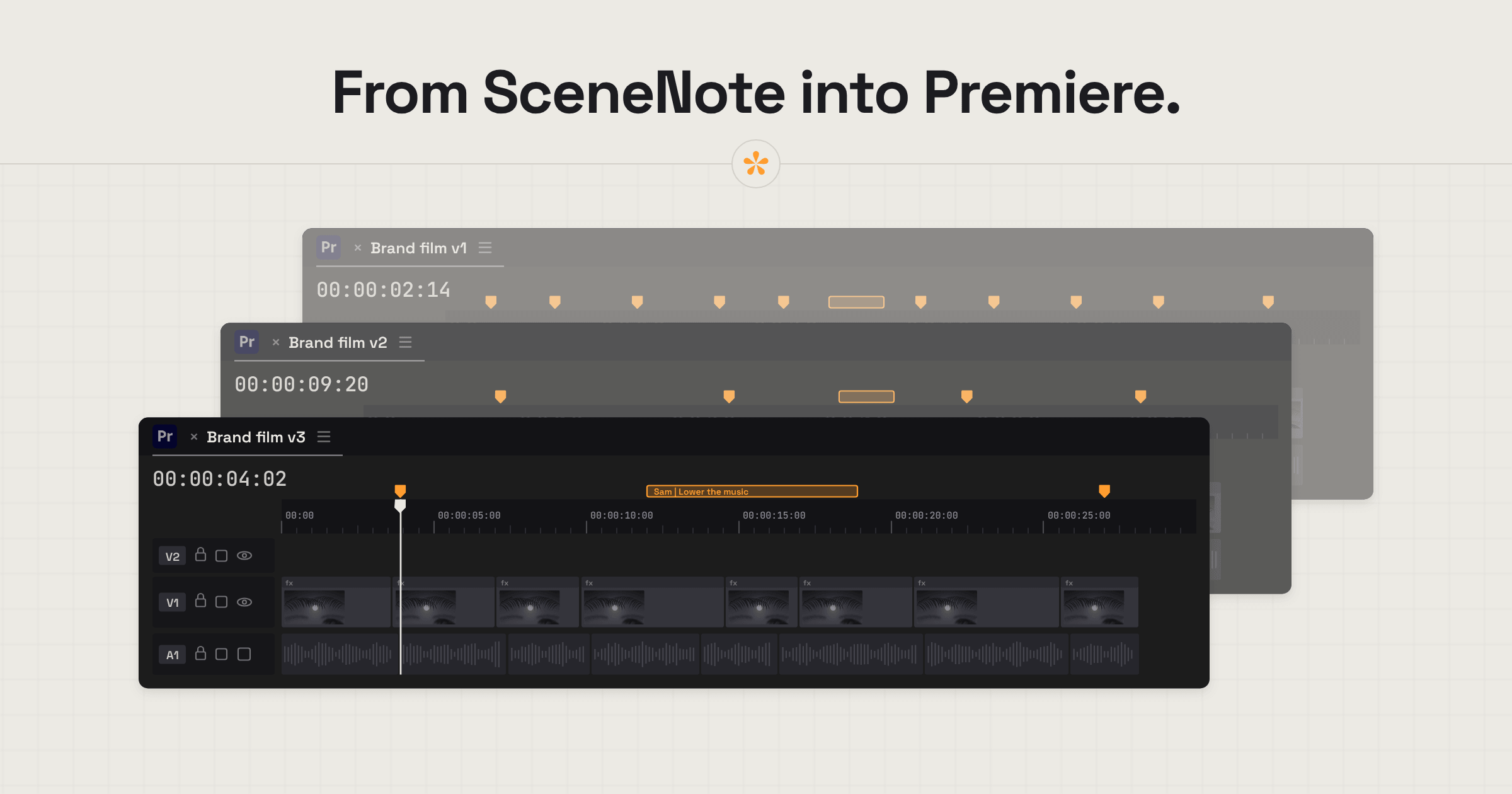
To import review comments as markers in Premiere Pro, collect timestamped client feedback using a video review tool like SceneNote, then export the notes as an XML file using Markers → Premiere Pro (.xml). In Premiere, choose File → Import to open the file as a new sequence containing your review notes as markers. Copy a clip from that sequence into your edit with Copy Paste Includes Sequence Markers enabled.
The short version
- Open the project in SceneNote and choose the version the notes are on.
- Click Markers and choose Premiere Pro (.xml).
- In Premiere, choose File, Import, and pick the file. It opens as a new sequence with the markers.
- Put any clip in that sequence (an adjustment layer works) and copy it.
- Turn on Markers, Copy Paste Includes Sequence Markers.
- Paste into your edit with the playhead at the start of the video.
ON THIS PAGE · 9 SECTIONS
When do review comments as Premiere markers help?
Review comments as Premiere markers help when you'd rather work through feedback on the timeline. Most of the time the review room is all you need, but on some jobs markers save real time.
- A long list of notes. Work through a brand team's notes overnight in timeline order, without flicking back to the browser.
- A producer in the browser, editors in Premiere. The producer reviews on the link, and the editors get every note as a marker.
- Several stakeholders on one cut. Each marker carries the reviewer's name, so you can see whose note is whose.
- Handing over. An assistant editor can bring the agreed notes onto their own timeline.
Step 1: How do you export Premiere markers from SceneNote?
To export Premiere markers from SceneNote, use the Markers button below the notes.
- Open the project and choose the version. The export covers the version on screen.
- Click Markers, then Premiere Pro (.xml). There's no start time to set: Premiere counts from the start of the sequence.
- For a link project, type in the frame rate when asked, decimals included, such as 23.976. Uploaded videos already know theirs.
- The file downloads, and a short how-to pops up with the steps below.
Step 2: How do you import the file into Premiere?
To import the file into Premiere Pro, use File, Import.
- In Premiere, choose File, Import, and pick the .xml file SceneNote saved.
- A new sequence appears in your project, carrying every note as a marker.
Step 3: How do you copy the markers into your edit?
To copy the markers from the imported sequence into your edit, copy a clip with its markers and paste it at the start of your video.
- Put any clip in the imported sequence. An adjustment layer works well, since it doesn't change the picture.
- Copy that clip.
- Turn on Copy Paste Includes Sequence Markers in the Markers menu.
- Paste into your edit with the playhead at the start of the video. The markers land at the right frames.
What does each marker show?
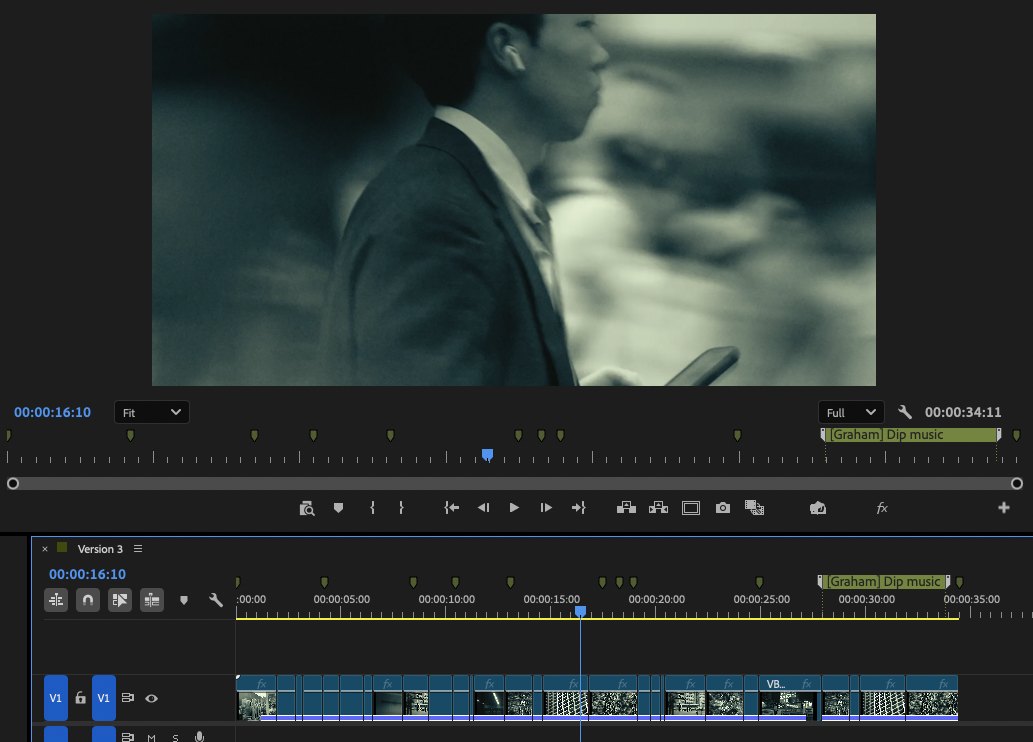
Every SceneNote note becomes a Premiere marker named with the note itself, like “Hold on her reaction a beat longer”. Who wrote it, and any replies, are in the marker's comments. Open notes are orange and resolved notes green.
| The note in SceneNote | The marker in Premiere |
|---|---|
| Any note | An orange marker named with the note (up to 60 characters), with who wrote it, the rest of a long note and any replies in its comments |
| A range note | A marker that spans the whole range |
| A general note | A marker on the first frame, tagged [General] |
| A poll | A marker tagged [Poll], with the results |
| A resolved note | A green marker, tagged [Resolved] |
| A voice note | Its transcript, or “Voice note” if there were no words |
| A note with line breaks | Kept in the comment |
Premiere markers or a CSV checklist?
Premiere markers and a CSV do different jobs. Markers put the notes on your timeline; the CSV gives you a list you can sort, filter and keep.
| Premiere markers | CSV checklist | |
|---|---|---|
| Where the notes go | On your timeline, at their frames | In a spreadsheet |
| Best for | Working through notes as you edit | Tracking who's fixing what, keeping a record of the round, or sending every note to someone by email or message |
| What it carries | The note, the reviewer's name and its tags | Timecode, author, note, status, replies, a link to each note and who approved |
How to export video review notes to a spreadsheet covers the CSV.
What does this look like on a real project?

When a round of changes goes to an assistant editor cutting in Premiere, I send them the XML. They import it, paste the markers onto their edit, and every note is there at its frame. There's no need to keep the browser open beside the timeline to know what's left to change.
It's a record, too. We save versions of the sequence as the edit moves on, and each round's markers travel with the version they belong to. Looking back at an older sequence shows what was asked for at that point, on top of the full history in SceneNote.
How to handle common problems
The markers land in the wrong place
Paste with the playhead at the very start of the video in your edit. If the edit starts later in the sequence, put the playhead where the video starts, not at the start of the sequence.
The markers don't come across when you paste
Check that Copy Paste Includes Sequence Markers is turned on in the Markers menu, then copy and paste the clip again.
The notes are from the wrong version
The export covers the version on screen. Choose the right version above the player in SceneNote, then export again.
An EDL or CSV won't give you markers
Premiere doesn't turn an EDL or a CSV into markers. In our own tests, an EDL came in as a sequence of tiny offline clips. That's why SceneNote exports an XML for Premiere. EDL, XML or CSV: which file gets notes into your editor? explains the difference.
FAQ
Do the markers update when the client adds new notes?
No. Each export is a snapshot. When new notes come in, export again and import the new file.
Why does Premiere import the markers as a new sequence?
That's how Premiere reads an XML file: as a sequence. Copying a clip from it with its markers is the quickest way to move them onto the edit you're working on.
Are the markers frame accurate?
Yes. SceneNote places each note at the video's true frame rate, including 23.976 and 29.97.
Can I see the whole note on the timeline?
The marker's name holds the note, up to 60 characters. If a note is longer, open the marker to read the whole note in its comments.
What's the simplest way to get review comments into Premiere Pro?
In SceneNote, click Markers and choose Premiere Pro (.xml). In Premiere, import the file, copy a clip from the new sequence with Copy Paste Includes Sequence Markers on, and paste it into your edit at the start of the video.
Notes straight into your Premiere project.
Built to fit into your workflow!
Related guides
Kiril Dobrev
Filmmaker · part of the team behind SceneNote
Kiril Dobrev is a filmmaker with 15 years of experience and a passion for documentary and travel. He’s spent a lot of that time in the editing room, obsessing over how to make his workflow better, and the feedback loop has always been a big part of that. Post-production still hasn’t had a good enough answer to it. SceneNote was born from that, with one simple idea: make feedback better.
More guides by Kiril →