

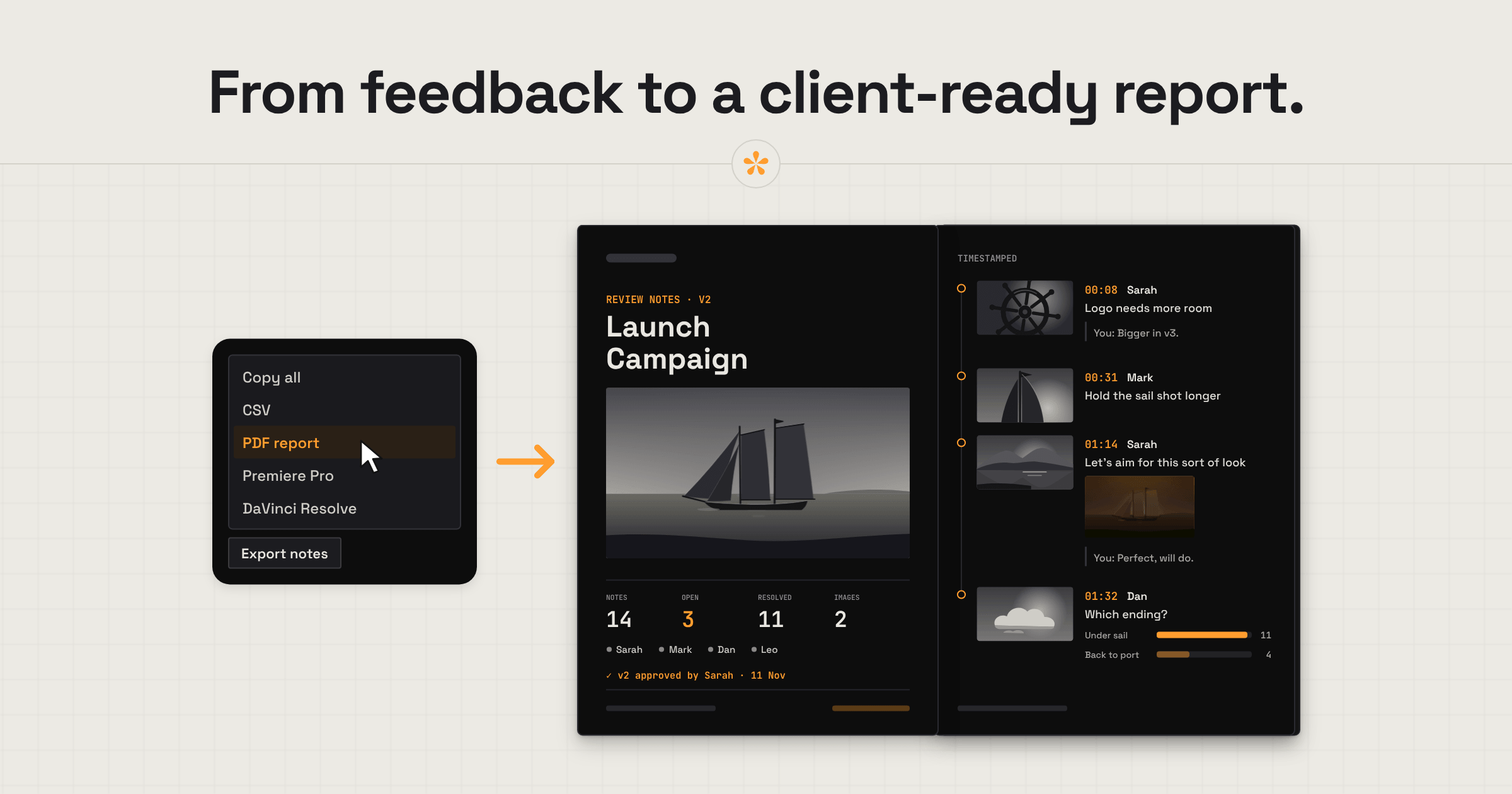
To export video review notes as a PDF, open your project in SceneNote, select the version and choose Export notes, then PDF report. You get a beautifully designed report of every note on that version, with timecodes, frame stills from uploaded videos, drawings, replies, polls, images and who approved it, ready to put in front of a client, hand over to an editor or keep as a record of the round.
The short version
- Open the project and choose the version the notes are on.
- Click Export notes, below the notes.
- Choose PDF report.
- Open the PDF that downloads, and send it or save it with the cut.
ON THIS PAGE · 8 SECTIONS
What's in a video review PDF?
A video review PDF turns a whole round of feedback into one report that anyone can read, with no account and no review link. Flip through an example:
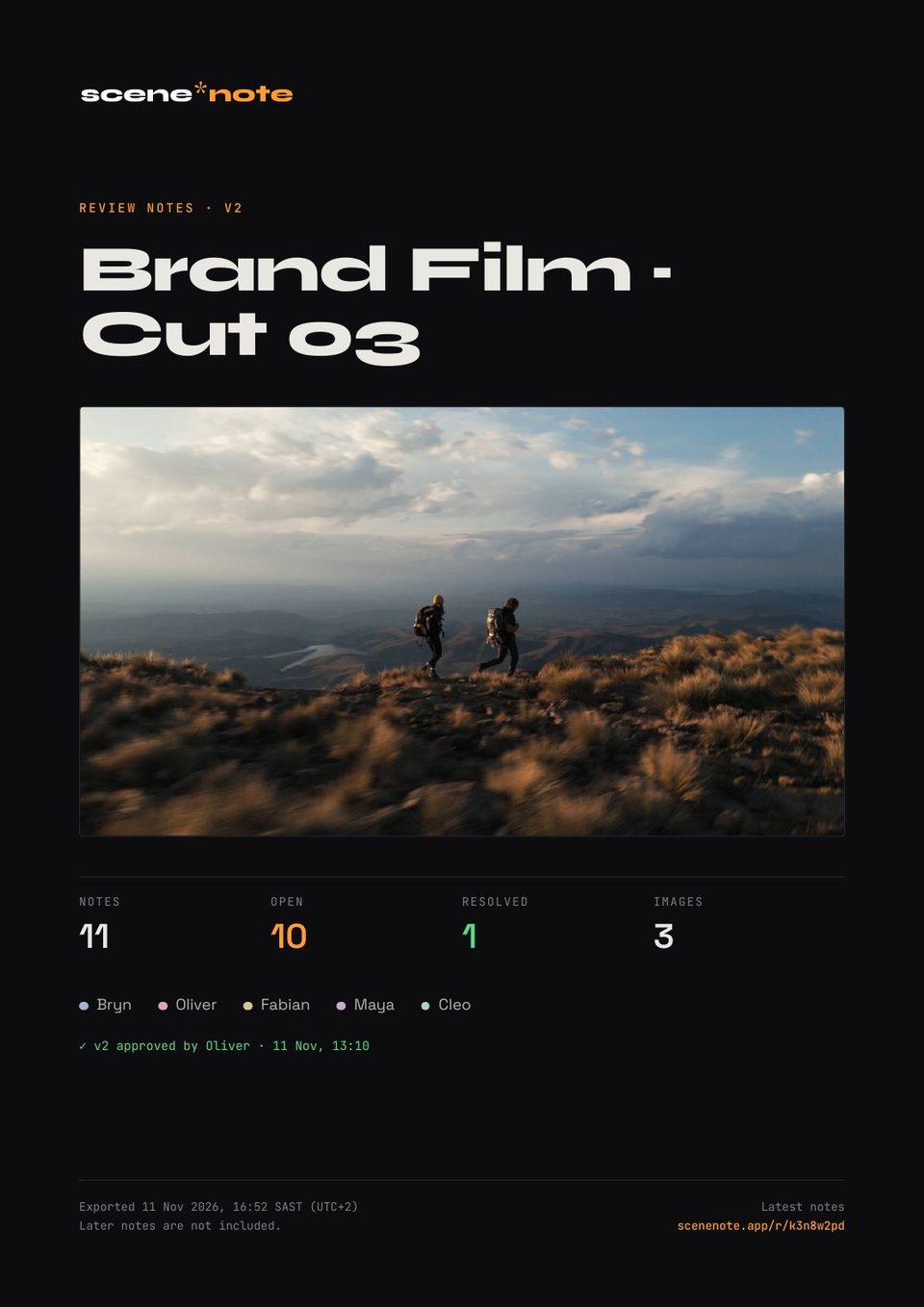
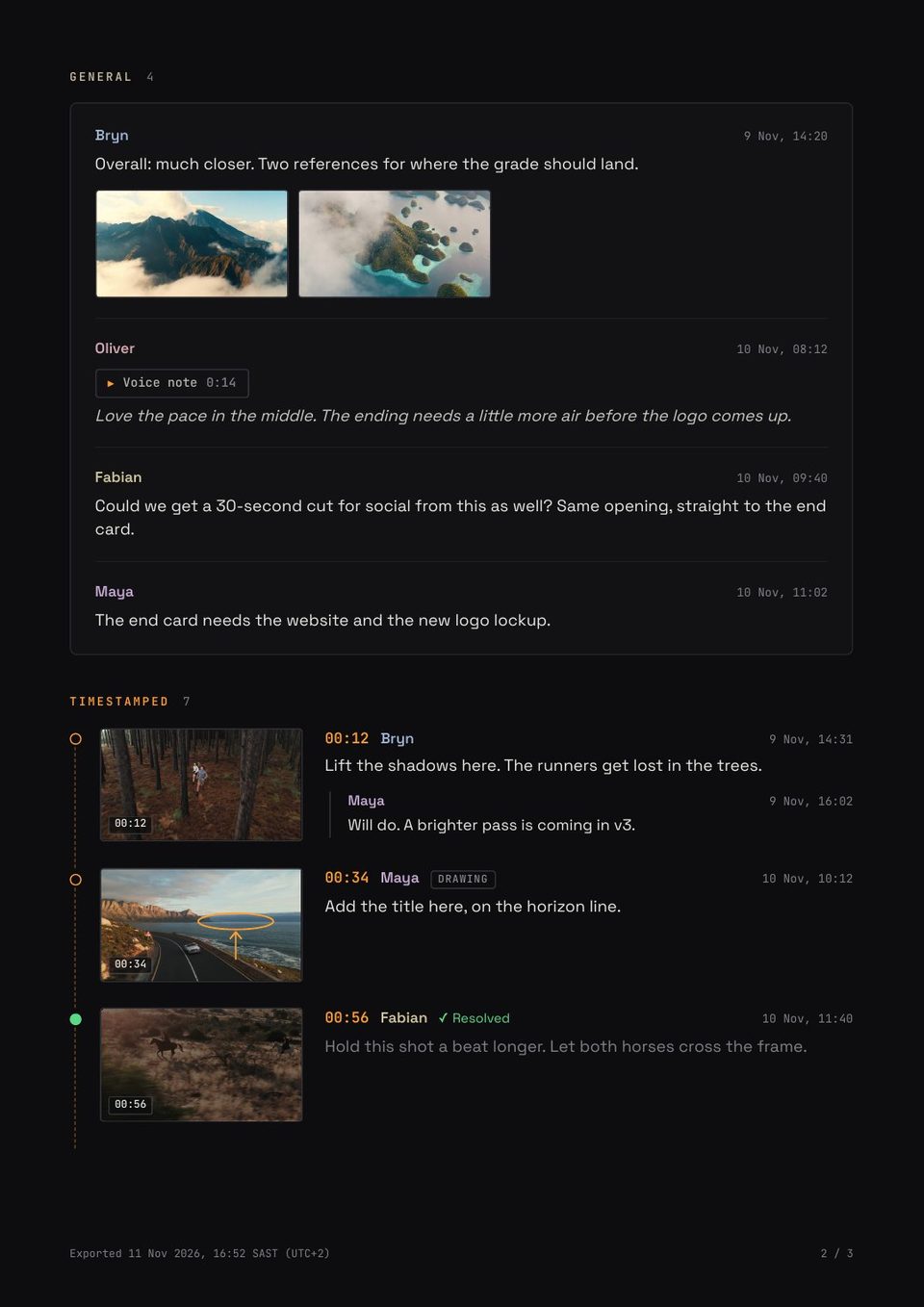
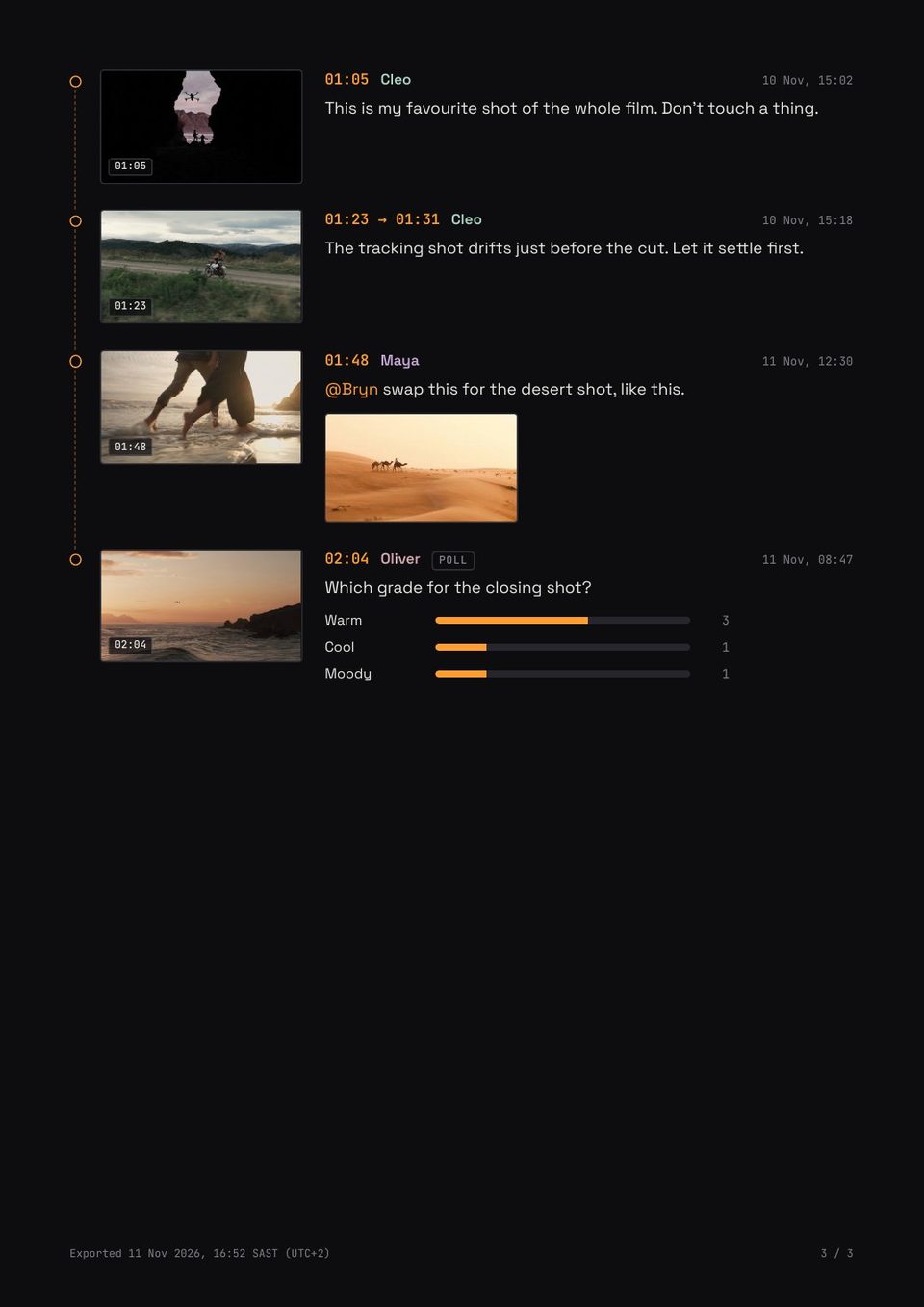
Depending on the feedback on your project, the report can include:
- A cover. The project name, the version, a picture from the video, how many notes are open and resolved, everyone who commented, and who approved the version and when.
- General notes, the comments about the whole cut, on a panel of their own.
- Timestamped notes on a timeline, each with its timecode and, for uploaded videos, a still of the matching frame. Range notes show their start and end times.
- Drawings, painted onto the frame they were drawn on.
- Voice notes, with their length and the transcript.
- Polls, with the result of every option.
- Replies and @mentions, under the note they belong to.
- Images people attached to their notes, up to four a note.
- Status. Open notes are marked in orange, resolved ones in green.
Every page says when the report was made, in the time zone of whoever made it, and that later notes aren't included. The cover also carries the review link, so a reader can open the latest notes.
How do you export a PDF report, step by step?
To export a PDF report, use the Export notes button below the notes in SceneNote.
- Open the project and choose the version. The report covers the version on screen.
- Resolve anything that's done, if you like. Resolved notes show in green and open ones in orange.
- Click Export notes, then PDF report. SceneNote does the rest.
- Open the PDF when it downloads.
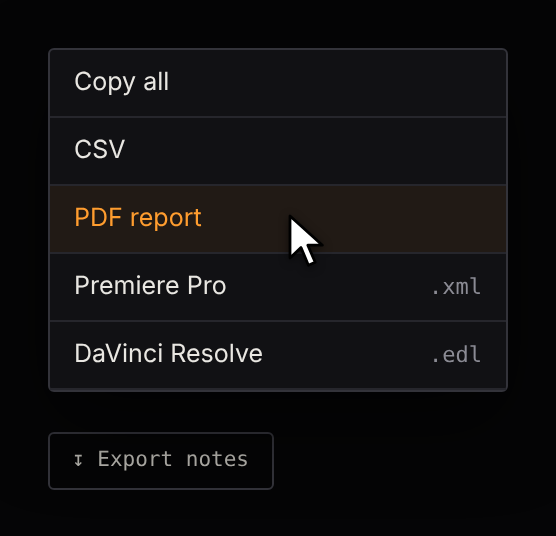
The PDF report is part of Pro. On a Pro project, the owner and every reviewer can make one from the same menu.
When should you export a feedback report?
Export a report whenever someone needs the feedback without opening the project, or when you want a record of where things stood.
| Use | Why it helps |
|---|---|
| Client reports | Send your client a clear, well-designed summary of a revision round. It's easier to digest than a list of notes, and easy to pass on to whoever needs to see it. |
| Editor handoffs | Pass every note, timecode and reference to an editor or another team member in one file. |
| A snapshot of each round | Save a PDF after v1, v2 and v3, so you can look back at what was asked for at each stage. |
| Decisions and approvals | Keep a record of who asked for what, how a poll came out and who approved the version. |
| Scope and extra rounds | A dated record of requests helps when a conversation turns to changes outside the agreed scope. |
| Stakeholders who won't open the link | A client or collaborator can read the feedback in their own time, wherever they read PDFs. |
| Archiving | Keep a readable record alongside the final video, the project files and the delivery paperwork. |
A producer finishes reviewing v2 with the client's team. She exports the PDF report, attaches it to an email with three lines on what matters most, and sends it to the creative team. The editor starts v3 knowing exactly what was asked, by whom, and what's already approved.
Hi everyone,
I've attached the feedback report from our latest review round. It brings together all the notes, discussions and decisions in one place, including what's still outstanding and what's been resolved.
We'll work through the remaining feedback and share the next version once it's ready.
Thanks!
PDF, CSV or markers: which export should you use?
A PDF is for people to read and pass around. A CSV is the notes as data. Markers put the notes on an editor's timeline. Copy all is plain text for a quick message.
| PDF report | CSV | Premiere Pro and DaVinci Resolve markers | Copy all | |
|---|---|---|---|---|
| Made for | People to read and pass around | Data: sorting, tracking and other tools | Editors and the post-production team | A quick message |
| Best for | Client reports, handoffs and records. It's just a file, so it's easy to send | Checklists and logs, or giving the notes to another app or an AI assistant | Working through notes on the timeline as you edit | Email, Slack or a group chat |
| Pictures | Frame stills on uploaded videos and direct file links, drawings and attached images | None | None | None |
| Opens in | Any browser or PDF reader | Excel, Google Sheets or Numbers | Premiere Pro or DaVinci Resolve | Anywhere you paste |
EDL, XML or CSV: which file gets notes into your editor? covers the other exports.
What does this look like on a real project?

On bigger productions, there's often a lot more communication with the client. They expect to be kept up to date on the project: what's been done and what's to come, and post-production is no exception. At each major milestone of the cut, I send out a version for review, and that often brings in a lot of notes, ideas, decisions and sometimes art direction (like references), from several people.
So once a round of revisions is closed, I like to send a report that lists everything that was suggested, discussed and agreed in that round. It keeps the line of communication open, and everyone has a clear picture of where we are in the process. A PDF gives them something easy to digest that they can pass around internally, including to people who were never on the review link.
Being able to spin up a beautifully designed, client-ready report in seconds makes my life so much easier.
How do you document a video review well?
A report is only as clear as the round behind it. A few habits make it much more useful:
- Give the project a clear name. It's the report's title and its file name.
- Export at the moments that matter: the end of each round, before a call about the notes, and when a version is approved.
- Resolve what's done and close any polls first, so the report shows where things really stand.
- Read it before you forward it. A PDF can reach people who were never on the review link, so check every note is fine for them to see.
- Save it with the cut it's about, next to the export and the project files.
How to handle common problems
A note came in after I exported
The report is a snapshot of the moment it was made, and the cover says so. Export again to include the new notes.
The report has the wrong version's notes
The report covers the version on screen. Choose the right version above the player and export again.
PDF report isn't in the menu
The PDF report is part of Pro, on video and audio projects. Reviewers on a free project won't see it, and it isn't on image sets or view-only links yet. If you own the project on a free account, it shows greyed out, with an example to look at.
FAQ
Does the person I send it to need SceneNote?
No. It's an ordinary PDF that opens anywhere. If they want to reply, the link on the cover opens the latest notes.
Does the PDF update when new notes come in?
No. It's a record of the moment you exported it. Export again whenever you need an up-to-date copy.
Why do some notes have no still?
Stills come from videos uploaded to SceneNote. YouTube, Vimeo and Google Drive don't let SceneNote take a frame from their players, and audio has no picture, so those notes appear on the timeline without one. Upload the video to SceneNote if you want a still of every moment.
Does it include replies, polls and approvals?
Yes. Replies sit under their note, polls show every result, and the cover says who approved the version and when.
Does it include the images people attached?
Yes, up to four a note. How to add images and visual references to video feedback explains attaching them.
Is a PDF better than exporting markers to my editor?
They do different jobs. A PDF is for reading and sharing; markers put the notes on your timeline so you can work through them as you edit. Many editors use both.
Can reviewers make a PDF too?
Yes. On a Pro project, anyone who can leave notes can export the report.
What's the simplest way to export video review notes as a PDF?
Choose the version, click Export notes and then PDF report. You get one designed report of every note, its replies and decisions, ready to send or keep.
Every round, in one report.
Turn notes, replies, polls and approvals into a professional PDF report you can share with anyone.
Included in Pro.
Related guides
Kiril Dobrev
Filmmaker · part of the team behind SceneNote
Kiril Dobrev is a filmmaker with 15 years of experience and a passion for documentary and travel. He’s spent a lot of that time in the editing room, obsessing over how to make his workflow better, and the feedback loop has always been a big part of that. Post-production still hasn’t had a good enough answer to it. SceneNote was born from that, with one simple idea: make feedback better.
More guides by Kiril →