

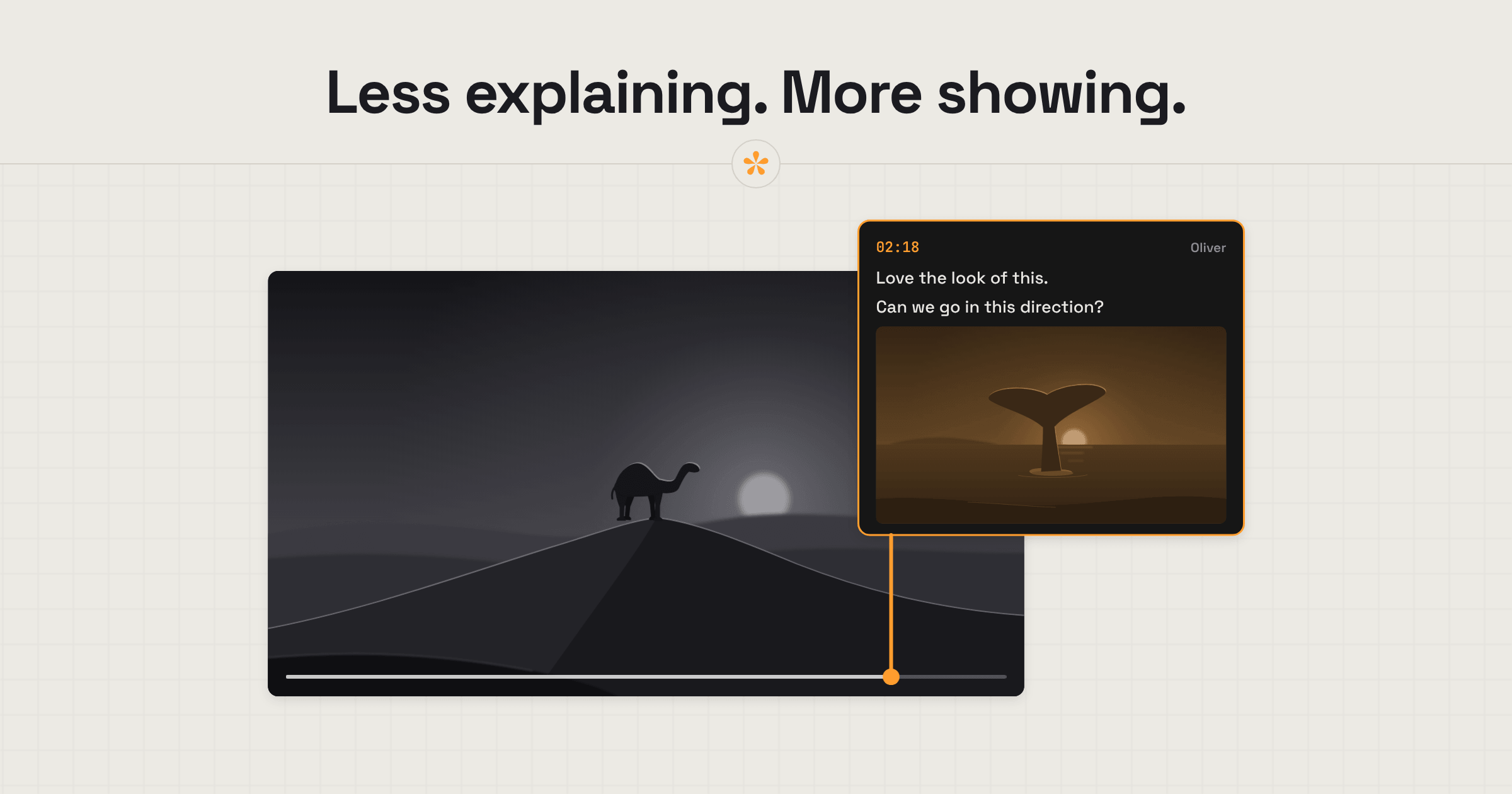
To add images to video feedback, attach them to a timestamped note: a screenshot, a reference still, a logo or a sketch. In SceneNote, click the image button in the note box, or paste or drop a screenshot in, and add up to five to any note. Reviewers can attach their own, and every image is also filed in the project's Images, where you can compare it with the frame.
The short version
- Pause on the moment and type your note.
- Click the image button, or paste or drop a screenshot into the note box.
- Add up to five images, then click Add note.
- Click an image to open it, or compare it with the frame.
- Find every attached image later in the project's Images, in the Attached folder.
ON THIS PAGE · 8 SECTIONS
Why show a change instead of describing it?
Showing a change works better than describing it because creative direction is hard to put into words. Written notes are fine for “trim this shot” or “the music is too loud here”. They struggle with a look, a style or a feeling. Compare these two notes on the same title:
Can we make the typography a little more modern? Maybe something like what Netflix uses.
Can we use a title treatment closer to this?

The first note leaves the editor guessing, and guessing costs a round. The second shows exactly what the reviewer means. That's the real value of images on notes: feedback becomes clearer, more specific and easier to act on.
People attach all sorts of things:
- Screenshots of a frame, a website or an ad they liked.
- Reference stills for a grade, a framing or a shot.
- Logos and brand assets, so the right version goes in.
- Title and type treatments to match.
- Sketches, even a phone photo of a drawing on paper.
- Thumbnail ideas for a YouTube video.
For the editor, it means fewer “what did you mean?” messages, and references that arrive on the note they're about instead of in a separate email.
How do you attach an image to a video note?
To attach an image to a video note, use the image button in the note box, or paste or drop the image in. On a Pro project, reviewers can attach images without creating an account, and so can the project owner.
- Pause where the change is and type your note. A note can also be just an image, with no words.
- Add the image. Click the image button in the note box, paste a screenshot (Ctrl+V, or ⌘V on a Mac), or drop a file onto the note box or the player. On a phone, the button opens your photo library or the camera.
- Add more if you need them, up to five on one note. Each shows as a small tile while it uploads, with a cross to take it off.
- Click Add note. The note lands on its moment, with the images under the words.
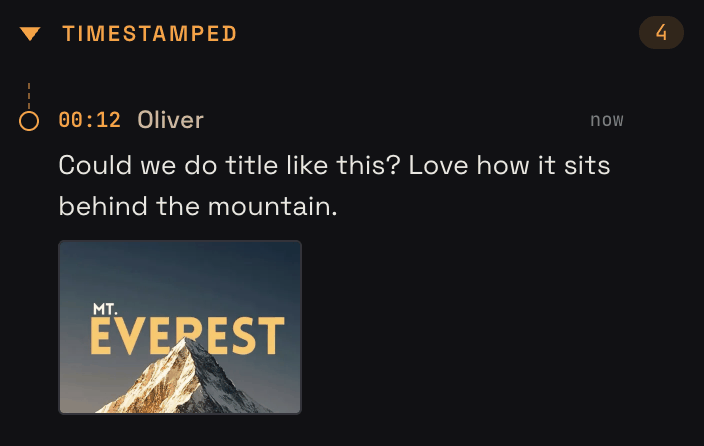
Replies work the same way, with their own image button, so a reviewer can answer “like this?” with a picture.
If the image is already in the project, there's no need to upload it again. The image button also shows the project's most recent images and every folder, so you can pick one. A picked image is linked to the note, not copied, and stays in its folder.
How do you compare a reference with the frame?
To compare a reference with the frame, click the image on the note, then Compare with frame. SceneNote jumps to the note's moment and puts the video frame and the reference together, using the same wipe, side by side and A/B views as comparing two versions.
- Click an image on a note. It opens in a larger view, ready to inspect or compare with the video frame.
- Click Compare with frame, or press C. The video jumps to the note's moment and pauses.
- Pick a view. Drag the wipe across, put them side by side, or flick between the two to spot the difference.
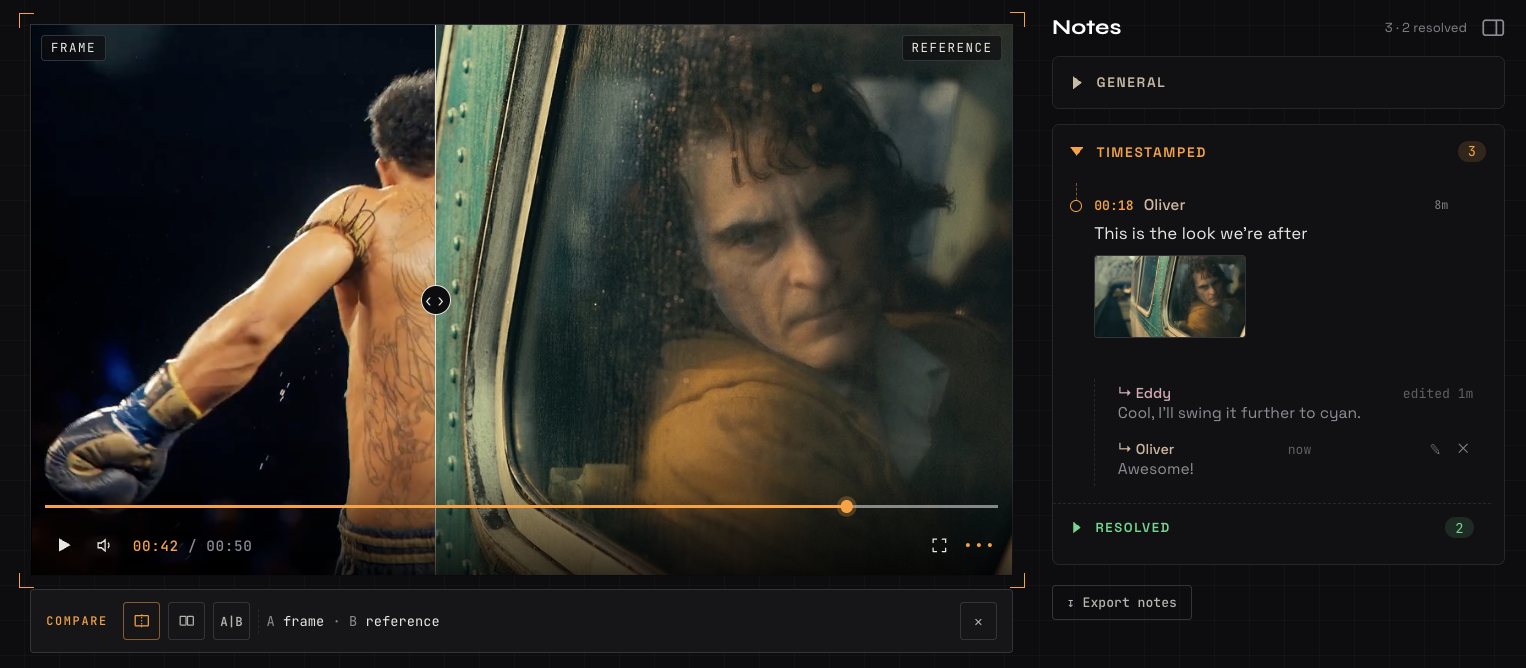
It's the quickest way to check a grade against a reference, match a framing, or see whether a logo sits where the brand guide says. It works with uploaded videos and links. On YouTube and Vimeo the two sit side by side, because their players can't have anything laid over them.
Where do the images go once they're shared?
Every image attached to a note is also filed in the project's Images, in a folder called Attached. They don't stay buried inside individual conversations: the collection builds up on its own as people leave feedback.
Switch from Video to Images at the top of the project to see them, alongside any other folders, such as Grade options, Thumbnails or References. Each attached image shows the note it came from, with its timecode, who left it and what they wrote, and Open in video takes you back to that moment.
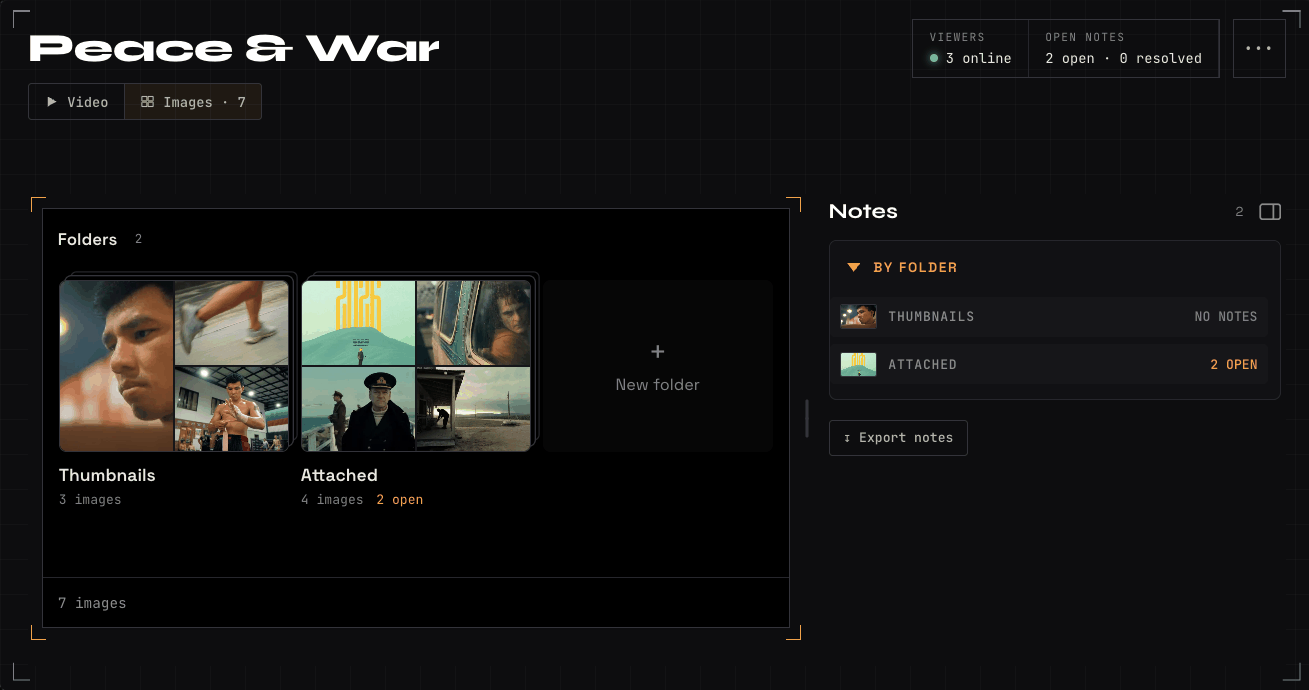
In Images, an image gets its own feedback too: pin a note on the part of a reference that matters, mark an area or draw on it. From any image on a note, Notes on this image opens it there. How to send images alongside a video for review covers the rest of Images.
What does this look like on a real project?

So many of my clients have visual ideas, but struggle to put them into words. What usually happens is that links get sent around, and it becomes a disorganised mess.
Links are limiting, too. Sometimes you want to point to something specific in a reference image, or put it up side by side with the video frame so you can actually compare the direction.
I'm so happy SceneNote has this feature. It makes it that much easier for my clients to explain their ideas to me, and for me to explain mine to them.
Who can attach images?
Images on notes is part of Pro. On a Pro project, the owner and every reviewer can attach images. On a free account, you can try it on one project of your choice with Try on this project, and it stays on for as long as that project exists. Reviewers never need an account either way.
How to handle common problems
There's no image button
The project is on a free account that hasn't been tried, comments are switched off, or you're on a view-only link.
Some images didn't attach
A note takes up to five. If you add more, SceneNote says how many were left out. Put the rest on a second note or a reply.
The reference is a different shape from the video
Compare with frame opens side by side when the shapes are very different, such as a portrait still against a widescreen frame, so the reference shows whole.
FAQ
Do reviewers need an account to attach images?
No. On a Pro project, reviewers add their name the first time they leave a note, as usual, and attach images without an account.
How many images can I add to one note?
Up to five, on a note or a reply.
Can I paste a screenshot straight in?
Yes. Copy a screenshot and paste it into the note box or a reply box.
Does it work on a phone?
Yes. The image button opens your photo library or the camera.
Are the images compressed?
SceneNote shows a lighter copy so pages stay quick, and keeps the original exactly as it was sent. Anyone who can see the note can download the original.
What happens to the images if a note is deleted?
Images uploaded with the note are deleted with it. An image picked from the project's Images stays in its folder.
Do attached images show up in exports?
Yes. The CSV has an Images column, and the PDF report shows up to four images a note. How to export video review notes as a PDF report covers it.
What's the simplest way to add a visual reference to video feedback?
Pause on the moment, type your note, and paste or attach the image. The editor sees exactly what you mean, can compare it with the frame, and finds it again later in the project's Images.
Show them what you mean.
Attach screenshots and references to any note, and compare them with the frame.
Included in Pro.
Related guides
Kiril Dobrev
Filmmaker · part of the team behind SceneNote
Kiril Dobrev is a filmmaker with 15 years of experience and a passion for documentary and travel. He’s spent a lot of that time in the editing room, obsessing over how to make his workflow better, and the feedback loop has always been a big part of that. Post-production still hasn’t had a good enough answer to it. SceneNote was born from that, with one simple idea: make feedback better.
More guides by Kiril →