
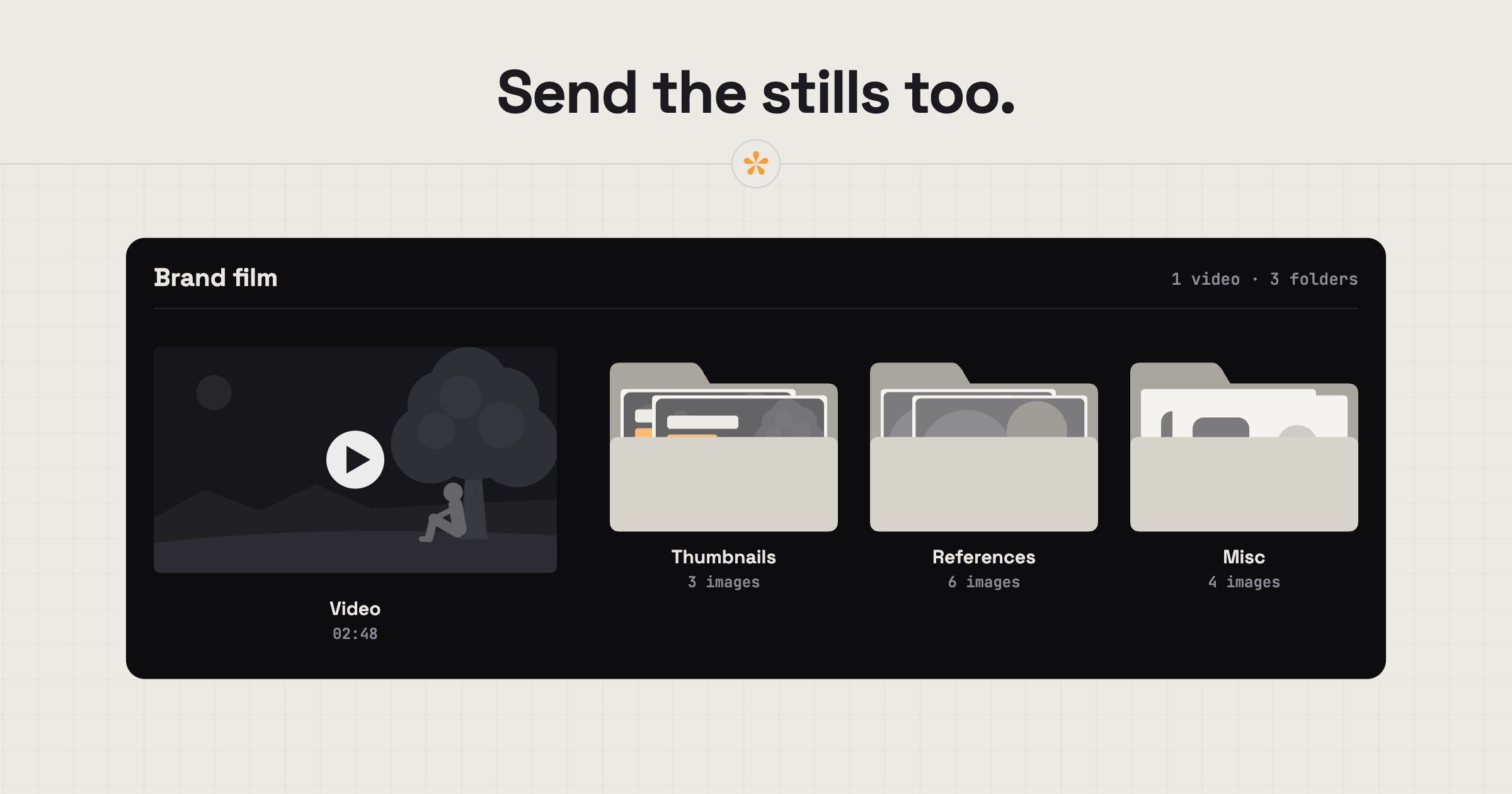
To send images alongside a video for review, put the stills in a SceneNote image set and send the client the link. They can pin notes to the exact spot (“move the title left”), mark an area, draw on the image, vote in a poll and approve. On Pro, your albums of stills actually live inside the video project itself, on the same link.
ON THIS PAGE · 7 SECTIONS
When would you send stills with a video?
You'd send stills with a video whenever they're part of the job. Some common ones:
- YouTube thumbnails, usually two or three options.
- Grade references, a few reference stills to agree on a look (contrast, saturation, warmth) before grading the whole film.
- Grade options, two or three versions of a graded frame for the client to choose between, compared side by side or with a wipe (Pro).
- Deliverable stills, frames pulled from the film as part of the job, or as a small extra for the client.
- Posters and key art for a documentary or a launch.
- Social crops, like the 4:5 and 9:16 versions of a key frame.
- Storyboard frames before anything is shot.
How do you set up an image set, step by step?
Setting up an image set in SceneNote takes a minute or two.
- Sign in on scenenote.app and choose Image set on the create card.
- Drop in the images. A free set holds 3 images; on Pro, a project holds up to 200.
- Send the client the review link, with a short note on what you need (“Which thumbnail, and any changes to the text?”).
On Pro, you can add the stills to the video project instead, so the cut and the images share one link. And you can sort them into folders however you like: one for thumbnail options, one for grade references, one for deliverable stills.
How does a client give notes on an image?
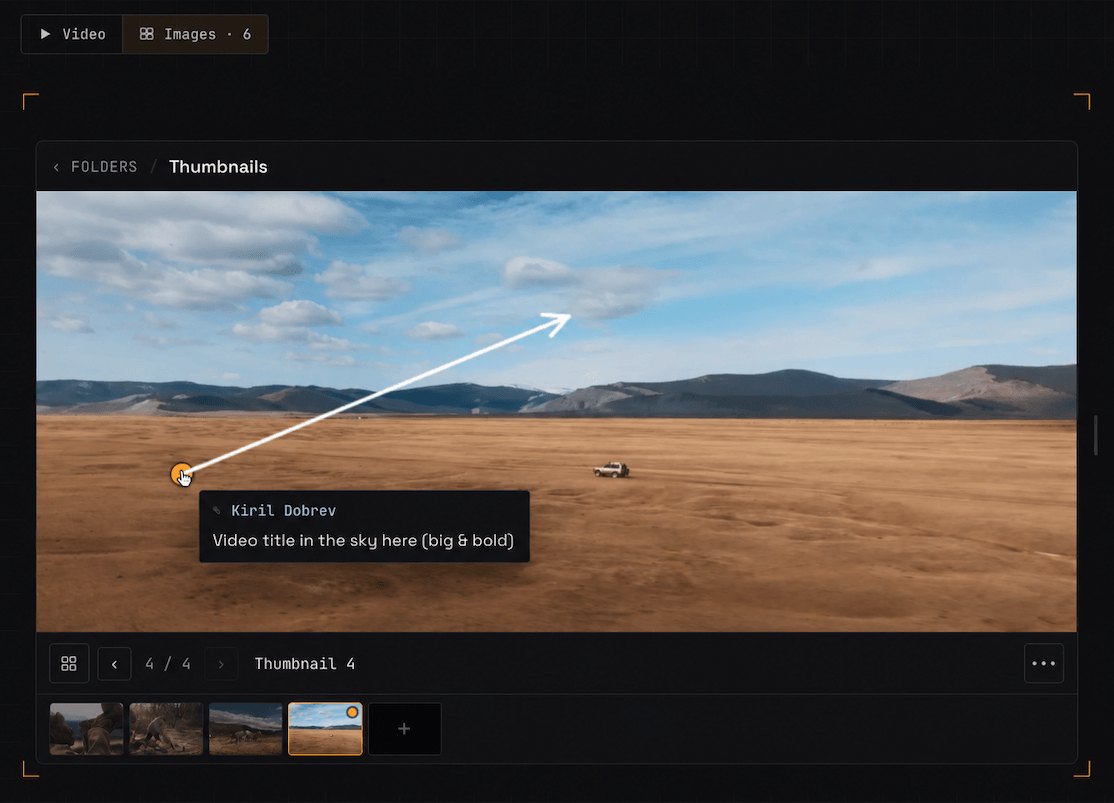
A client gives notes on an image the same way as on a video frame, just without the timeline.
- A pin on the exact spot: “Move the title left.”
- An area dragged around part of the image: “This bit of sky is too blue.”
- Drawing with pen or arrow, for anything easier to show than say.
- A reply on someone else's note.
- Approve, so their yes is on record.
Say you're choosing a thumbnail. The client points to a section (“Add the video title here”), drags an area over the text (“can this be bigger?”), and approves the version they like. Every note sits on the exact spot it's about.
How do you pick a thumbnail with your client?
To pick a thumbnail with your client, put the options in one image set and ask a poll.
- Upload two or three thumbnail options to an image set.
- Ask a poll: “Which thumbnail? A / B / C”. Hide results until people vote if there's more than one reviewer.
- Close the poll once there's a winner.
- Collect notes on the winner, like the crop or the text placement.
- Upload the revised thumbnail and ask for approval.
How many images can you share?
A free image set holds 3 images. On Pro, a video project holds up to 200 stills, organised into folders however you want.
What does this look like on a real project?

This is particularly useful for me at the start of a colour grade, or even before it. I'll put a few reference stills into an album marked References. Then we go through them with the client, leaving notes on each one and pointing at what we like and what we don't, until we land on a look. That way most of the big decisions are made before the grading begins.
Next, I grade one “hero shot” from our film and upload it as a still. That's what we're aiming for. If the client wants a touch more contrast or a little less saturation, they comment on it, and once they're happy, they approve it. Then I bring that still into my editor and treat it as my north star for the rest of the grade.
Sometimes I'll make two slightly different versions of the hero shot, with small tweaks to the contrast or the saturation, and let the client choose. A poll works really well for that. It's all about narrowing the look down to something everyone signs off on, and it makes everything easier afterwards.
FAQ
Does the client need an account to comment on images?
No. The client never needs an account. They open the link and type a name the first time they leave a note.
Which image formats can I upload?
You can upload JPEG, PNG and WebP images, and HEIC too if you're uploading from Safari.
Can I use an image set for vertical crops?
Yes. Images keep their shape, so 9:16 and 4:5 crops show as they are. How to get feedback on a vertical video covers short-form reviews.
Can I put images and video in the same project?
On Pro, yes. The video and its image sets sit in the same project, as two clear sections under the video's title. That keeps everything for the job in one place: the client reviews the cut, the thumbnail options and the grade references from one link, and every note stays with the project it belongs to. On the free plan, an image set is its own project with its own link.
How do you get feedback on stills alongside a video?
Put the stills in an image set, send the client the link, and let them pin, mark and draw on each one. Use a poll to choose between options, and ask for approval on the winner. On Pro, the image sets sit in their own tab right next to the video, in the same project.
Your video and stills. One review link.
Keep the cut, thumbnails and grade references together in one project.
Included in Pro.
Related guides
Kiril Dobrev
Filmmaker · part of the team behind SceneNote
Kiril Dobrev is a filmmaker with 15 years of experience and a passion for documentary and travel. He’s spent a lot of that time in the editing room, obsessing over how to make his workflow better, and the feedback loop has always been a big part of that. Post-production still hasn’t had a good enough answer to it. SceneNote was born from that, with one simple idea: make feedback better.
More guides by Kiril →