
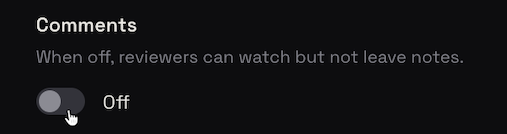
To share a video without inviting comments, turn off commenting before sending the viewing link. In SceneNote, open Project settings and switch Comments off. Viewers can still watch the video and read your description, but the comment box and existing notes are hidden. You can turn comments back on at any time, and the feature is free on every project.
The short version
- Open the project's settings (the gear).
- Switch Comments off.
- Add a description if you want to say a few words.
- Send the link.
- Turn comments back on whenever you want notes.
ON THIS PAGE · 5 SECTIONS
When do you want viewing only?
You want viewing only when the video is finished, or when you want it seen whole before anyone picks it apart.
- A finished film. The client has approved it; everyone else just gets to watch.
- A training video for a new assistant or a whole team.
- A project handover that's for reference, not discussion.
- A pitch or presentation you want seen whole before reactions come in.
- Part of a team who should see the edit without being asked for feedback.
How do you turn comments off, step by step?
- Open the project and click the gear for Project settings.
- Switch Comments off.
- Add a description, if you like. It shows in the About tab beside the video, which becomes the first thing people see.
- Send the link as usual.
On a screen recording, comments start off, and the same switch is called Allow comments in the recording editor.
With comments off, people see the video and the About tab, plus the transcript if you've shared one. There's no note box, no notes and no “would like your feedback” card. Notes already left are hidden, and come back when you turn comments on again. You see exactly what they see, with one line under the picture reminding you comments are off.
Comments off, Close feedback or a view-only link: which one?
All three stop new notes, in different ways. The one that suits you depends on whether the notes already left should stay visible, and whether anyone should still be able to comment.
| Option | What it does | Notes already left | Best for |
|---|---|---|---|
| Comments off (free) | Hides the note box and the notes for everyone on the link | Hidden until you turn comments back on | A finished film, a training video |
| Close feedback (free) | Stops new notes and replies, but keeps every note visible | Visible, read-only | The end of a review round, once it's approved |
| View-only link (Pro) | A second link that can watch and read notes, but never write | Visible | People who should see the project while the client keeps reviewing |
The difference that matters most: Comments off and Close feedback apply to everyone with the link. A view-only link is a separate link, so the client keeps reviewing on theirs while the wider team only watches. You make one from the Share pop-up on Pro.
Close feedback sits in Project settings, under Review. You can reopen feedback whenever you need to.
What does this look like on a real project?

On a recent project, a client asked to see the latest cut while we were between revision rounds. They knew exactly where we were in the process, but I also knew the link would probably get passed around their team, and not everyone would have that context.
The last thing I wanted was a whole new set of notes coming in when we weren't actually asking for feedback. And the thing is, when someone opens a video and sees a comment box, it almost feels like an invitation to leave their thoughts.
So I simply turned comments off. Everyone could still watch the cut and see where things were at, without accidentally kicking off another review round. It's a small detail, but having that control is so much easier than trying to explain to everyone that you're sharing something for viewing, not feedback.
FAQ
Can I turn comments back on later?
Yes, at any time. Notes left before you turned them off come back too.
Is turning comments off a paid feature?
No. It's free on every project, uploaded or from a link.
Does it work on YouTube, Vimeo or Google Drive links?
Yes. Comments off works the same on any project, whatever the video's source.
Will people know comments are off?
They see the video and the About tab, with no note box, so there's nothing to look for and nothing that feels missing.
Will a viewing-only video show up in search engines?
No. Review links are never indexed by search engines.
What's the quickest way to share a video for viewing only?
Turn Comments off in Project settings, add a short description if you like, and send the link. People watch, with no note box, and you can turn comments back on whenever you want notes.
Share it to be watched, not debated.
Turn comments off for a clean viewing experience. Switch them back on whenever you need.
Related guides
Kiril Dobrev
Filmmaker · part of the team behind SceneNote
Kiril Dobrev is a filmmaker with 15 years of experience and a passion for documentary and travel. He’s spent a lot of that time in the editing room, obsessing over how to make his workflow better, and the feedback loop has always been a big part of that. Post-production still hasn’t had a good enough answer to it. SceneNote was born from that, with one simple idea: make feedback better.
More guides by Kiril →