
To reply to video feedback with a screen recording, show the relevant footage or timeline while you explain what you've tried, what's possible and what you'd recommend. In SceneNote, you can record your screen in the browser and share the recording as a reply to the original note. The client can see exactly what you mean, and the conversation stays in one place.
The short version
- Pick the notes that need more than a sentence.
- Record your screen, showing your answer.
- If you're answering several notes, add a chapter for each.
- Reply under the original note with the link.
- Keep the conversation on that note.
ON THIS PAGE · 6 SECTIONS
When is a recording better than a written reply?
A recording is better when the answer is easier to show than to describe, or when a written “no” might land badly. Most notes only need a quick reply, or just the change. Record your reply when:
- The shot they asked for isn't working. Show them the rushes and the realistic options, so they can see what you have to work with.
- You tried it and it didn't work. Play the version they asked for next to the one you went with, in context.
- There are options to weigh up. Play two music tracks or two endings against the cut. For a straight choice, a poll may be quicker: see How to let a client choose between edit options.
- A technical limit is in the way. A colourist can show why a requested look clips the highlights, rather than explain it.
- The change is bigger than it sounds. Walk the director through what a change of structure would mean for the rest of the film.
Whatever the reason, keep it helpful. You're showing them what you found, not defending the edit.
How do you reply with a screen recording, step by step?
- Open what you want to show: the rushes, the other take, or your timeline.
- In SceneNote, choose New project, then Record screen. Give it a clear title, like “Re: the drone shot at 1:12”.
- Record your answer. Keep it to the point: what they asked, what you found, what you suggest.
- If you're answering several notes, add a chapter for each, named after the note.
- Save it and copy its link.
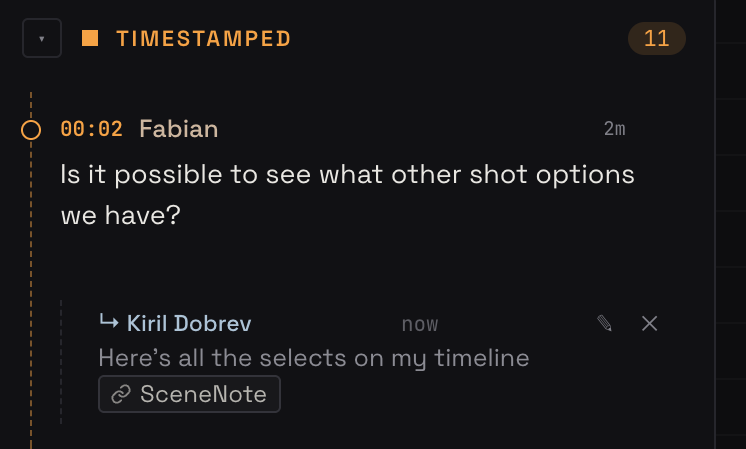
- Go back to the original project and reply under the note with the link. It shows as a link chip that opens in a new tab.
Recordings start with comments off. For a reply, that's often what you want: the conversation stays under the original note, in one place. Turn comments on if you'd like them to react to particular moments in the recording.
What should you say?
Say three things, in this order: what they asked, what you tried or found, and what you suggest. Here's a script you can adapt:
You asked about swapping the drone shot at 1:12 for something closer.
I've been through the rushes, and this is everything we have from that location. The two closer shots are soft, so I've kept the drone shot for now.
My suggestion: we keep it, and I trim a second off so we get into the interview sooner. Happy to swap it if you'd rather see one of the closer shots in the cut.
In your reply under the note, add one line so they know what's in the recording, such as “Here's a quick look at the rushes for this one, with my suggestion at the end.”
What does this look like on a real project?

There was one instance where the client was very particular about a hero shot that showcased the product. We'd gone through two rounds of trying different takes, and eventually I decided it would be easier to do a quick recording and show them my timeline of selects.
I could scrub through, talk through the realistic options and show them what was actually available. It also let me explain why I'd picked the candidates I did. Instead of the constant back and forth, all it took was a quick recording to walk them through it.
I find that clients often don't really understand the constraints, or why we do things the way we do, and sometimes they need a bit more context. This deals with both. We found a quick solution: the client understood the constraint, landed on a shot they were happy with, and it kept the project going forward.
How to handle common problems
The client still wants the change
That's their call. The recording made sure they decided with everything in front of them. Make the change, and keep the recording as a record of what you showed them.
You're answering lots of notes
Record one reply for the round, with a chapter for each note, and reply under each note with the same link. Say which chapter is theirs.
The recording is getting long
Answer the one thing they asked. If there's a lot more to discuss, that's probably a call.
FAQ
Does each reply recording count as a project?
Yes. A recording is an uploaded project, so on the free plan it counts towards your 2 uploaded projects at a time. A cut shared as a link (YouTube, Vimeo, Google Drive or Dropbox) doesn't count, so you have room for both. You can delete a reply once it's done its job, but its link will stop working. Pro has no limit on uploaded projects.
Should I reply with a recording or a voice note?
A voice note on the note itself, up to 60 seconds, is quicker when you only need to talk. Record your screen when they need to see something.
Can I record a reply on my phone?
No. Recording needs a browser on a computer. On a phone, a voice note on the note is the quickest way to explain.
Does the client need an account to watch it?
No. The link opens in any browser, on a computer or a phone.
What's the clearest way to answer a tricky client note?
Show them rather than tell them: record a short screen recording of what you found, say what you suggest, and reply under the original note with the link. The client decides with everything in front of them, and the conversation stays where it started.
Answer tricky notes by showing, not typing.
Recording is free with an account.
Related guides
Kiril Dobrev
Filmmaker · part of the team behind SceneNote
Kiril Dobrev is a filmmaker with 15 years of experience and a passion for documentary and travel. He’s spent a lot of that time in the editing room, obsessing over how to make his workflow better, and the feedback loop has always been a big part of that. Post-production still hasn’t had a good enough answer to it. SceneNote was born from that, with one simple idea: make feedback better.
More guides by Kiril →